Understanding AI Form Filling
TiQ is designed to provide you with the tools you need to make your day-to-day tasks easier. Among these tools are Practice Intelligence, and Transcribe iQ which includes the AI Form Filling feature. In this guide, we’ll show you how these features can help you complete Progress Notes quickly and efficiently.
With Transcribe iQ, users can generate AI-powered summaries for both telehealth and in-person sessions. In addition, the new AI Form Filling feature uses those transcriptions to automatically complete Progress Notes—helping you document faster without losing important clinical details.
Here is how to activate it:
Navigate to your TiQ profile, and select the Transcribe iQ permission.
IMPORTANT: Transcribe iQ is an Add-On Service. You must add a paid seat to your subscription before you can grant this permission. Click here to learn more about managing your TiQ subscription.
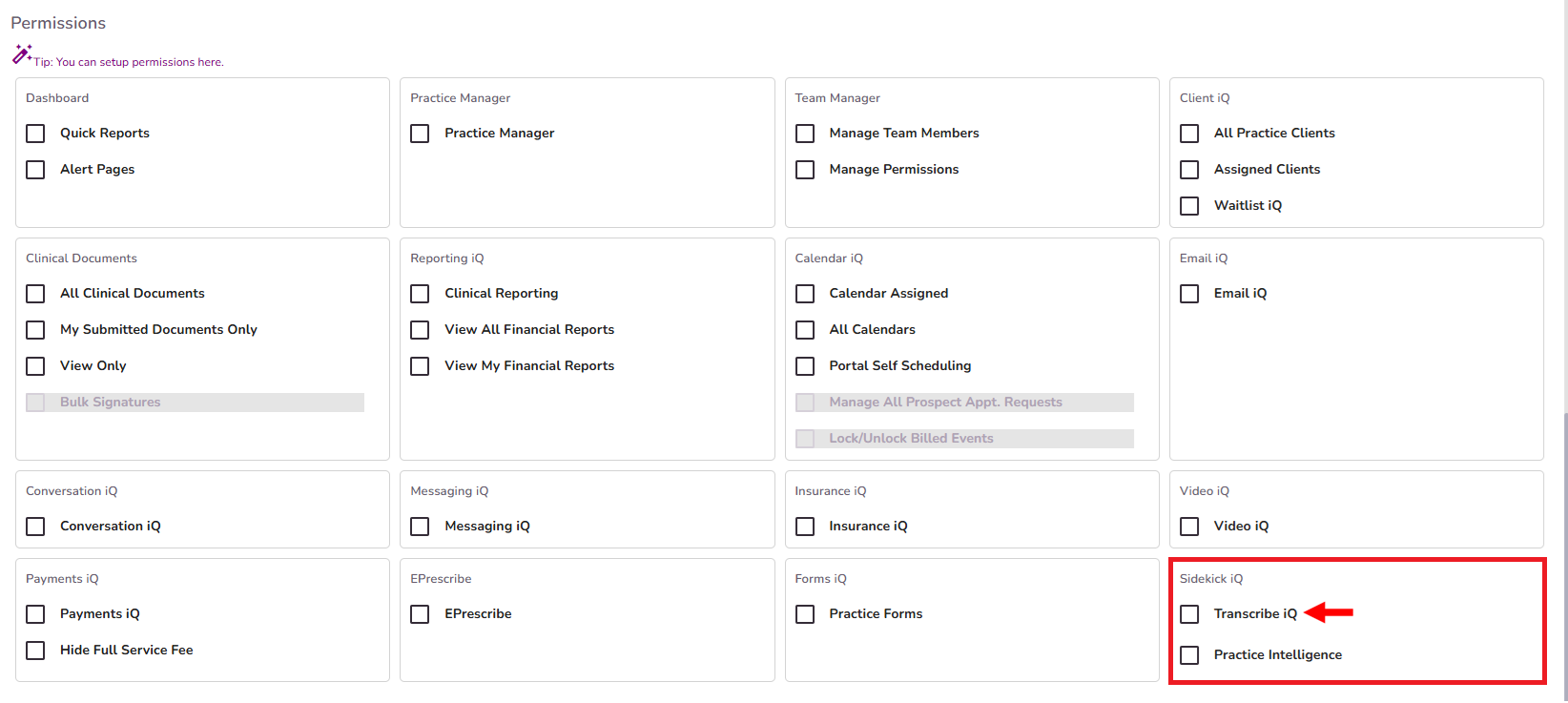
Once the permission is granted, you can start using Transcribe iQ in both Video iQ and in-person sessions. Click here to learn more about how to use Transcribe iQ in events.
How to use the AI Form Filling feature in Progress Notes
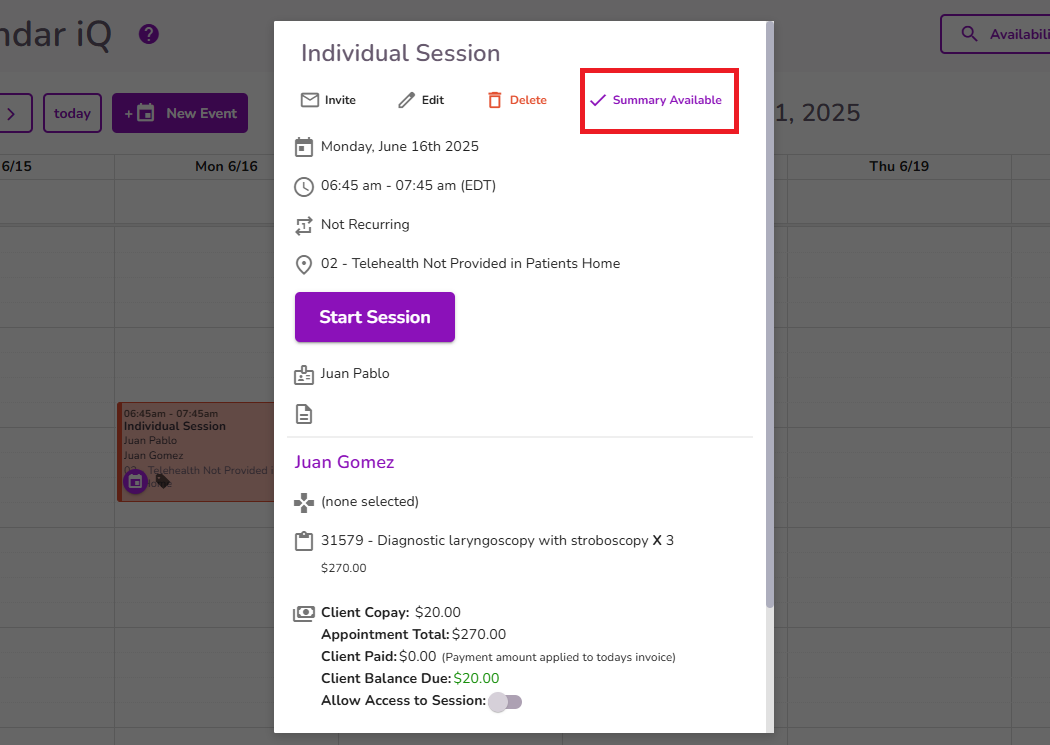
Once you see the Summary Available icon on the event, you can proceed to start your Progress Note.
Click here to learn how to complete a Progress Note from an event.
Inside the Progress Note, you’ll see the Fill With AI button available.
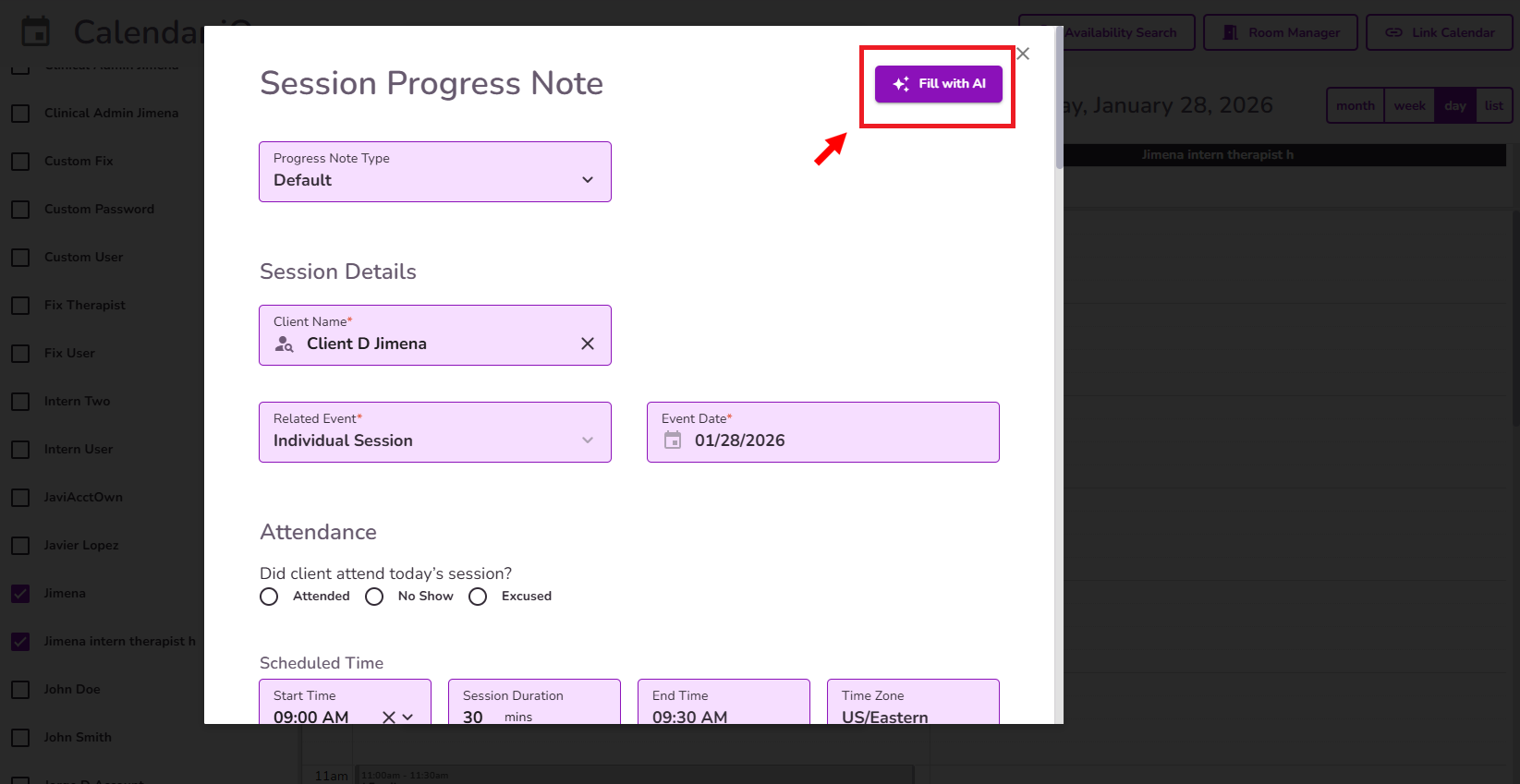
When you click this button, our AI will use the information gathered during the session to automatically complete your Progress Note. This includes checkboxes, summaries, action items, plans, and more.
Once the process is complete, you’ll see the message “Form Auto-Filled Successfully” at the bottom of the screen. At the top of the note, you’ll also see AI-Assisted, indicating the Progress Note was completed using TiQ AI.
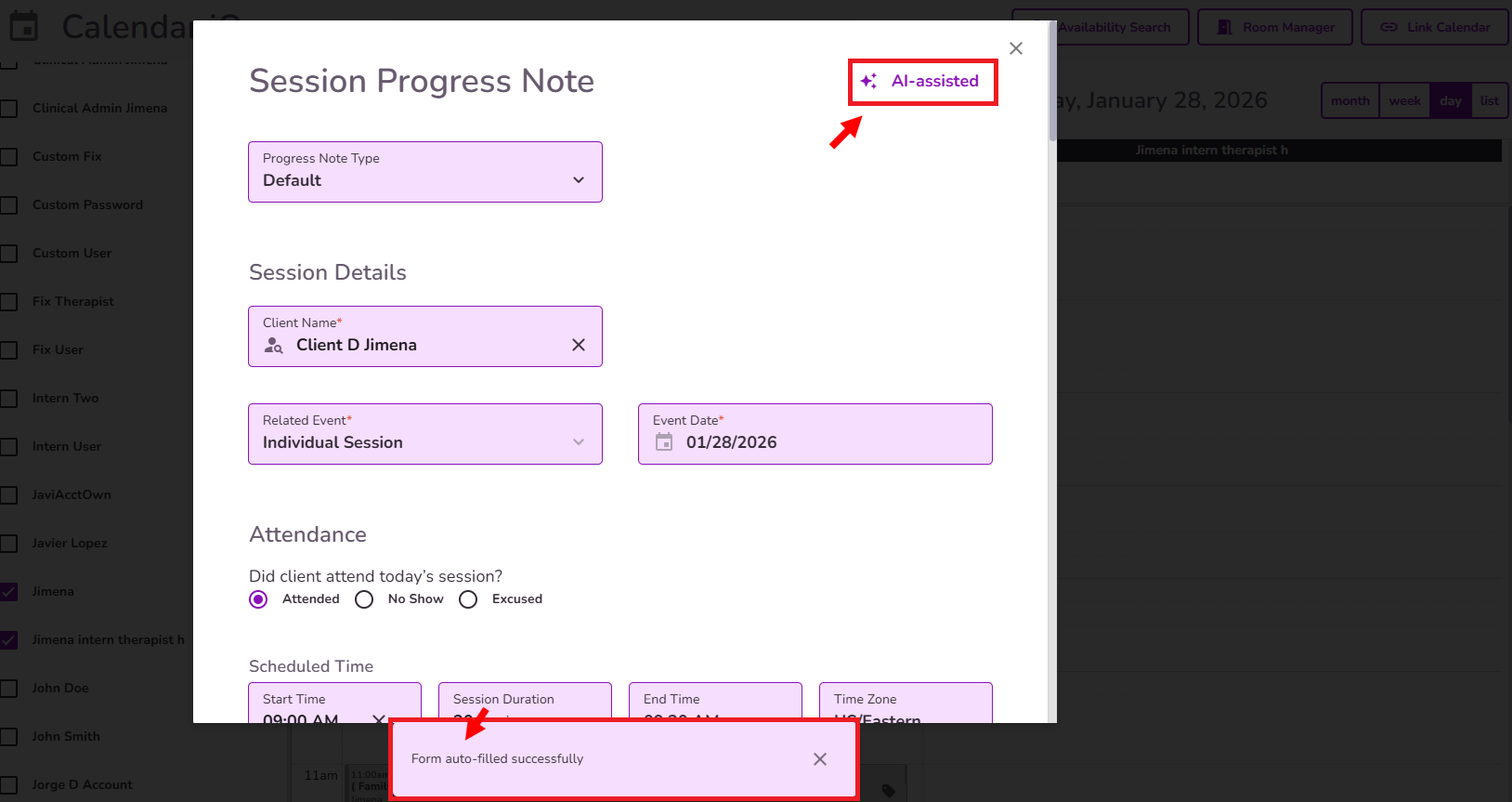
NOTE: You can still review and edit the Progress Note as needed before finalizing it.
See it in action!
IMPORTANT: If multiple autofill options are available (for example, Autofill from Previous Note), the most recent action will take precedence and override any previous autofill results.
How to use the AI Form Filling feature in Treatment Plans
Once you see the Summary Available legend on the event, you can proceed to start your Treatment Plan
Click here to learn how to complete a treatment plan
Inside the Treatment Plan, you’ll see the Fill With AI button available.
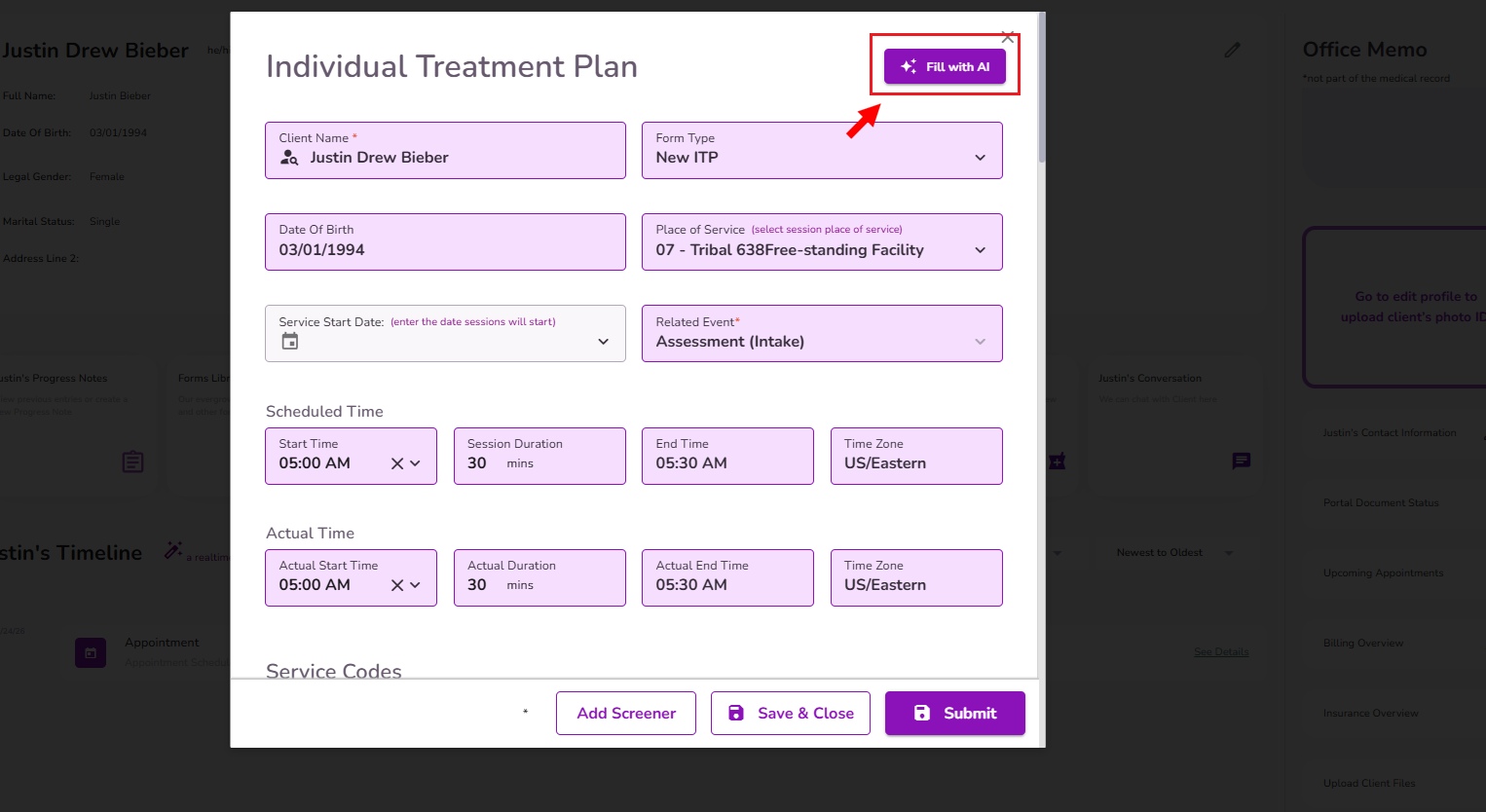
When you click this button, our AI will use the information gathered during the session to automatically complete your Treatment Plan. Once the process is complete, you’ll see the message “Form Auto-Filled Successfully” at the bottom of the screen. At the top of the document, you’ll also see AI-Assisted, indicating it was completed using TiQ AI.
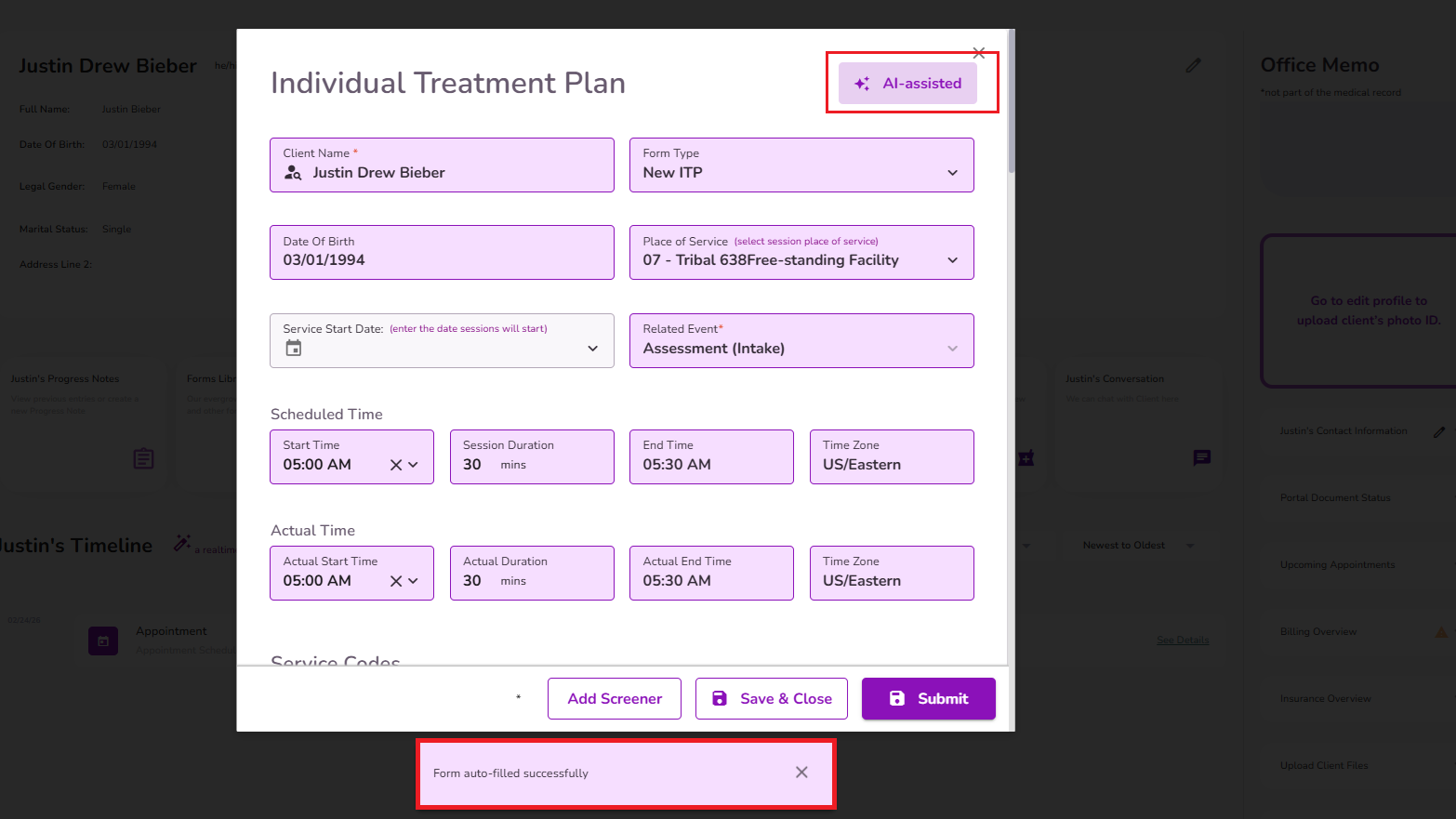
REMEMBER: You can still review and edit the document as needed before submitting it.


