Understanding Transcribe iQ
With Transcribe iQ, you can generate AI-powered summaries for both telehealth and in-person sessions. When enabled, Transcribe iQ captures the session transcript in the background and automatically generates a summary when the provider begins completing a Progress Note.
The AI-generated summary can be reviewed and edited as needed once it is added to the document.
IMPORTANT: The user must have the Transcribe iQ permission enabled to generate AI summaries for Progress Notes.
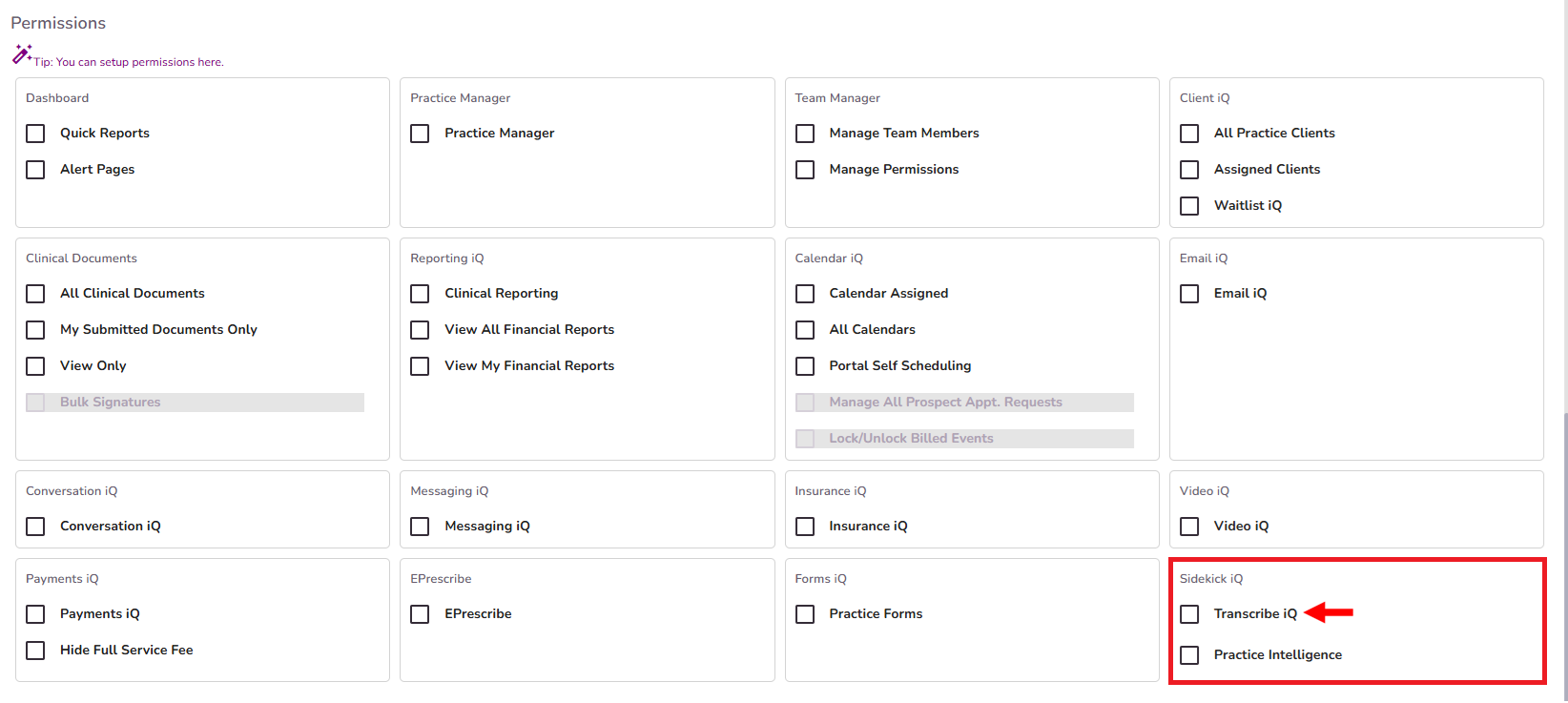
Below you’ll see how to activate Transcribe iQ for Video iQ sessions.
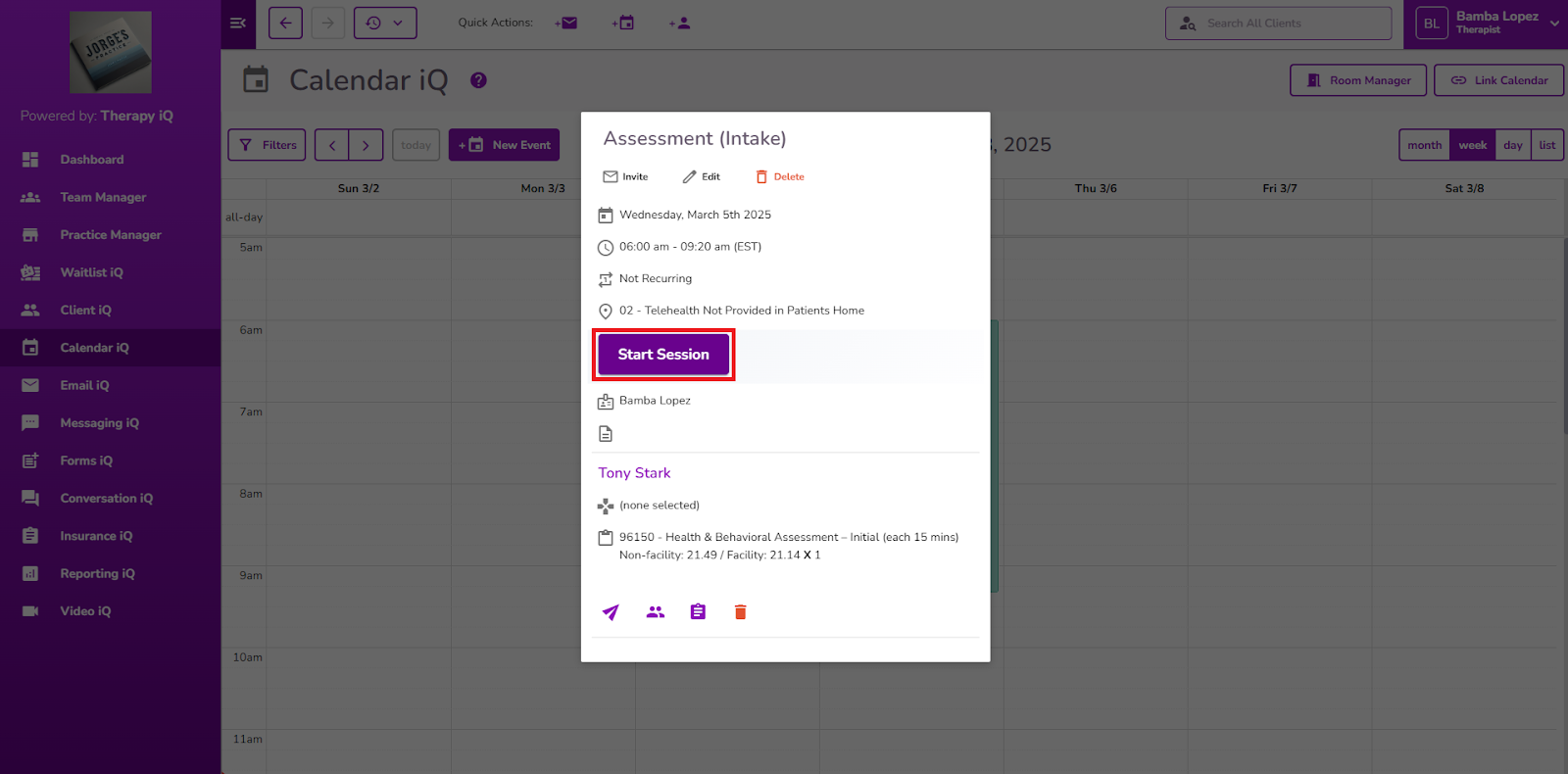
Start the Video iQ session from the scheduled appointment.
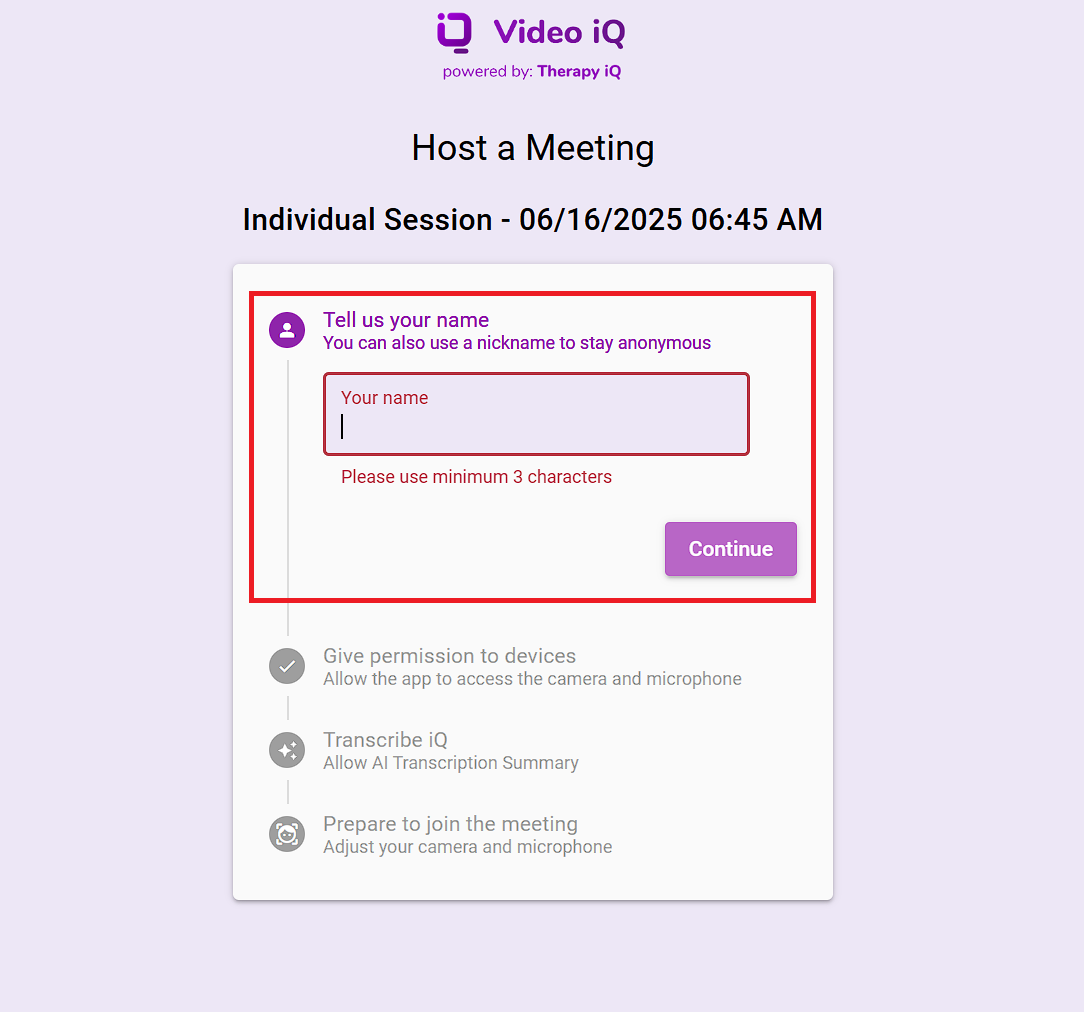
The Video iQ session will open the settings in the host a meeting page, confirm or type in your name and select the continue button.
NOTE: Multiple whitespaces will be removed and a minimum of 3 characters should be used for the name.
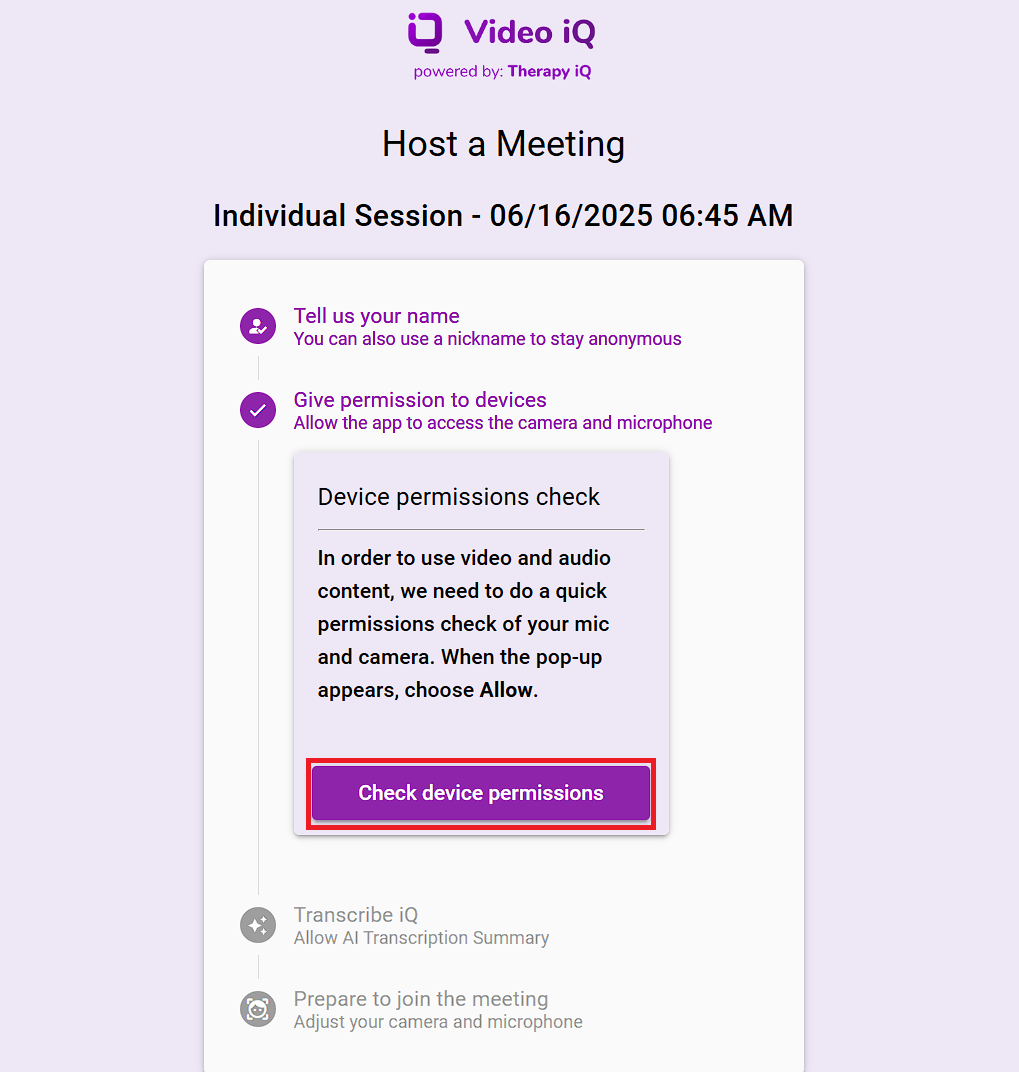
Permit your device by selecting the Check Device Permissions button and allow the app to access your microphone and camera.
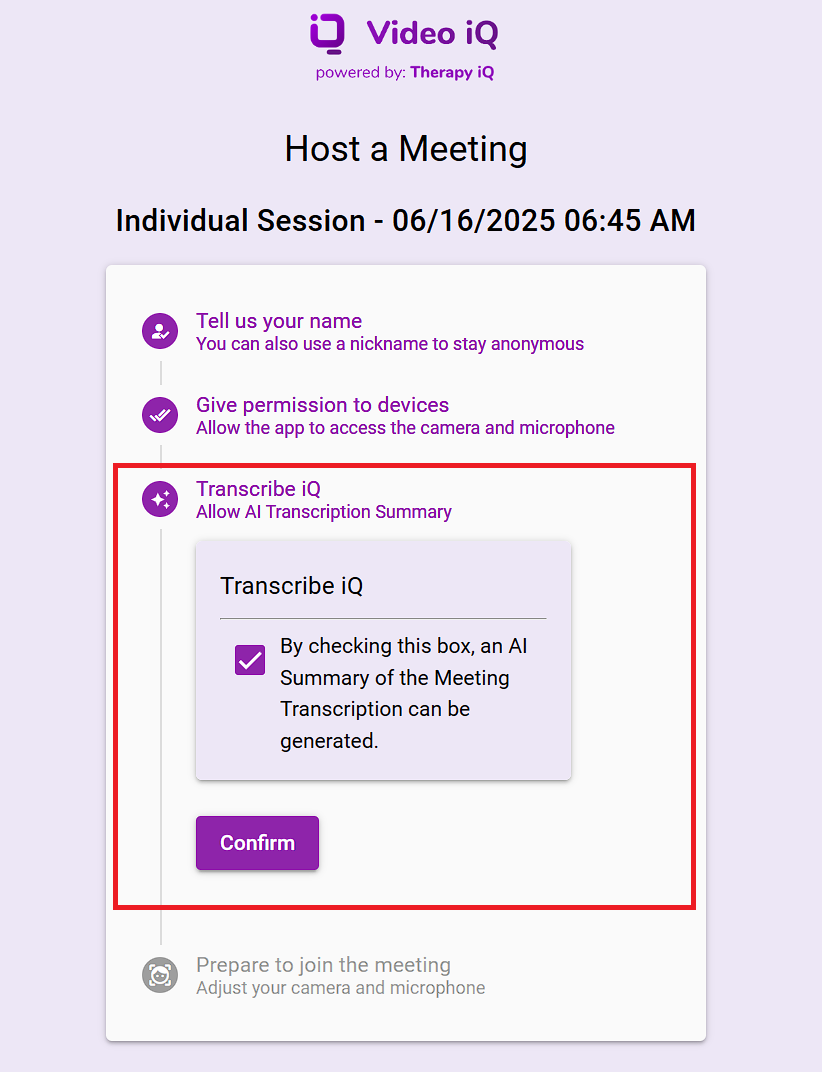
The host page will display a new 'Transcribe iQ' step and by default, the AI Sidekick Summary checkbox is selected.
Select the Confirm button.
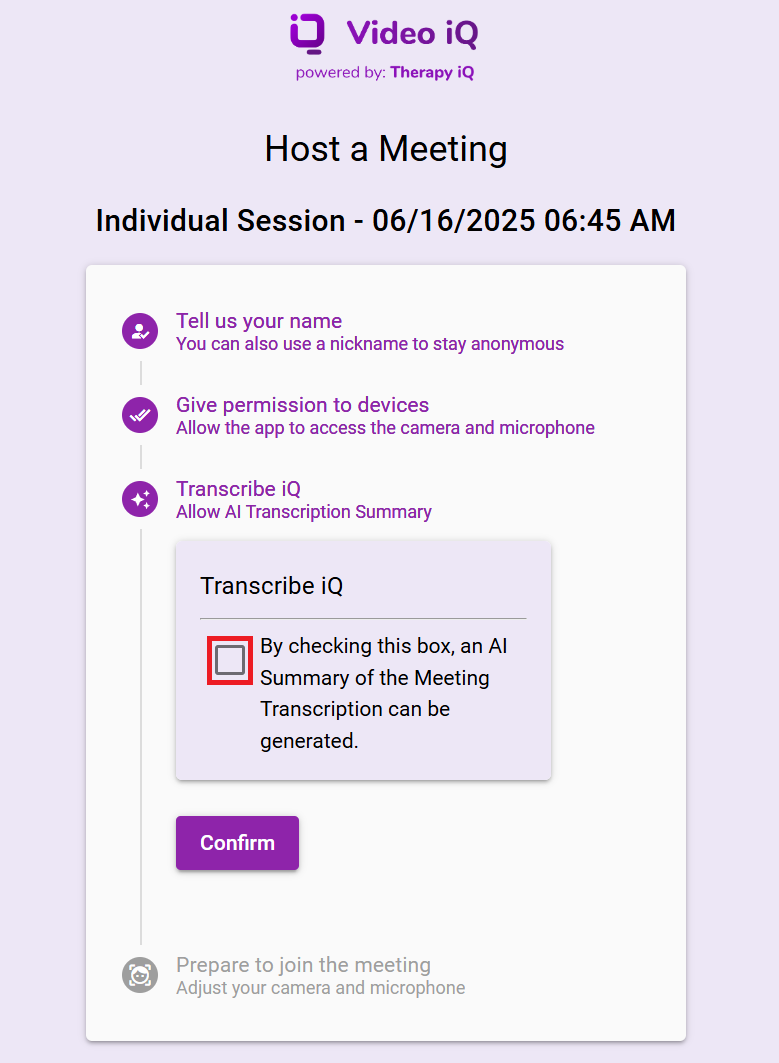
NOTE: If needed, the host can disable AI transcription before starting by unselecting the Transcribe iQ checkbox.
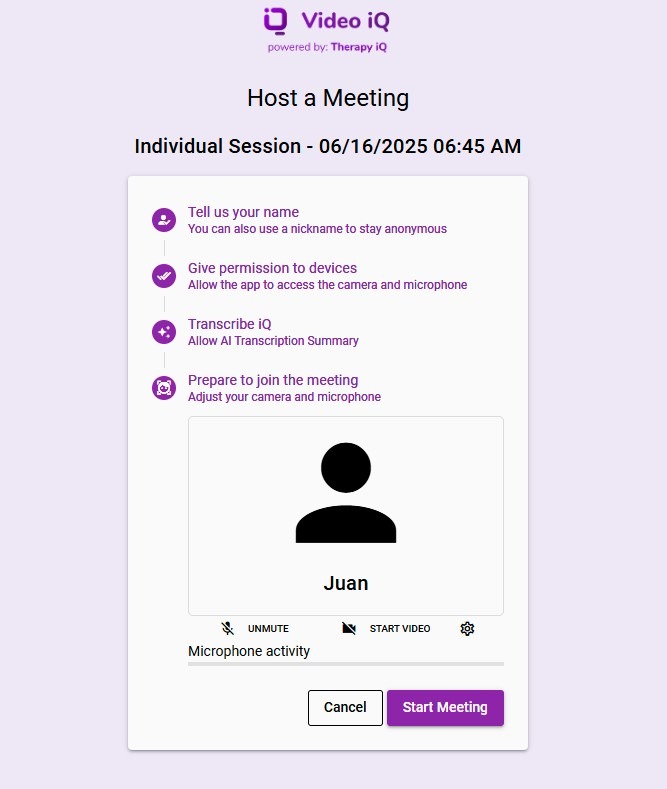
Prepare to join the meeting, adjust your microphone and camera before starting the meeting.
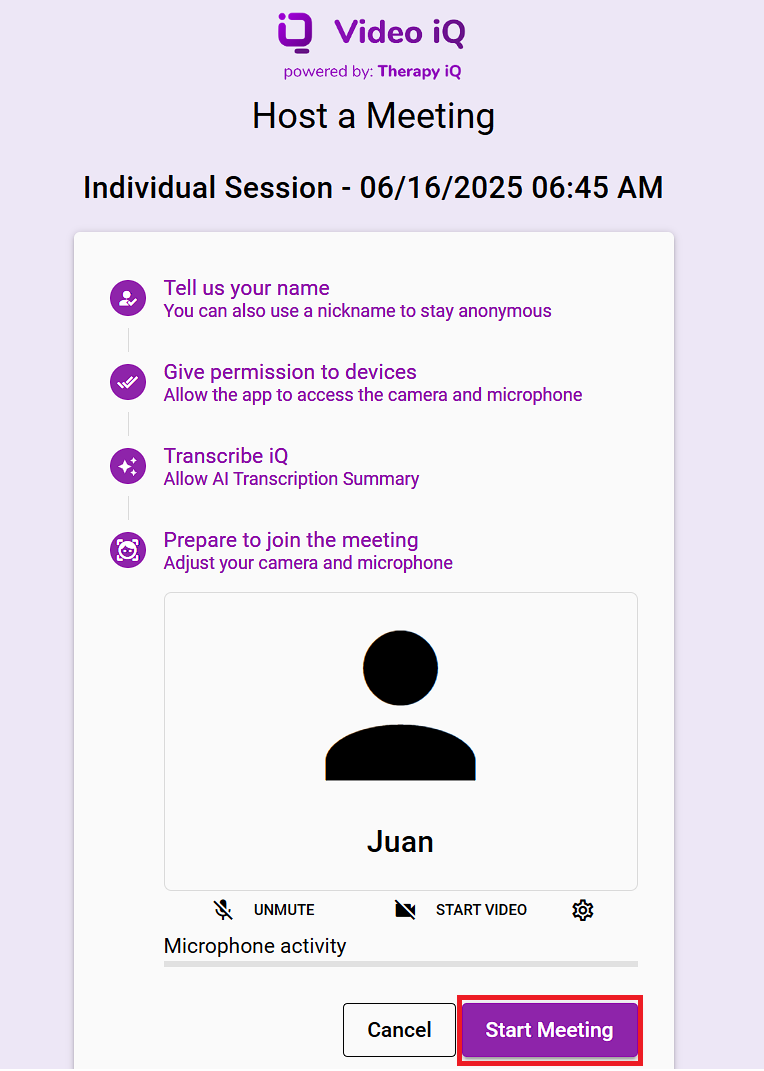
Click the Start Meeting button to start the telehealth session.
NOTE: If enabled, Transcribe iQ AI Summary will start automatically active.
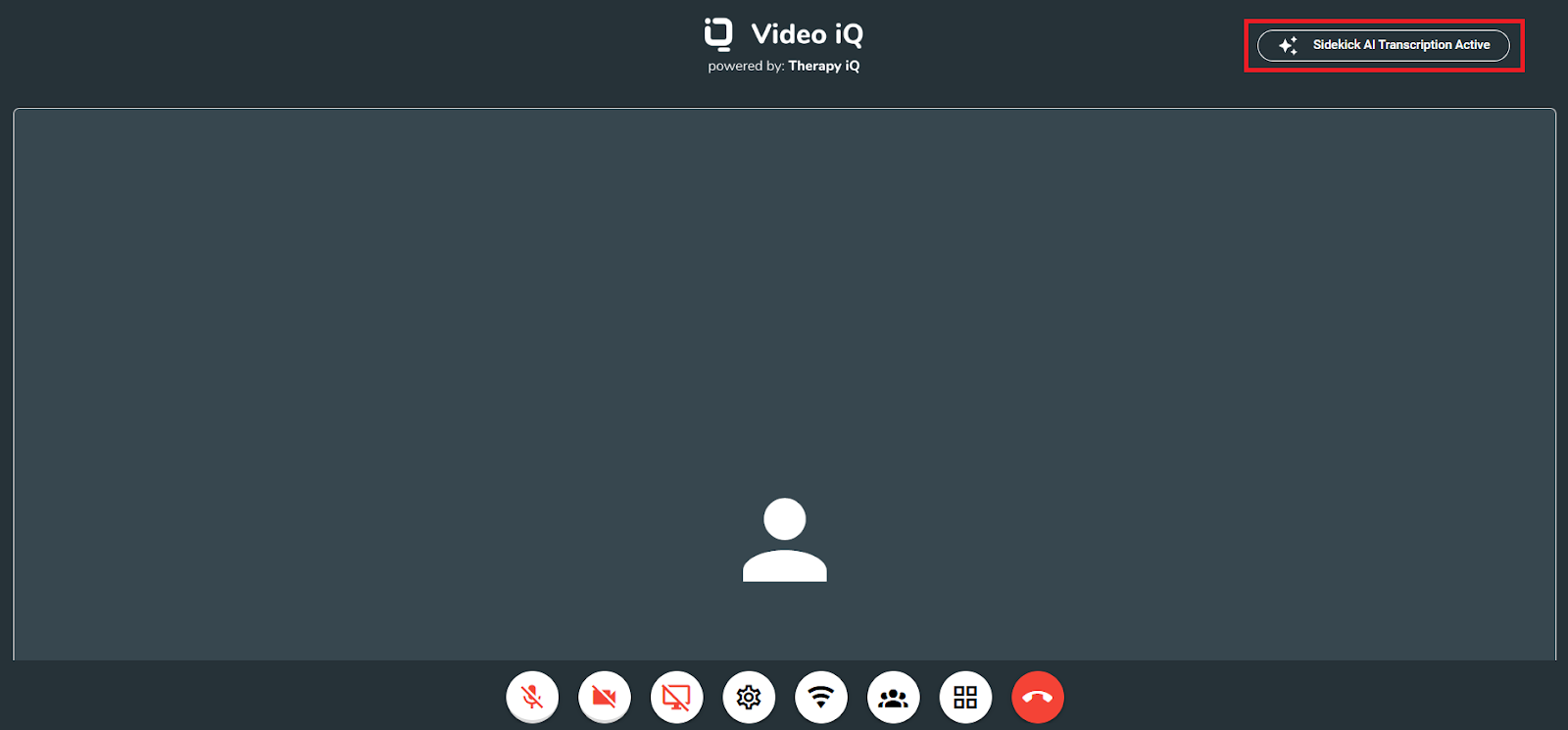
Once the provider starts the session and the Transcribe iQ checkbox is enabled, a message will appear in the top right corner of the provider's screen indicating that AI transcription is active.
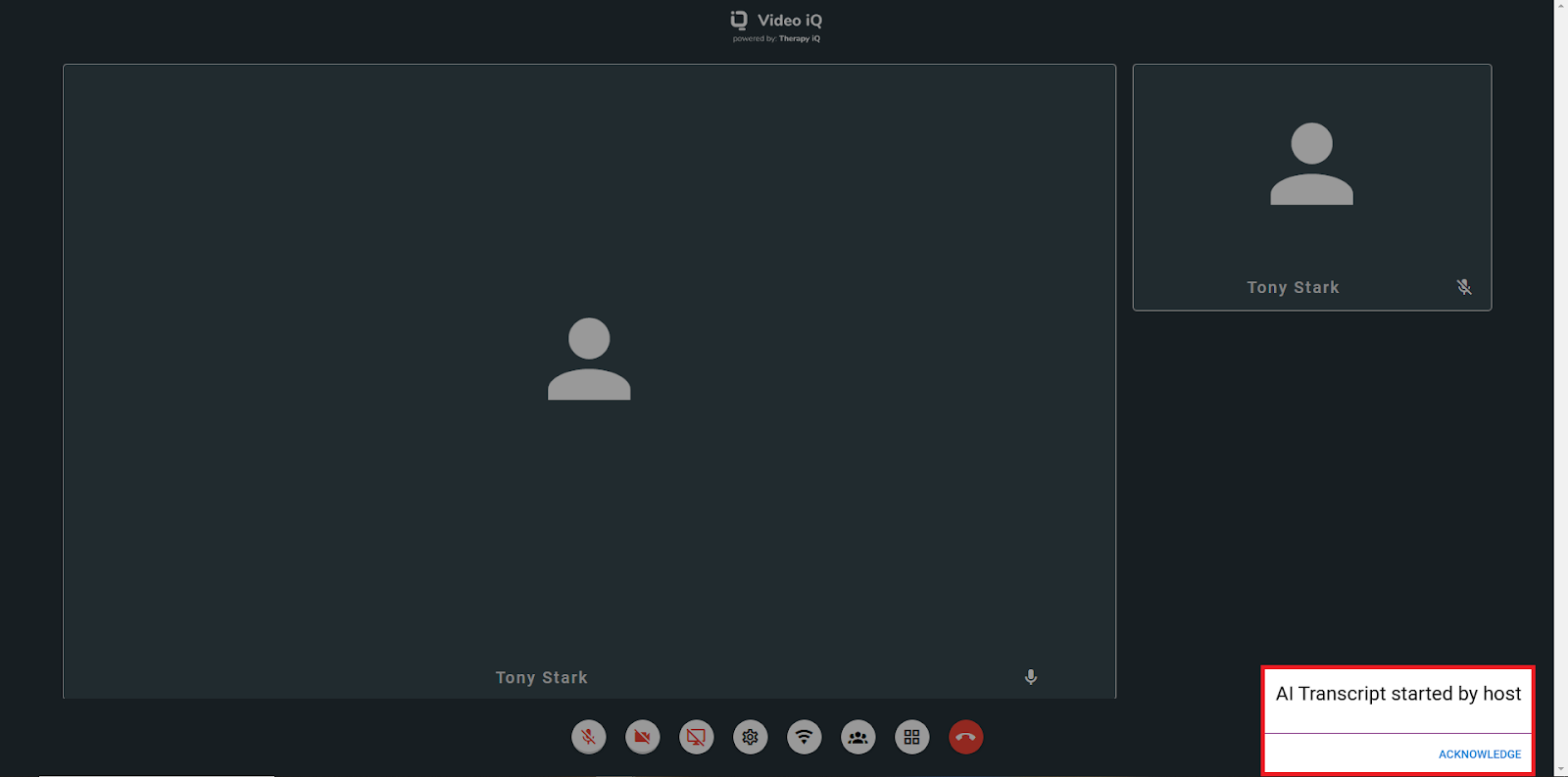
When a participant joins a Video iQ session with Transcribe iQ AI Summary enabled, an acknowledgment pop-up appears.
The pop-up notifies them that an AI Summary is being generated.
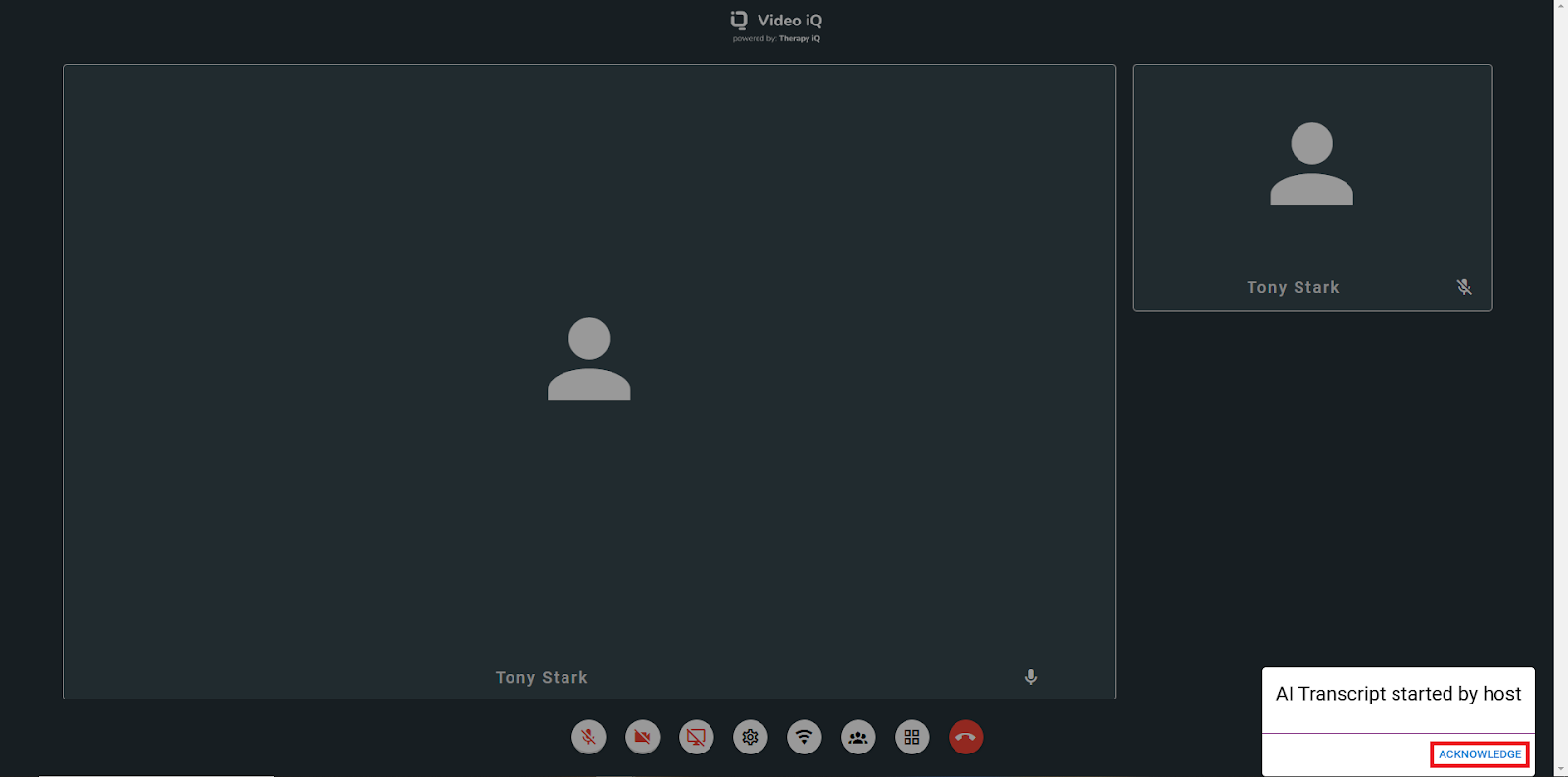
The participant must select the Acknowledge button to continue.
NOTE: If they do not click the Acknowledge button, the pop-up remains, blocking access to other menu options.
Click on the red phone icon to end the call.
Generating Transcribe iQ AI Summary from Calendar iQ Event
Navigate to Calendar iQ and select the related event.
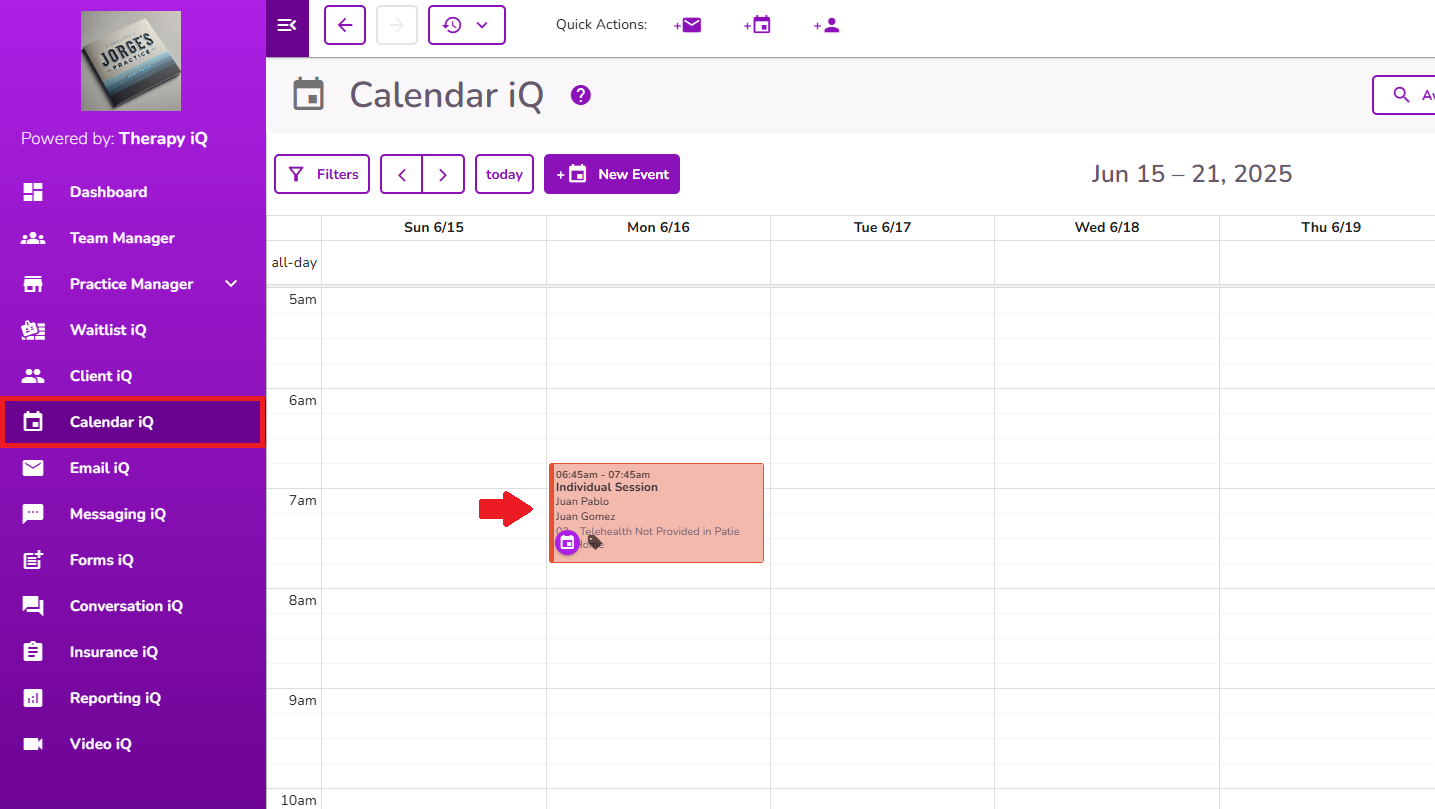
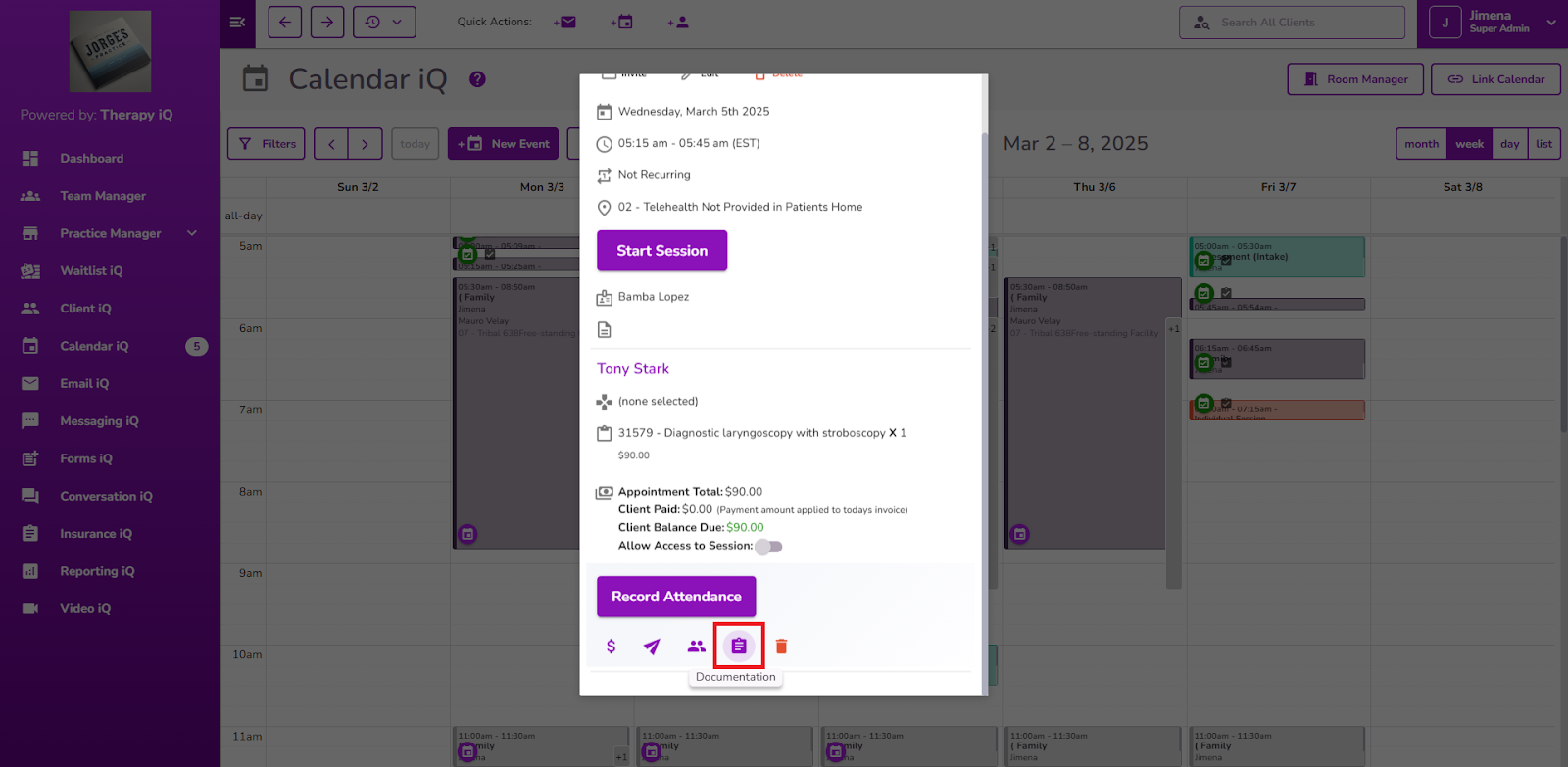
Click on the documentation icon.
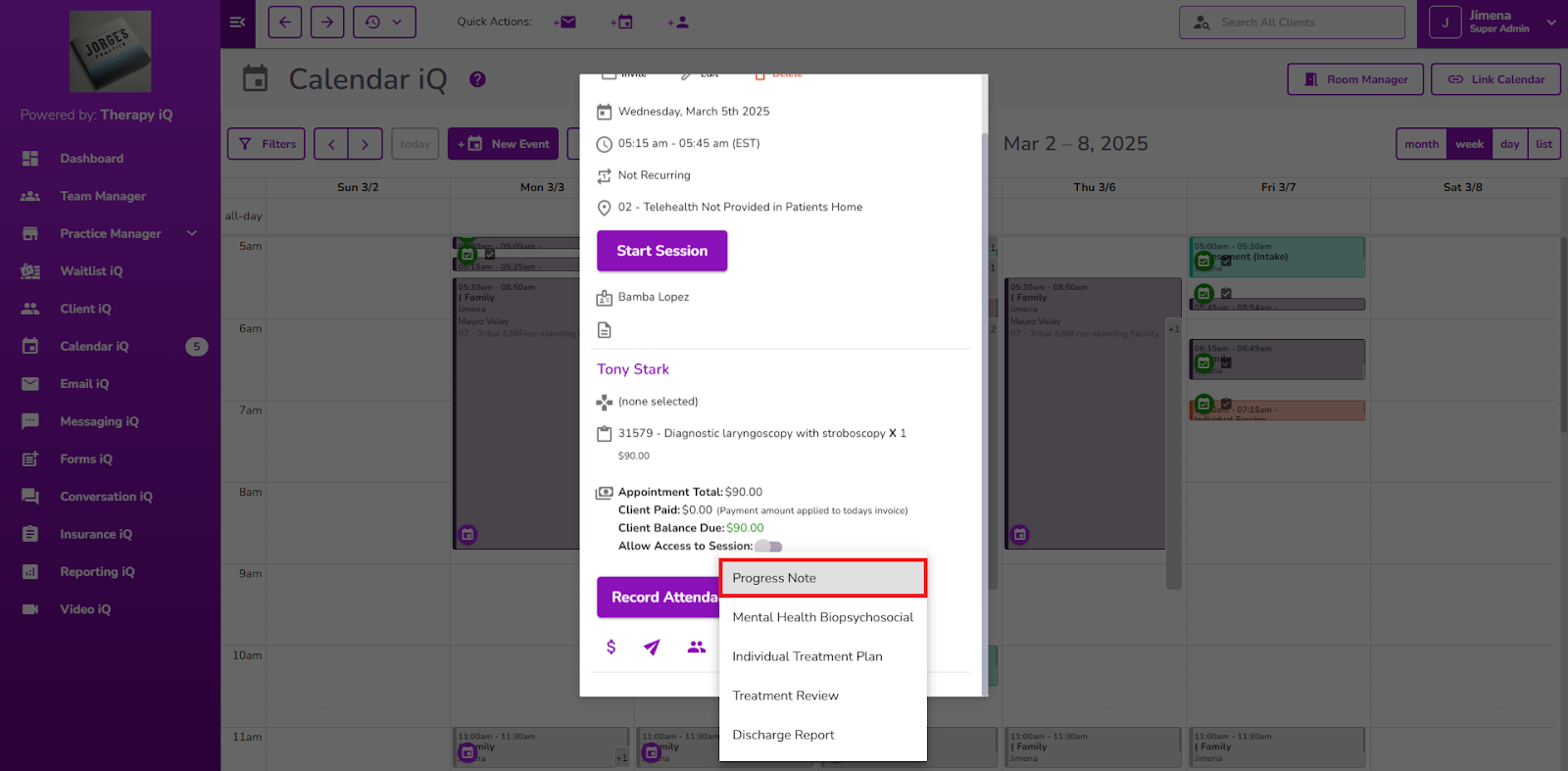
Select Progress Note from the options.
The Progress Note window will pop up with the Related Event auto-populated.
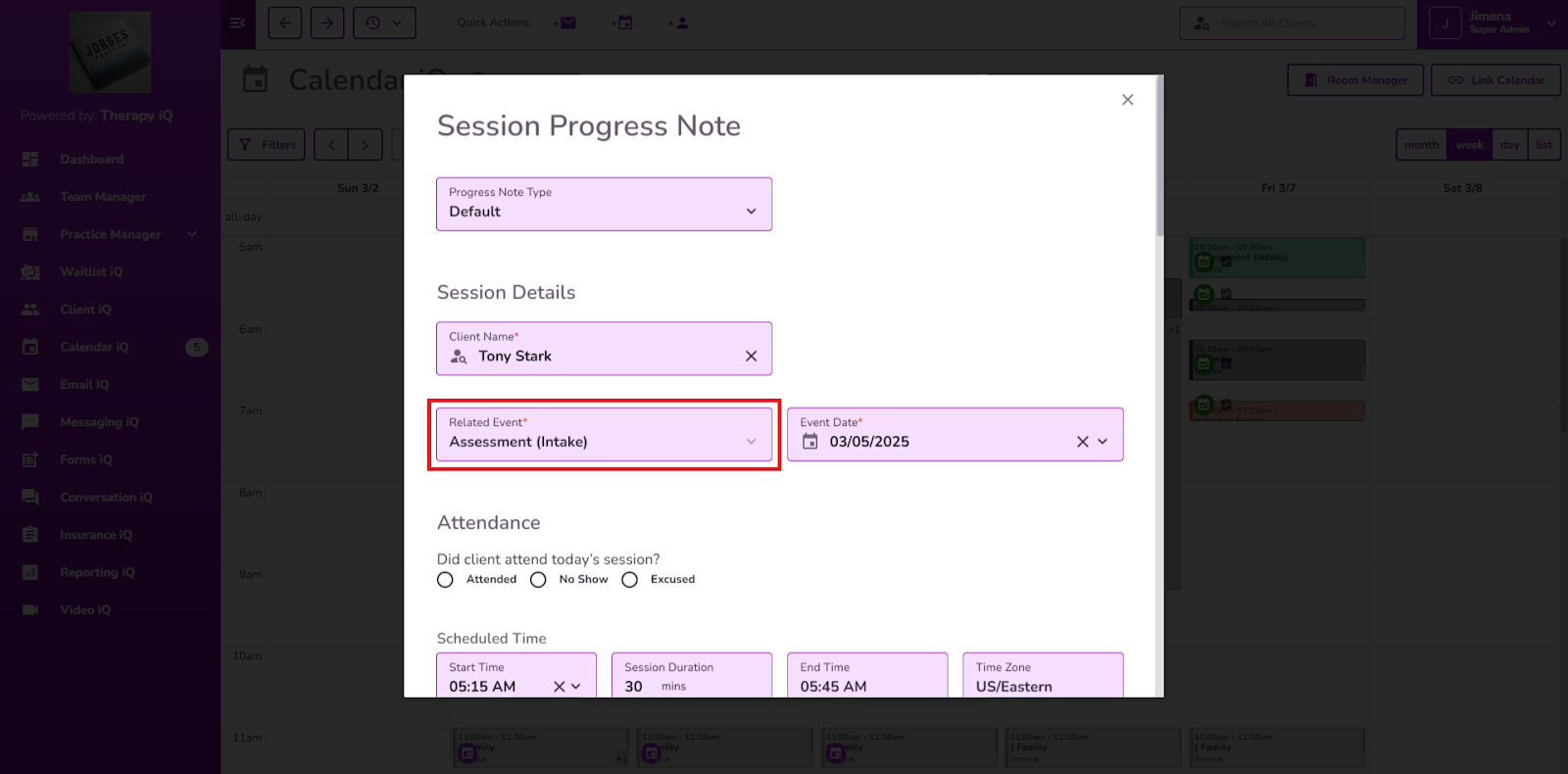
The Transcribe iQ AI Summary is generated in the Detailed Visit Summary field automatically after selecting the related event.
You can edit, refine, or add details as needed.
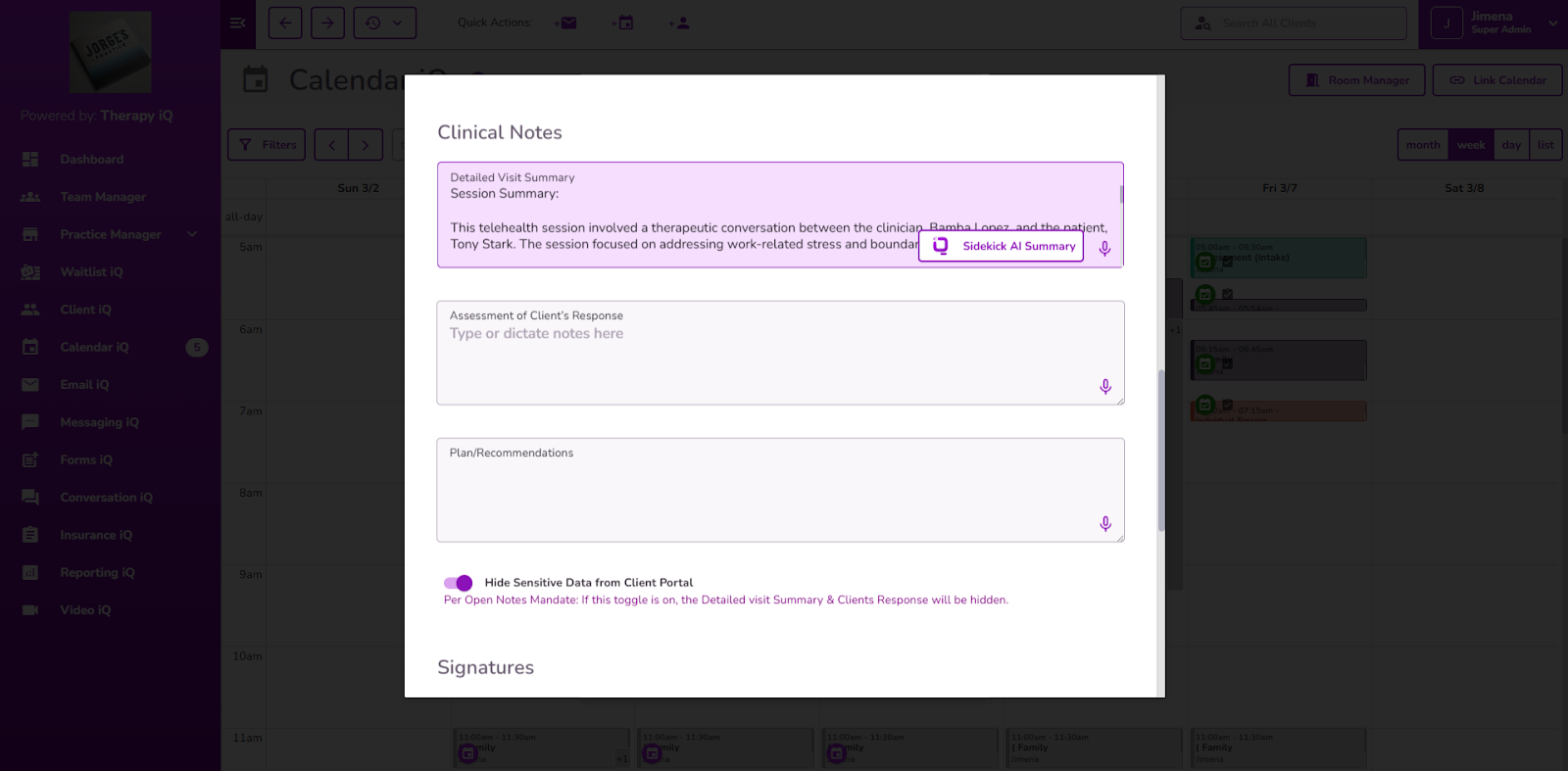
IMPORTANT: The Transcribe iQ AI Summary will be available within approximately 2 minutes after the session ends. Please allow this time for processing before accessing the summary.
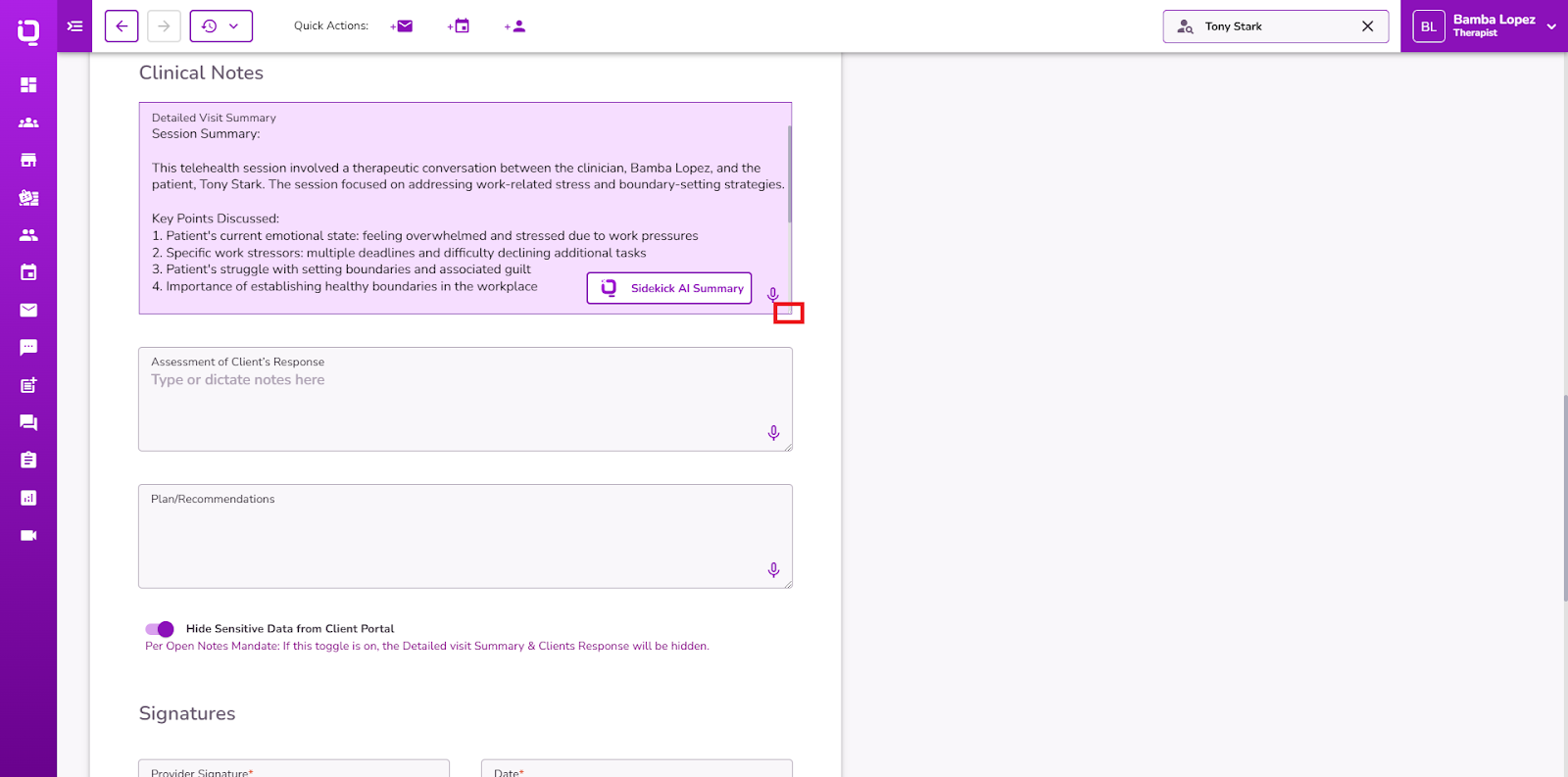
The Detailed Visit Summary field can be expanded by dragging the right corner at the bottom.
You can also use AI Form Filling without a live session transcript. Enter or dictate a summary in the Detailed Visit Summary field, then select Generate with AI to automatically populate the remaining applicable form fields.
In addition, with Transcribe iQ, the new AI Form Filling feature allows you to use transcriptions and/or User-Entered Session Summary to automatically complete Progress Notes and Treatment Plans, helping you document more efficiently while maintaining important clinical details.
- When a Transcribe iQ transcript is available, select Fill with AI to use the transcript to populate the applicable form fields. If you have also entered information in the Detailed Visit Summary, the AI uses both the transcript and the summary.
- When a transcript is not available, enter or dictate information in the Detailed Visit Summary and select Generate with AI. The AI uses your summary to populate the remaining applicable fields.
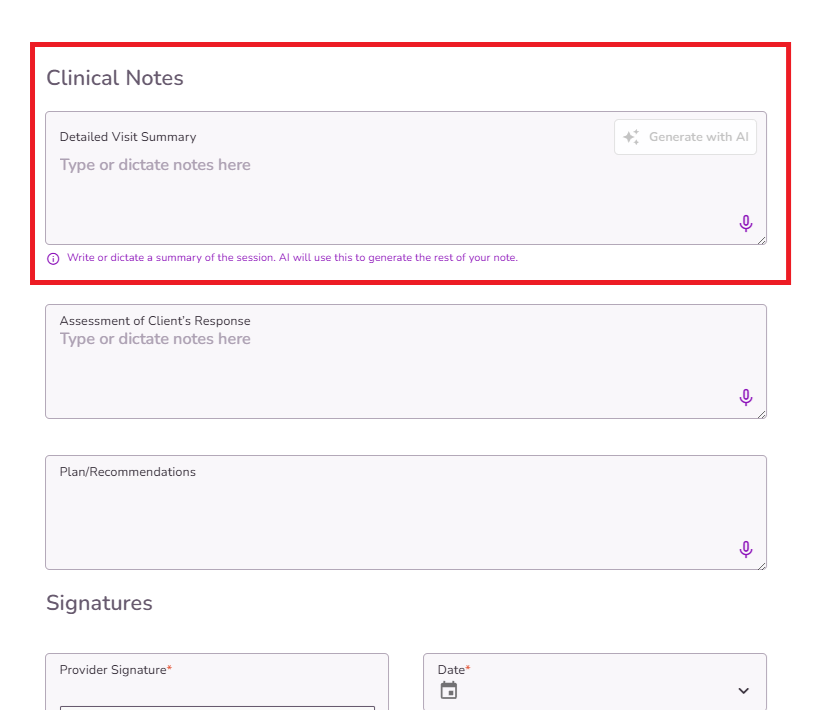
Note: Your Detailed Visit Summary is not overwritten when using AI Form Filling, so you can continue to review and edit the summary as needed.
Click here to learn more about AI Form Filling in TiQ.
If a Transcribe iQ transcript is available, select Fill with AI to populate the applicable fields using the transcript. If the Detailed Visit Summary also contains information, both the transcript and summary are used as context.
To regenerate the transcription, please follow the steps outlined below.
- Unselect the related Video iQ session from the progress note.
- Reselect the same session to trigger summary regeneration.
NOTE: If any edits are made to the Transcribe iQ AI Summary and you generate again the Transcribe iQ AI Summary the edits will be removed.
Once the transcription is generated, a message will appear in the top right corner of the appointment.
Click here to learn more about Transcribe AI for in-person sessions.


