How To Enable Auto Send Of Superbills
From Practice Manager, admins can enable the feature to automatically send Superbills to clients. Once activated, users will be able to configure it on each client’s profile, and when enabled on both ends, Superbills will be automatically sent to clients on the 15th of each month.
This guide will walk you through the steps to activate this feature for your practice.
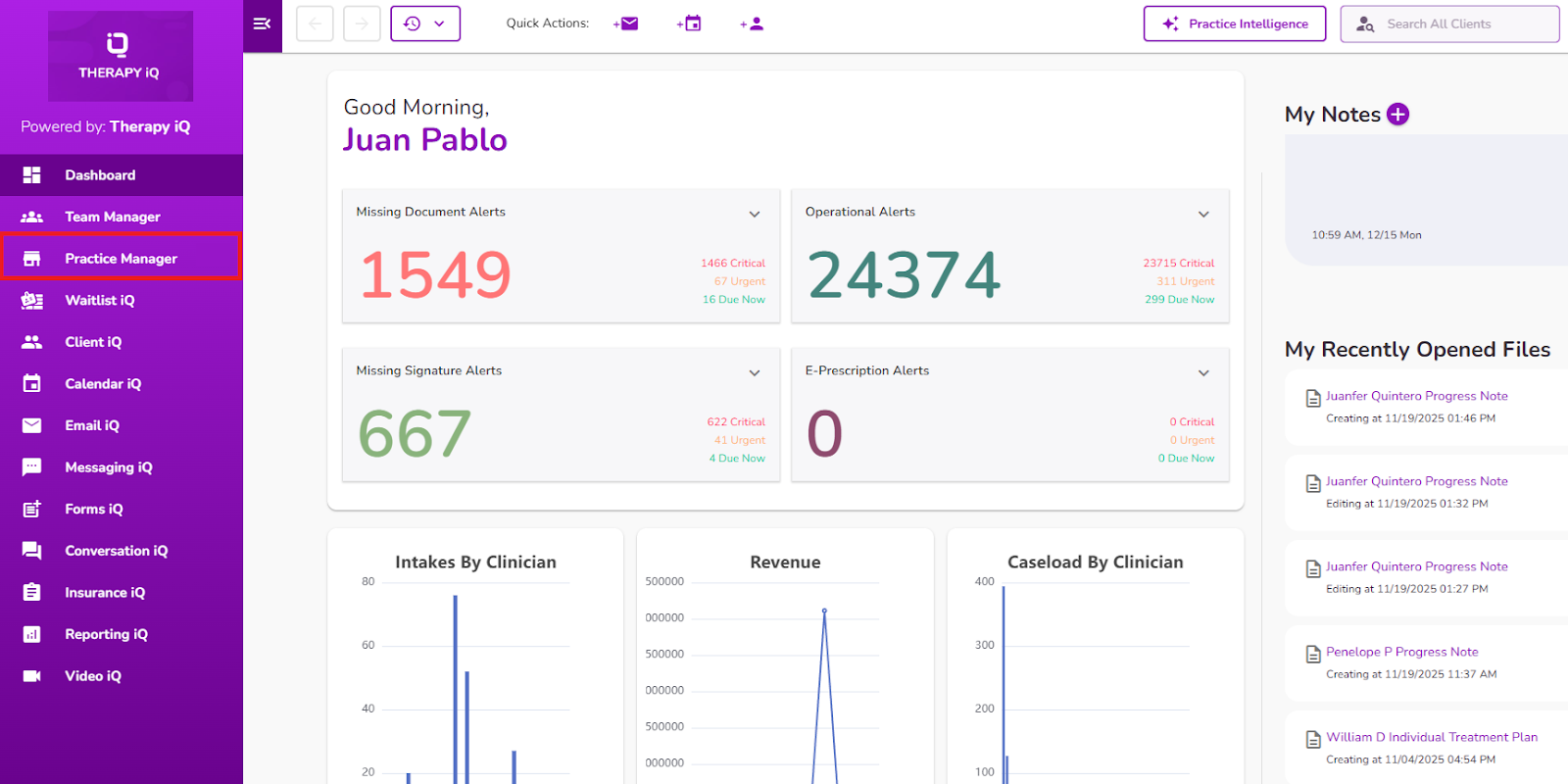
From the navigation bar, select Practice Manager
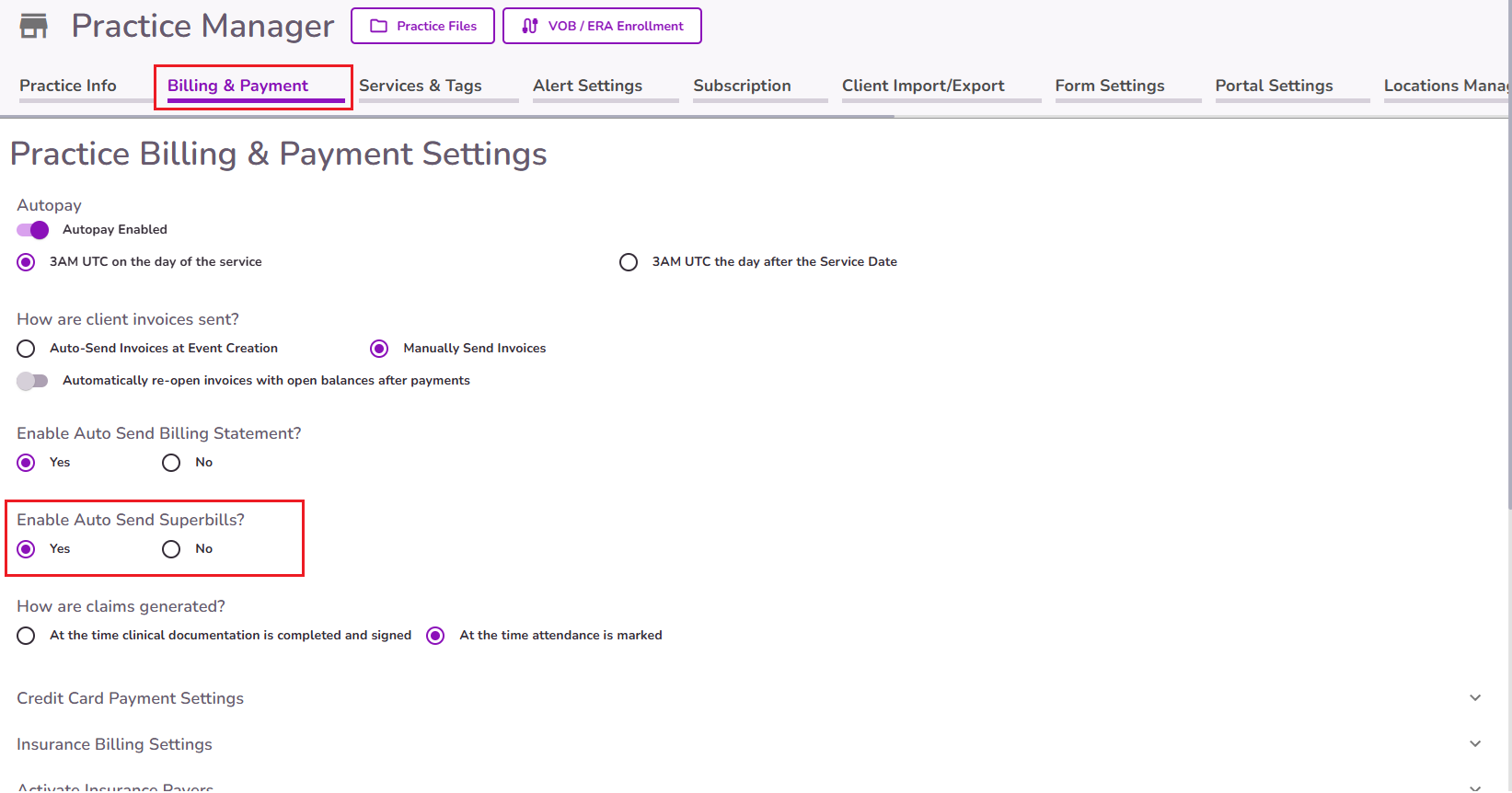
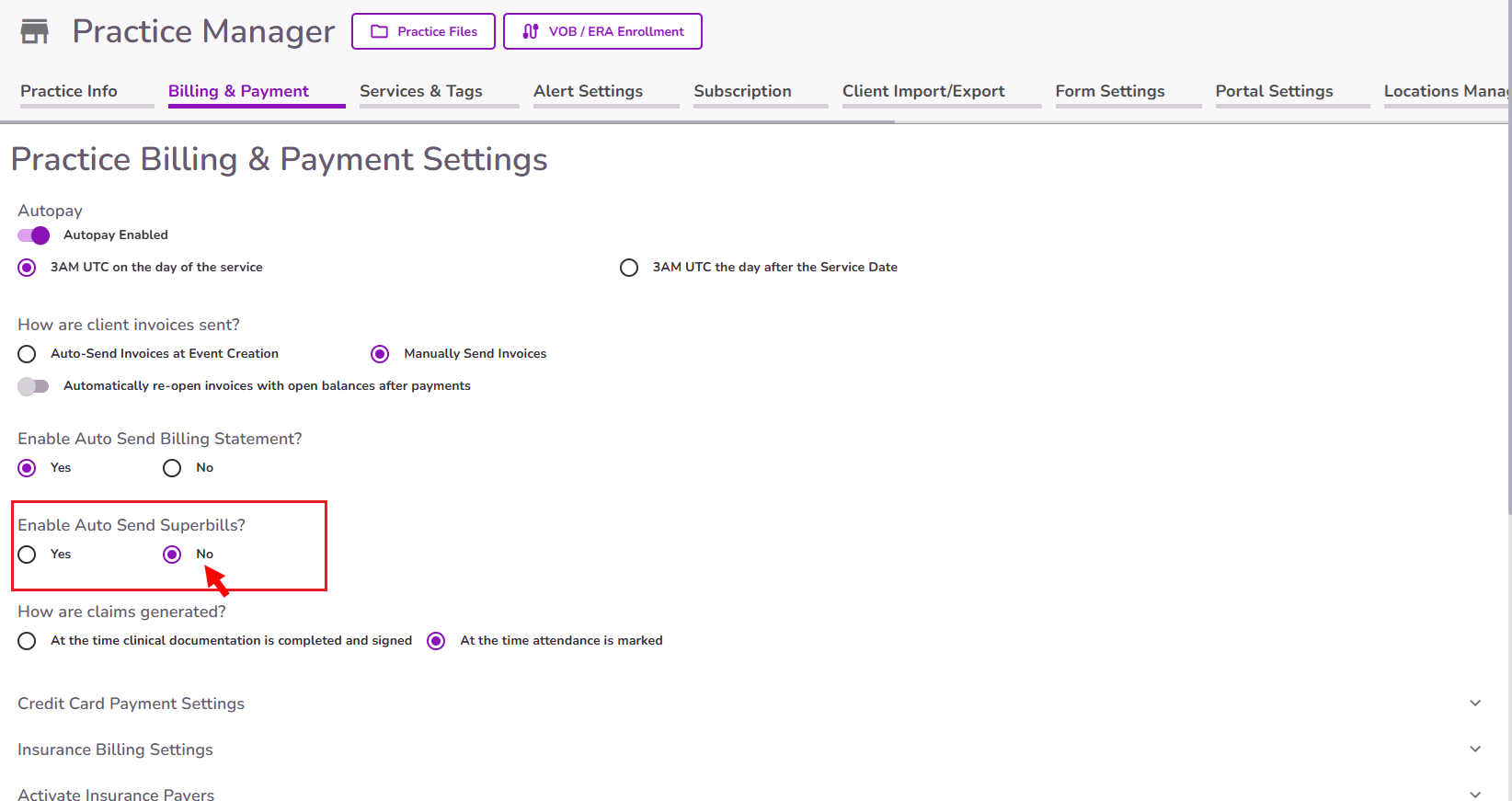
Navigate to the Billing & Payment tab and locate the "Enable Auto Send Superbills?" section.
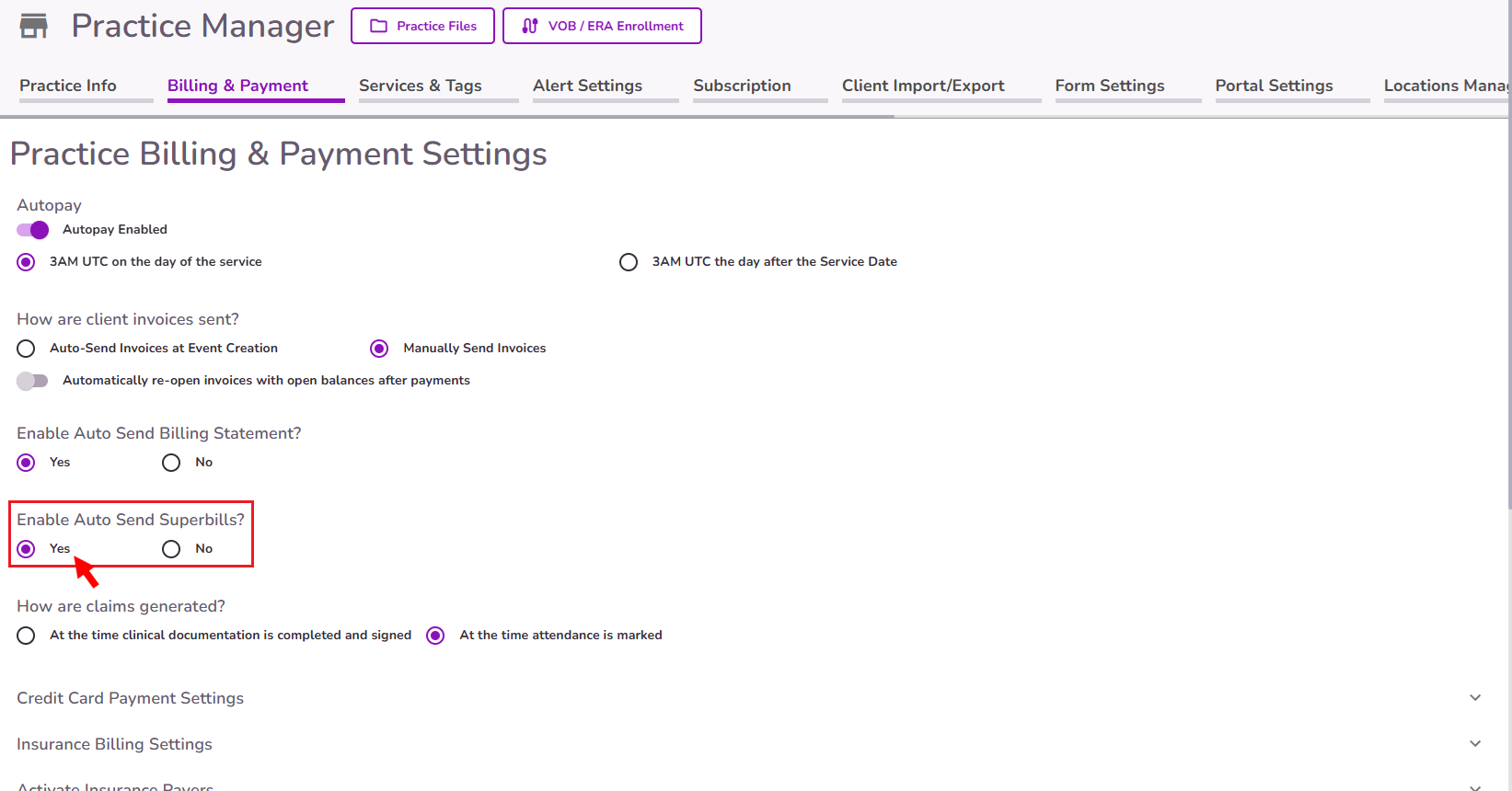
By default “No” will be selected. To activate it, select "Yes"
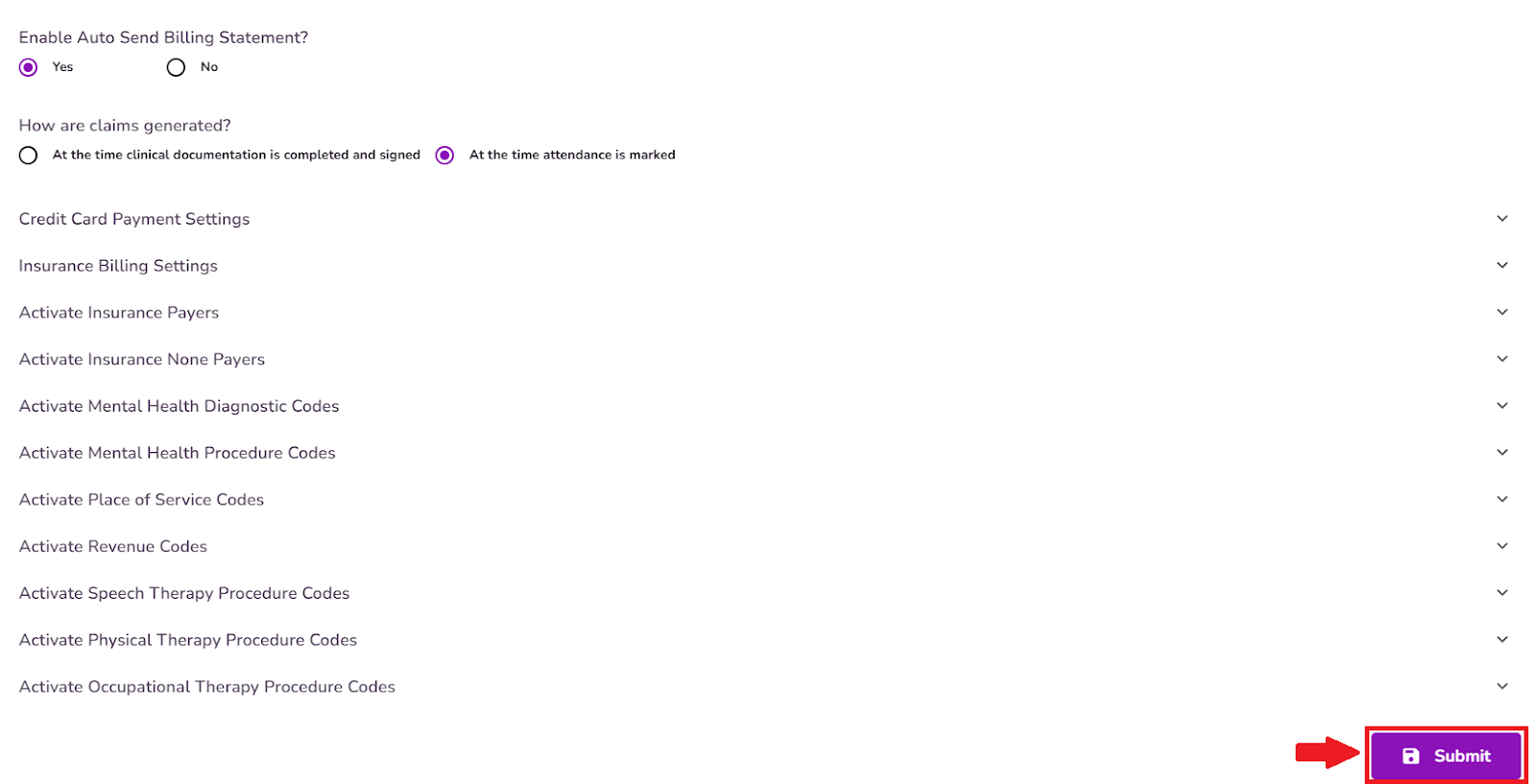
Scroll down and click Submit to save your changes
When this feature is enabled, all client profiles will display the "Auto-Send Billing Statement" toggle in their profile under the Financial & Insurance Info tab.
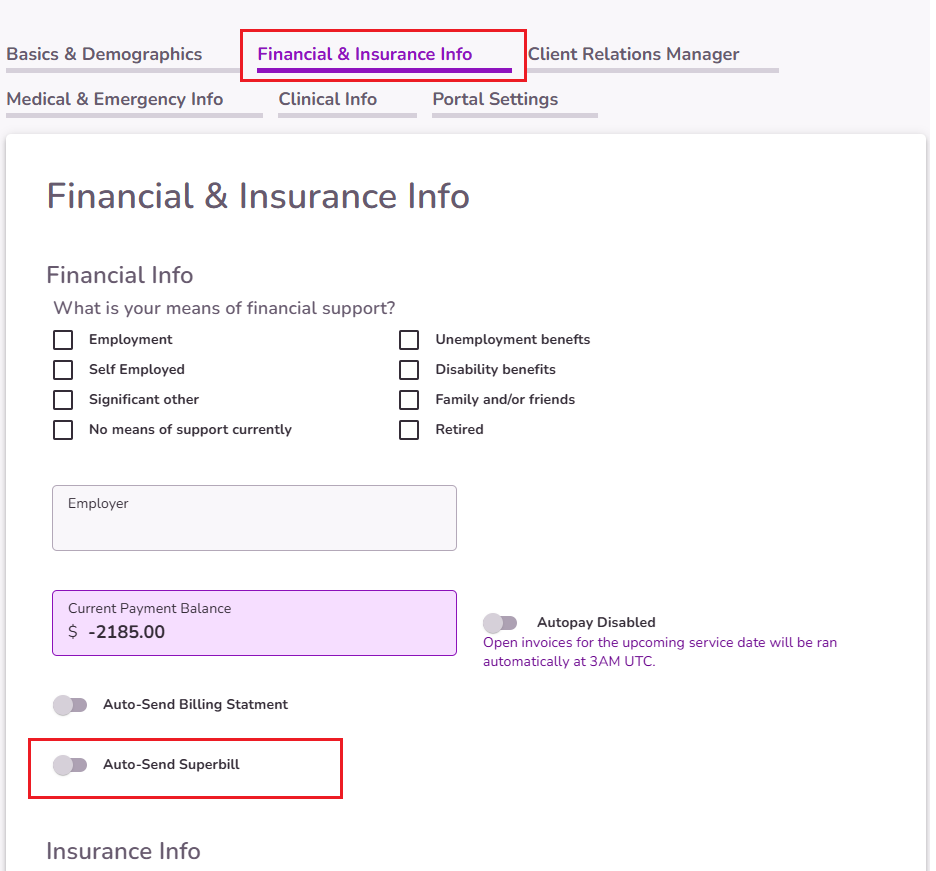
NOTE: The toggle defaults to OFF for each client. This means that once the feature is enabled at the practice level, users can choose which individual clients will receive automated Superbills.
When this feature is enabled in the client's profile:
- Superbills are automatically sent to the client's email as a PDF on the 15th of each month.
- Each Superbill includes charges from the previous month only.
- Example: A statement sent on 11/15 will include charges from 10/01–10/31.
- Superbills will not include the full account balance unless the entire balance falls within the included date range.
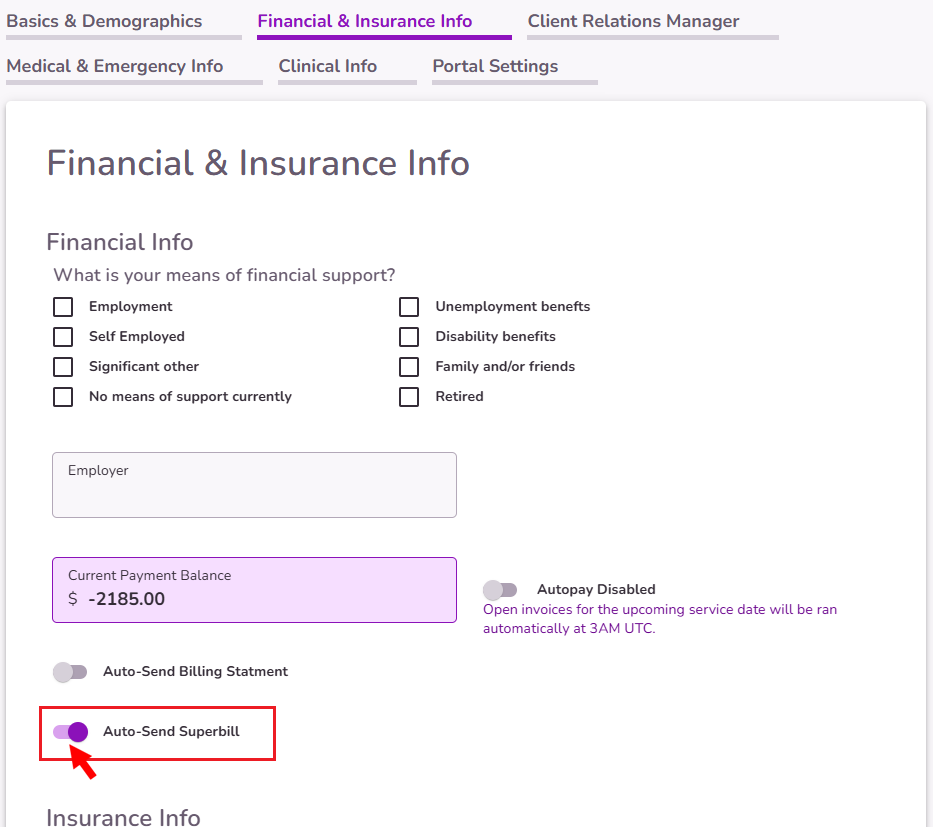
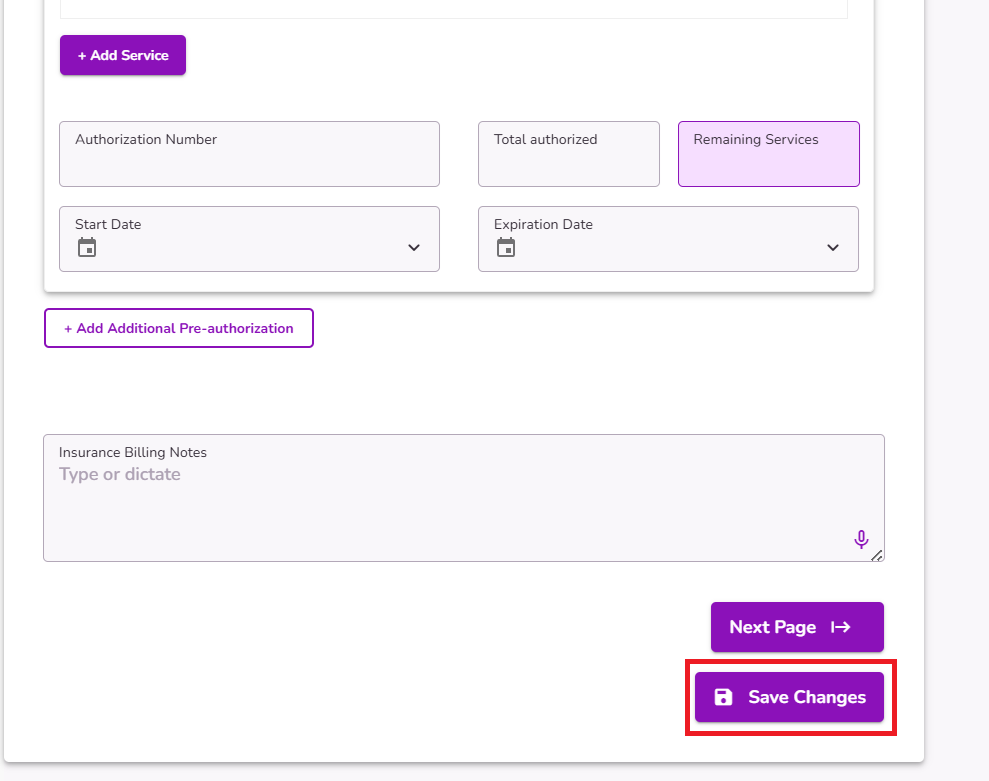
NOTE: Make sure to scroll down and select Save Changes to properly save and enable this feature.
IMPORTANT: The Superbill will be sent only if the following requirements are met:
- The client is Active.
- Auto Sending Superbills is enabled in Practice Manager.
- The client has a valid email address on file.
- The client’s Auto-Send Superbill toggle is ON.
When this feature is turned off in Practice Manager by selecting “No”, all client toggles will be turned off and hidden from their profiles, and no Superbills will be sent automatically anymore.
Click here for more information on how to manually generate a Superbill


