How To Complete A Treatment Review Report
In TiQ, Treatment Review Reports help providers track client progress based on their current treatment plan over time.
These reports can be completed in a few different ways. Here’s how:
From the event
Select the Documentation icon at the bottom and select Treatment Review Reports

Select Next when prompted

Complete the document. Select Save & Close to save the document as a draft, or Submit if you’re done with it.

From the Forms Library
In the client profile, navigate to the Forms Library

Under Mental Health Forms, select Treatment Review Reports

Select +New

If you have a custom version of a Treatment Review Report, you can select it in the Form Type field (1).
Be sure to always select the Related Event as well (2)

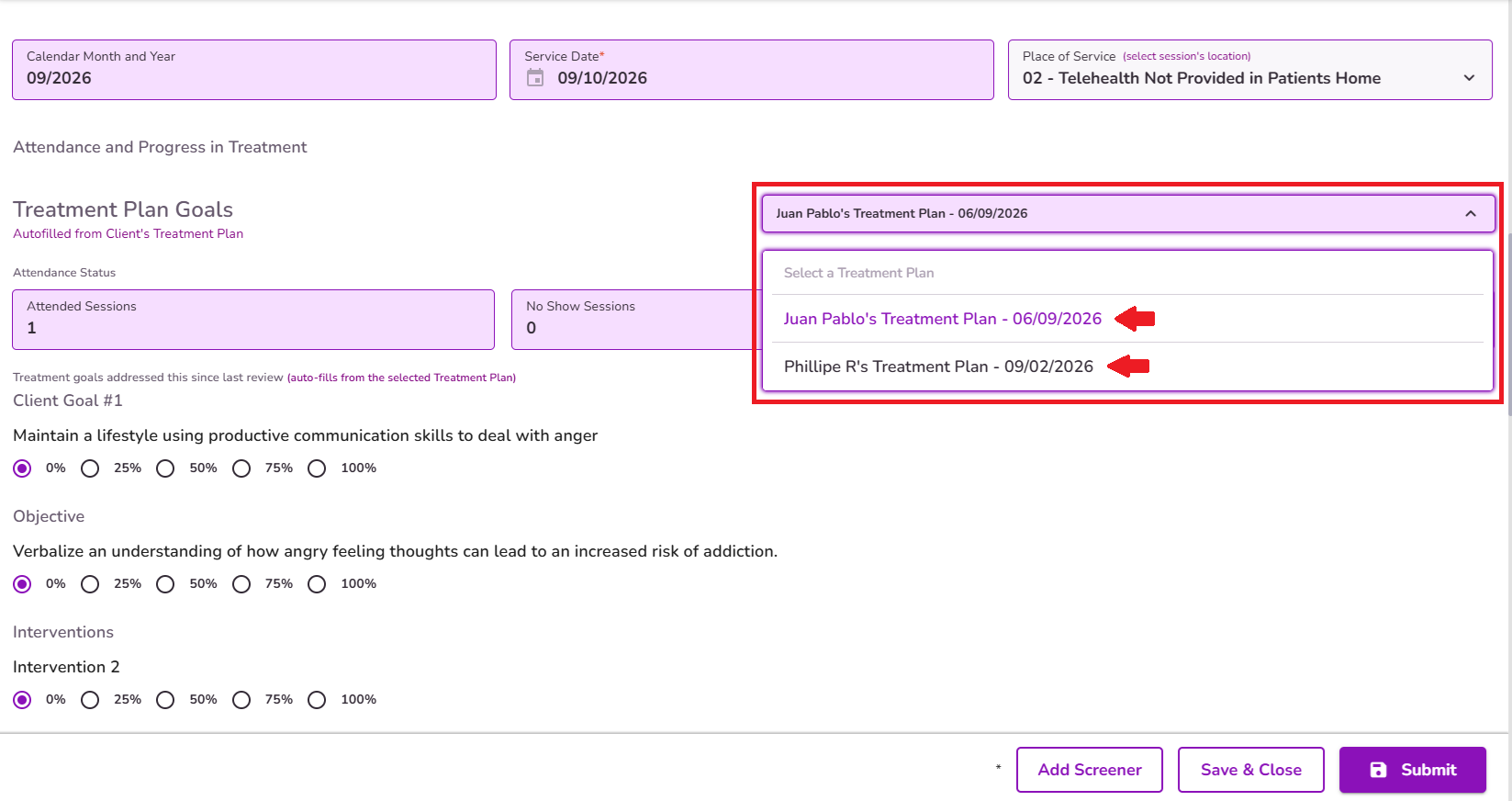
Under the "Attendance and Progress in Treatment" section, providers can select the desired Treatment Plan to reference when completing a Treatment Review. The selected Treatment Plan determines which Goals, Objectives, and Interventions are displayed in the review.
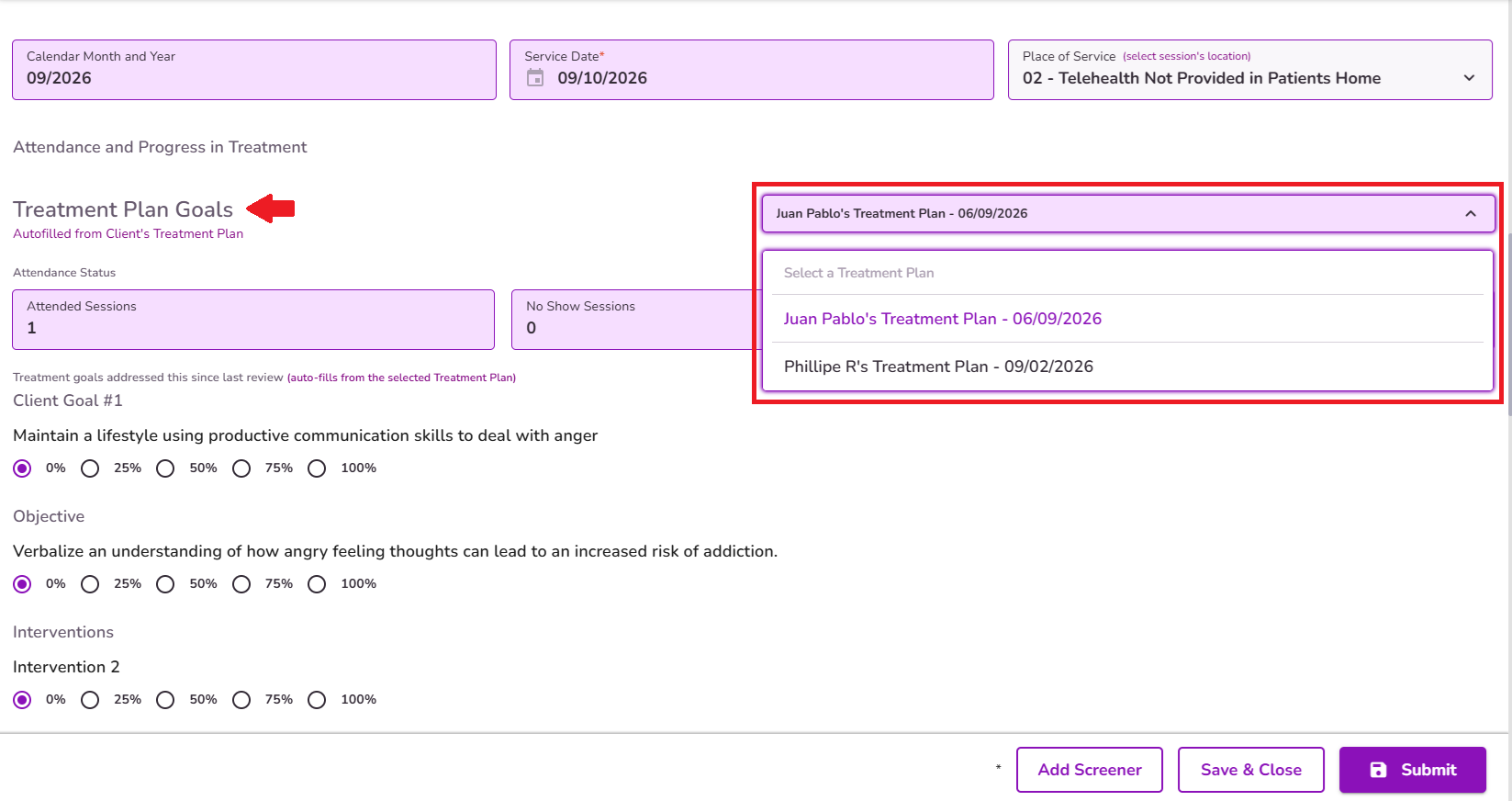
Note: The available Treatment Plan options will reference the "Service Start Date" configured for each plan, allowing providers to identify when each treatment was initiated.
Once you complete the document, hit Submit at the bottom, or Save & Close to save it as draft.

From the Alerts in the Dashboard
If a Treatment Review Report alert has been triggered, you can access and complete the form directly from the Dashboard. Completing and submitting the report from the alert will automatically clear it.
👉 Click here to learn more about the Treatment Review Report alert


