Understanding The Payer Specific Rules
The 'Payer Specific Rules' feature allows practices to configure specific payer details in Practice Manager that will automatically populate the corresponding boxes on newly generated claims based on the payer. This streamlines the process, reducing the need for manual adjustments and simplifying claim submission.
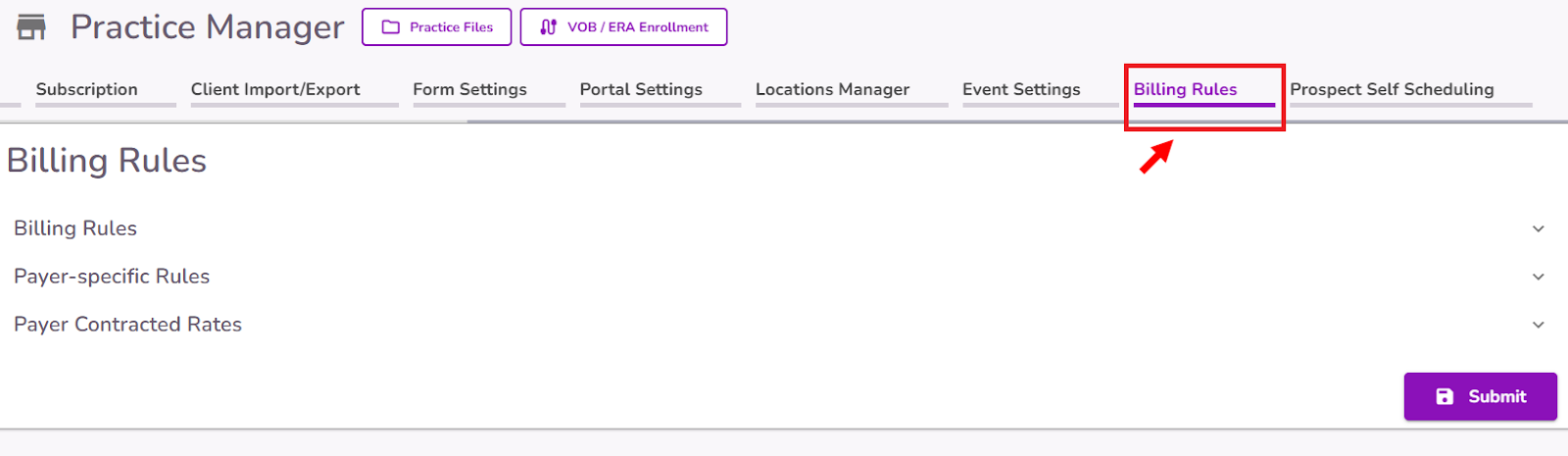
To set a new Payer Specific Rule, navigate to the Billing Rules tab in Practice Manager
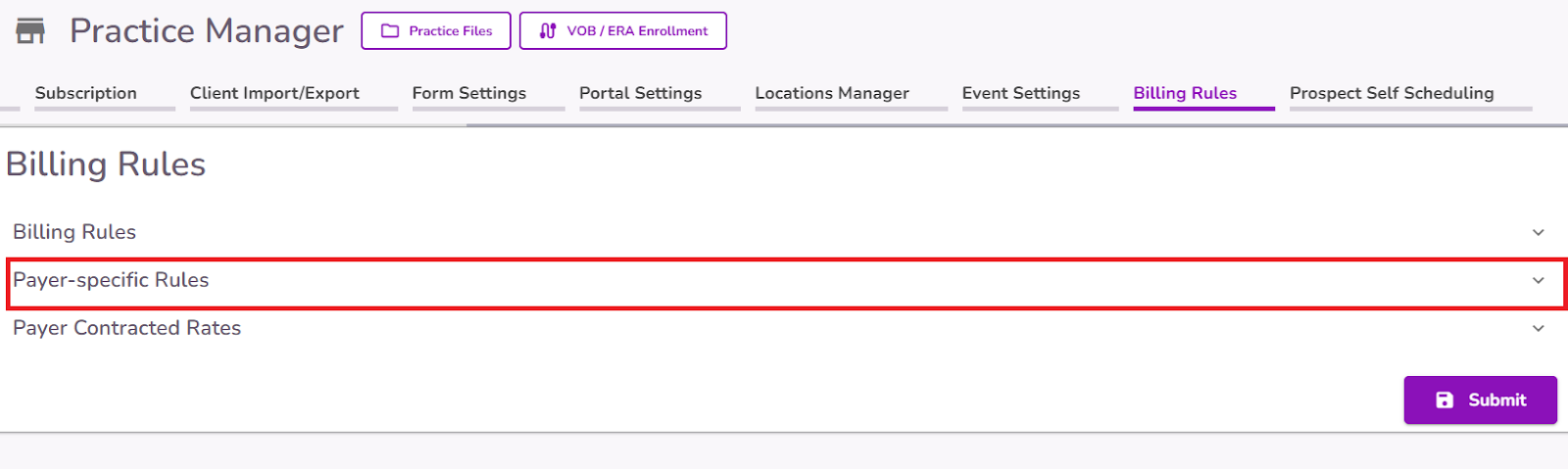
Select the Payer-specific Rules section.
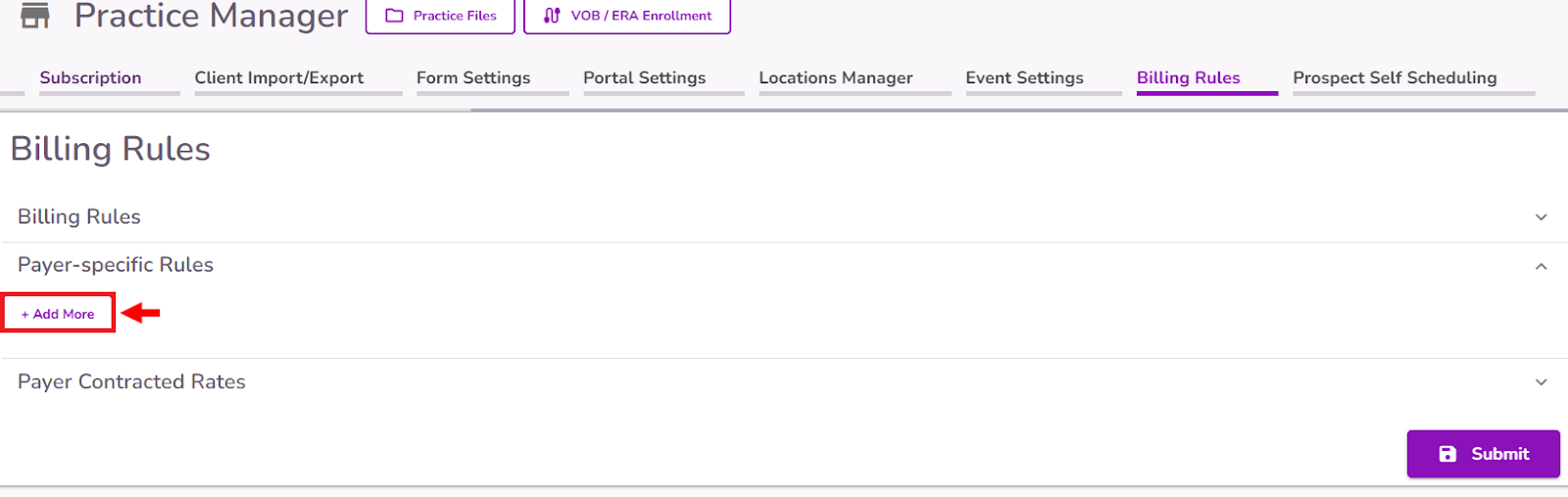
Select the +Add More button
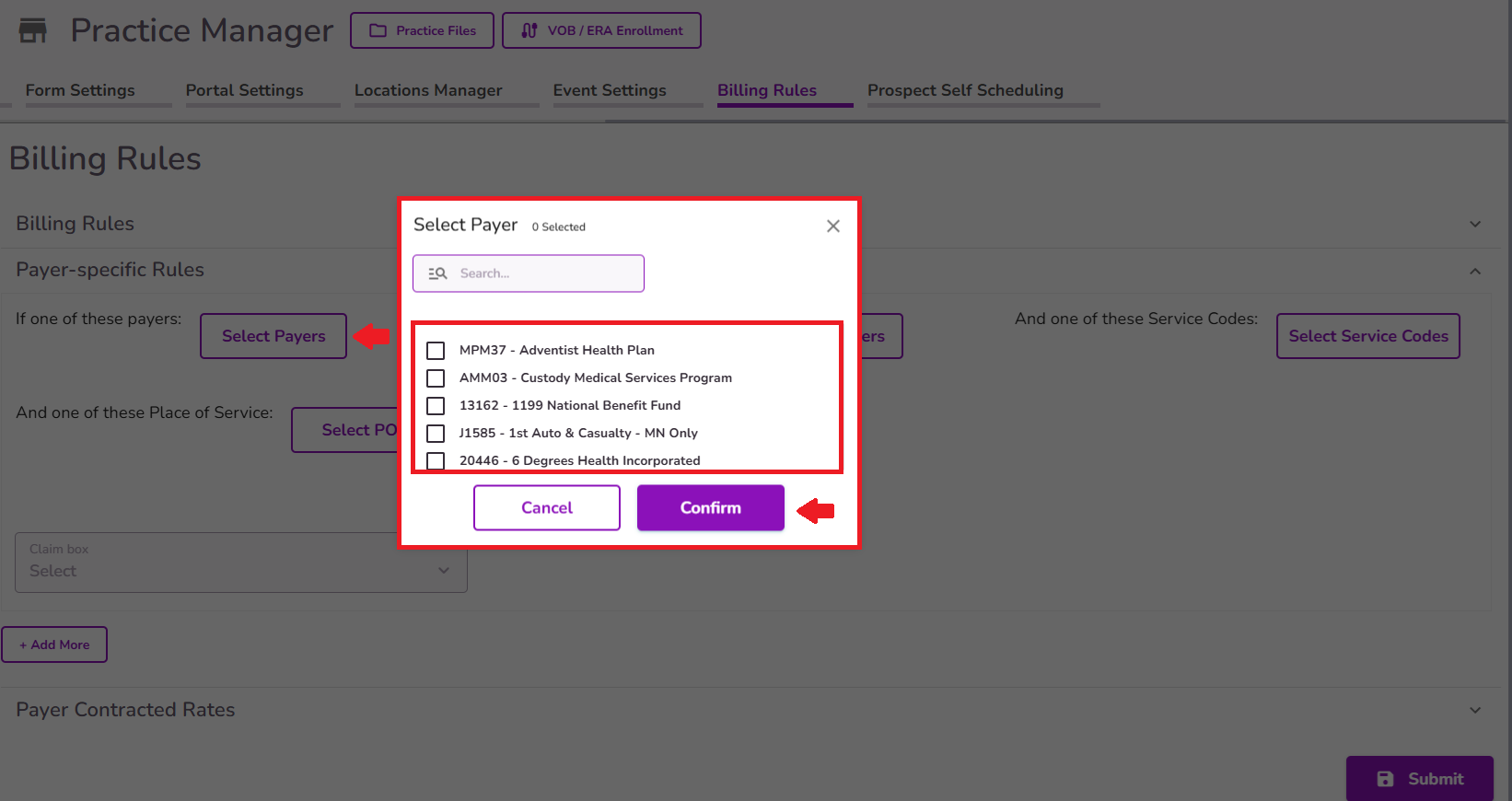
Configure the Payer Rule condition by selecting the appropriate payer(s) from the “Select Payer” button, and the appropriate provider (if applicable) using the “Select Providers” button. This determines the information that will automatically populate on claims based on the specified payer and provider. Service codes and POS can also be configured for Payer-Specific Rules.
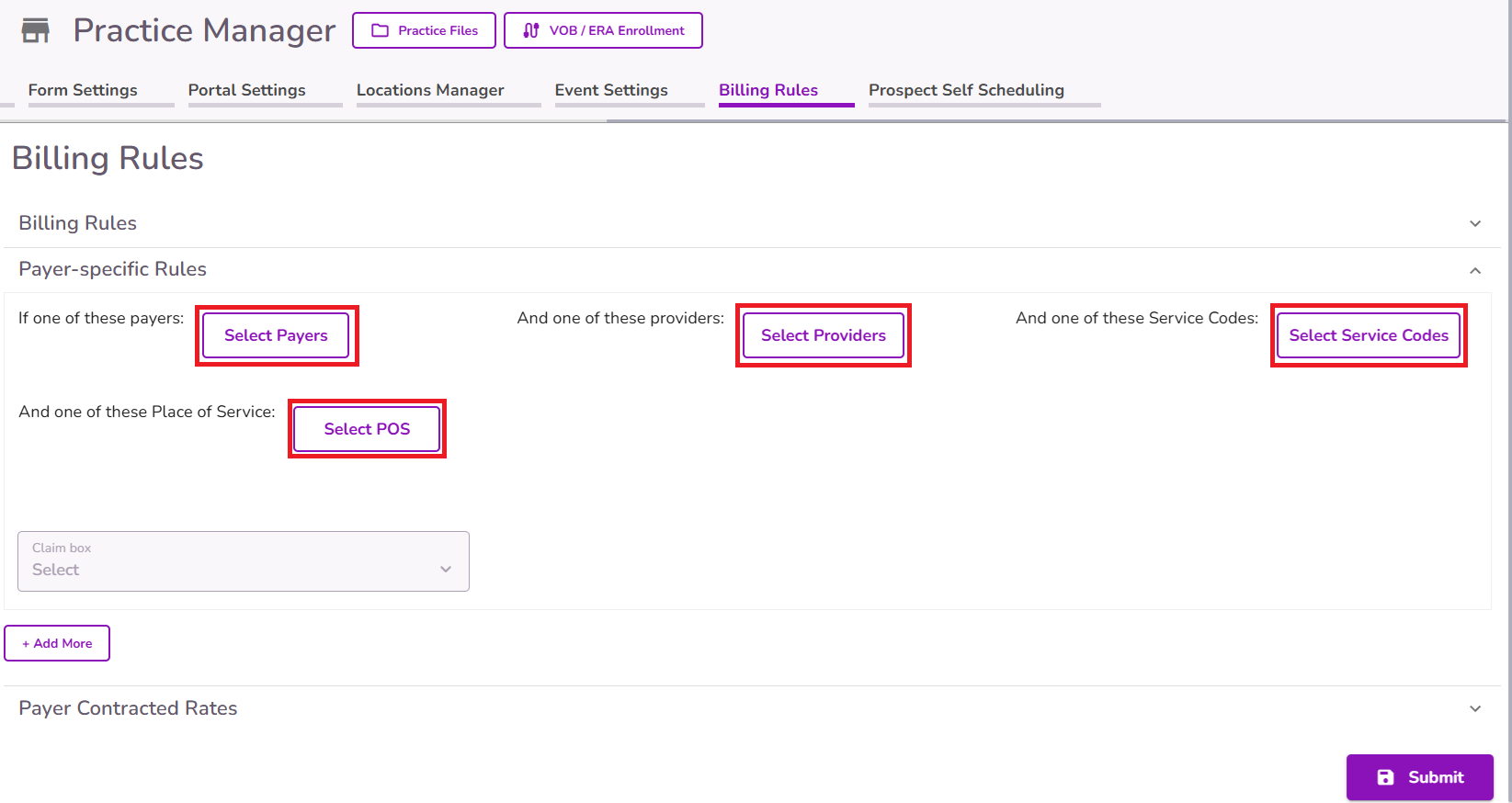
When clicking the “Select” button on each section, a pop-up will appear, displaying the available options for each box. You can select multiple options for each rule. Once you have made your selections, click "Confirm" to proceed.
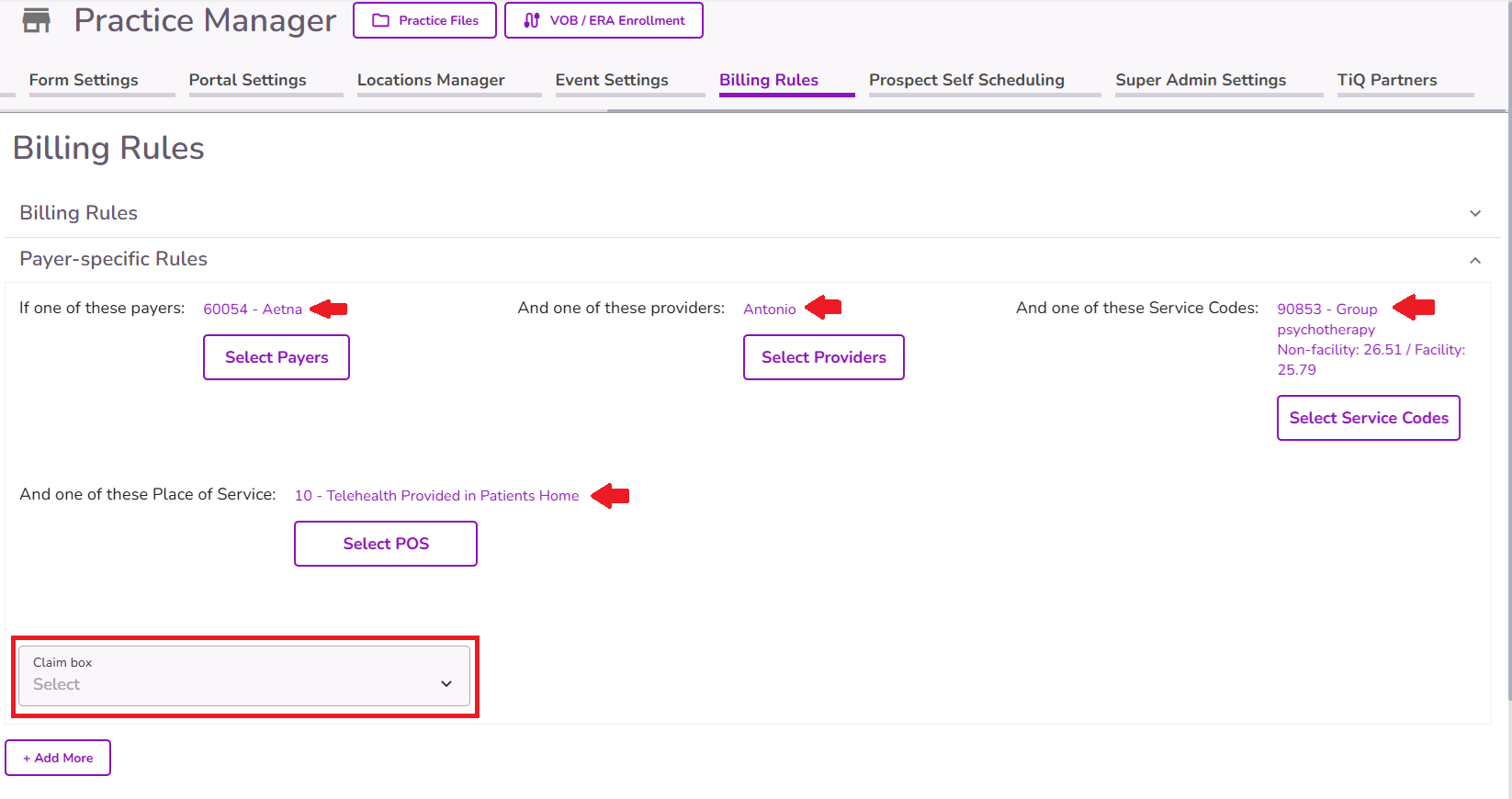
Once the Payer, and a Provider if applicable, is added, the 'Claim Box' dropdown becomes enabled, selecting the claim box number and information to be auto-filled in the claims by selecting an option from the "Claim Box" dropdown.
IMPORTANT: You must select at least one Payer for the Claim Box field to enable. If you only select a Provider, this field won’t be available.
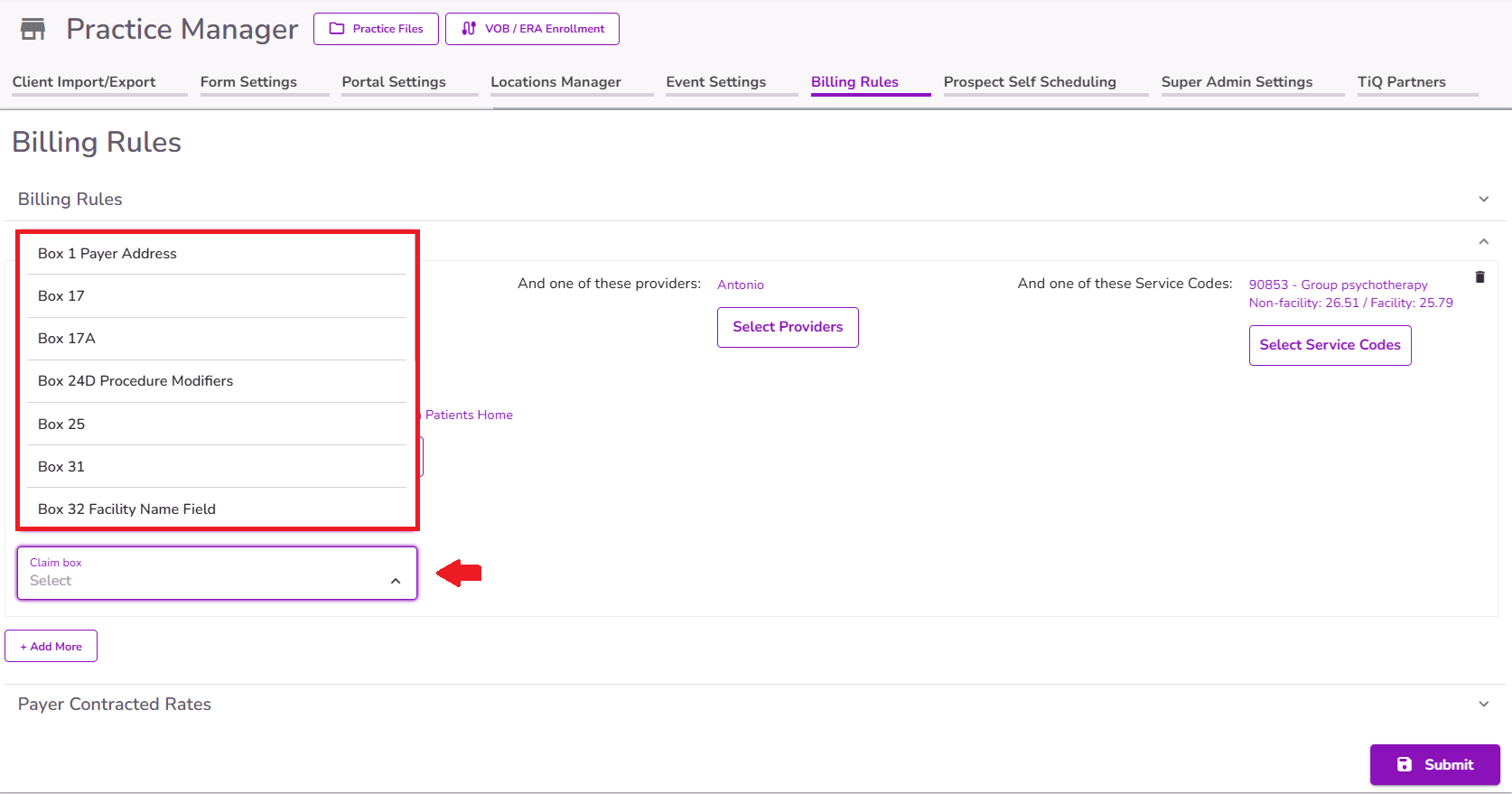
NOTE: Currently, the available claim boxes for auto-filling based on these rules are 1,17, 24D, 25, 31, 32, and 33.
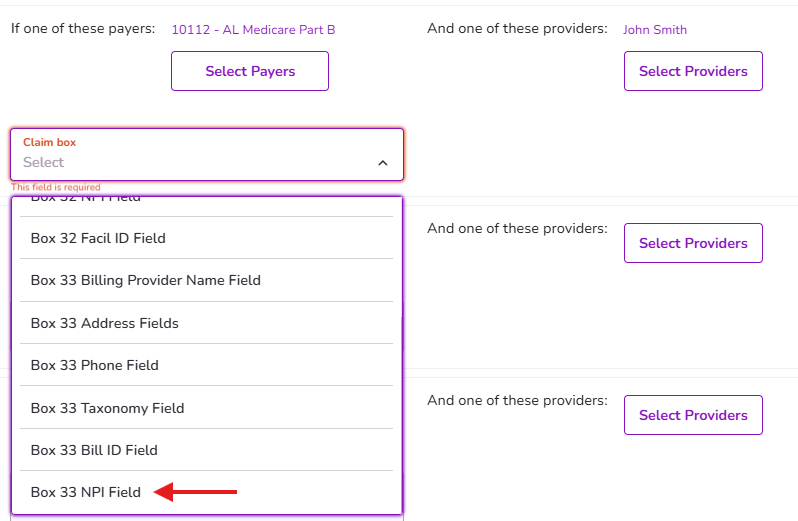
Note: Since certain payer contracts may require a different Billing Provider NPI based on the payer and servicing provider combination, you have the ability to configure a payer-specific Billing Provider NPI override using the Billing 33 NPI Field option.
IMPORTANT: If there is already a rule for a specific Payer - Provider combination, it won’t be possible to add another rule for the same box with that same combination.
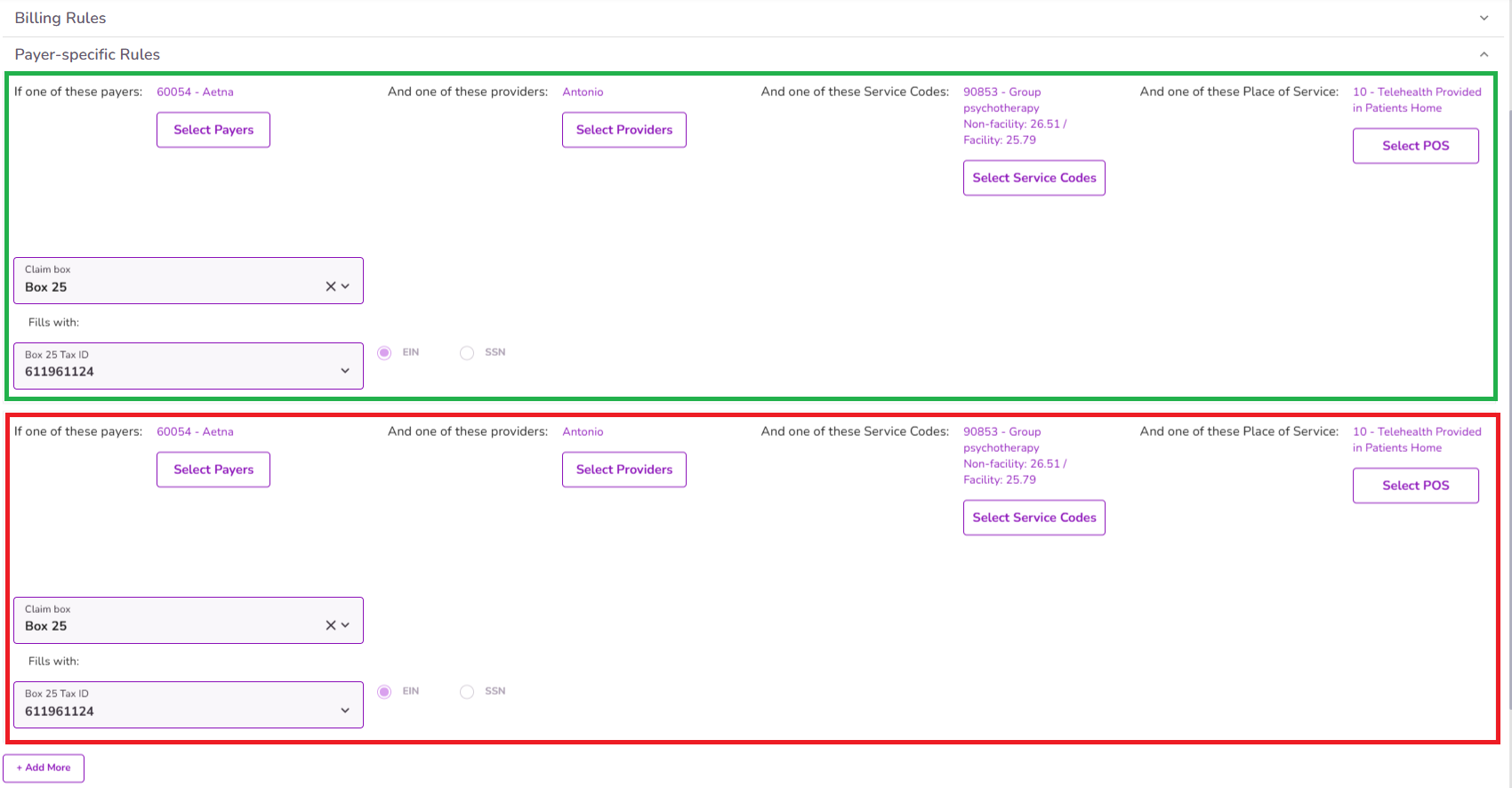
After selecting the claim box number and information, complete the required fields, which will then be auto-populated in Claims with the chosen payer, and provider when applicable.
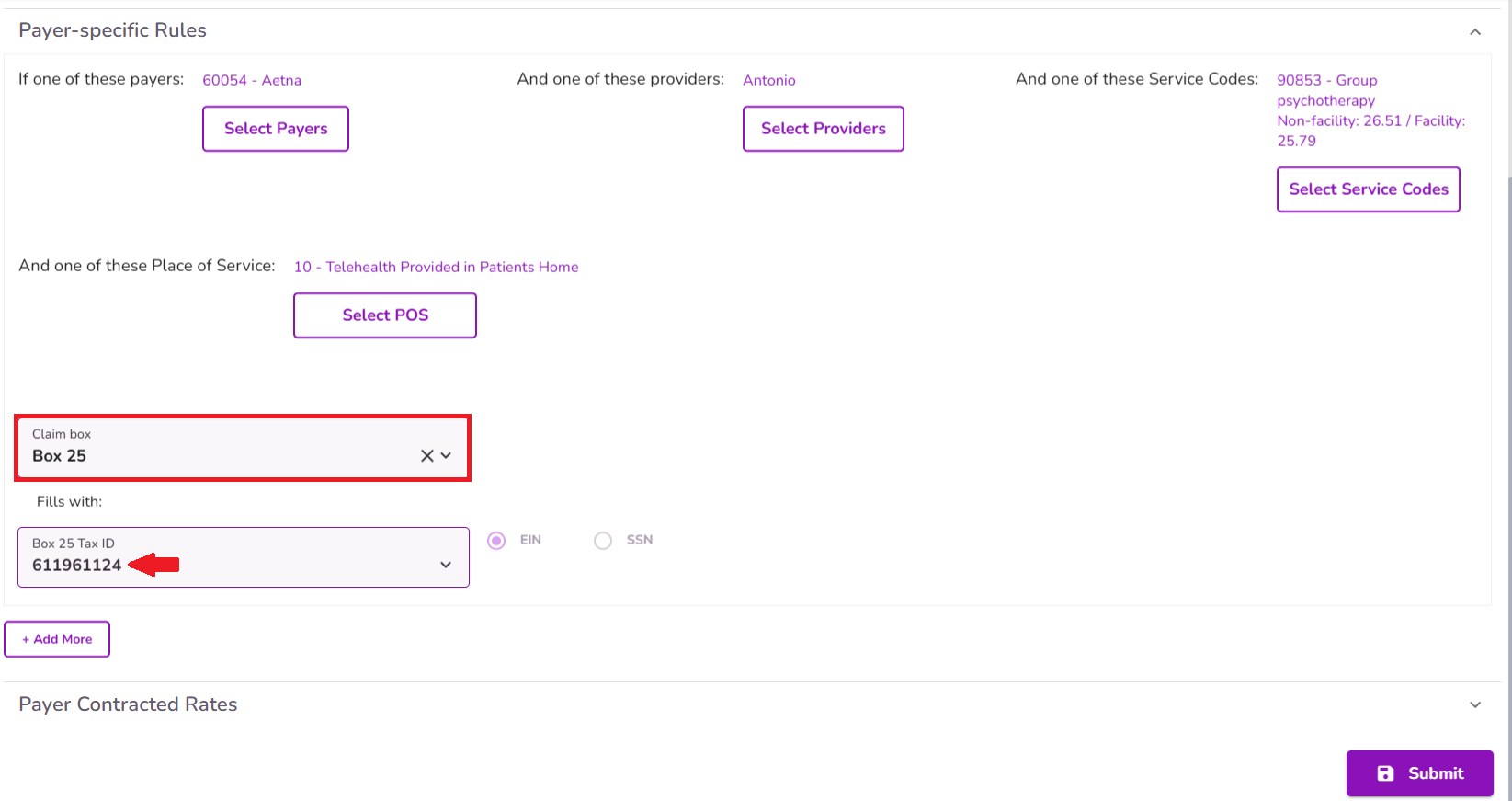
Select "Submit" to save your "Payer Specific Rule"
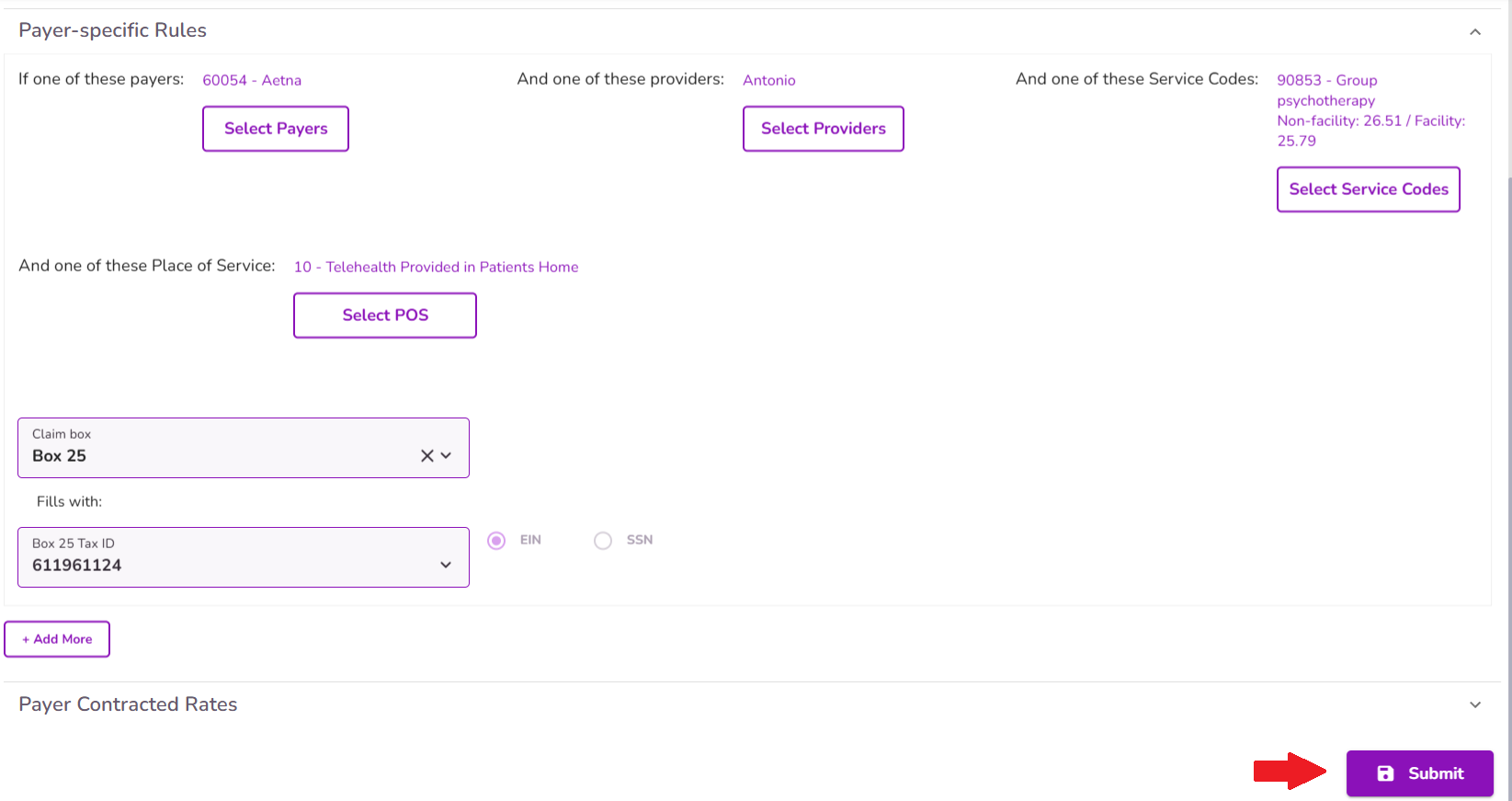
After saving the Payer Specific Rule, claims in Pending status will be automatically updated in the corresponding box. Newly generated claims created after the rule is set will also be auto-populated.
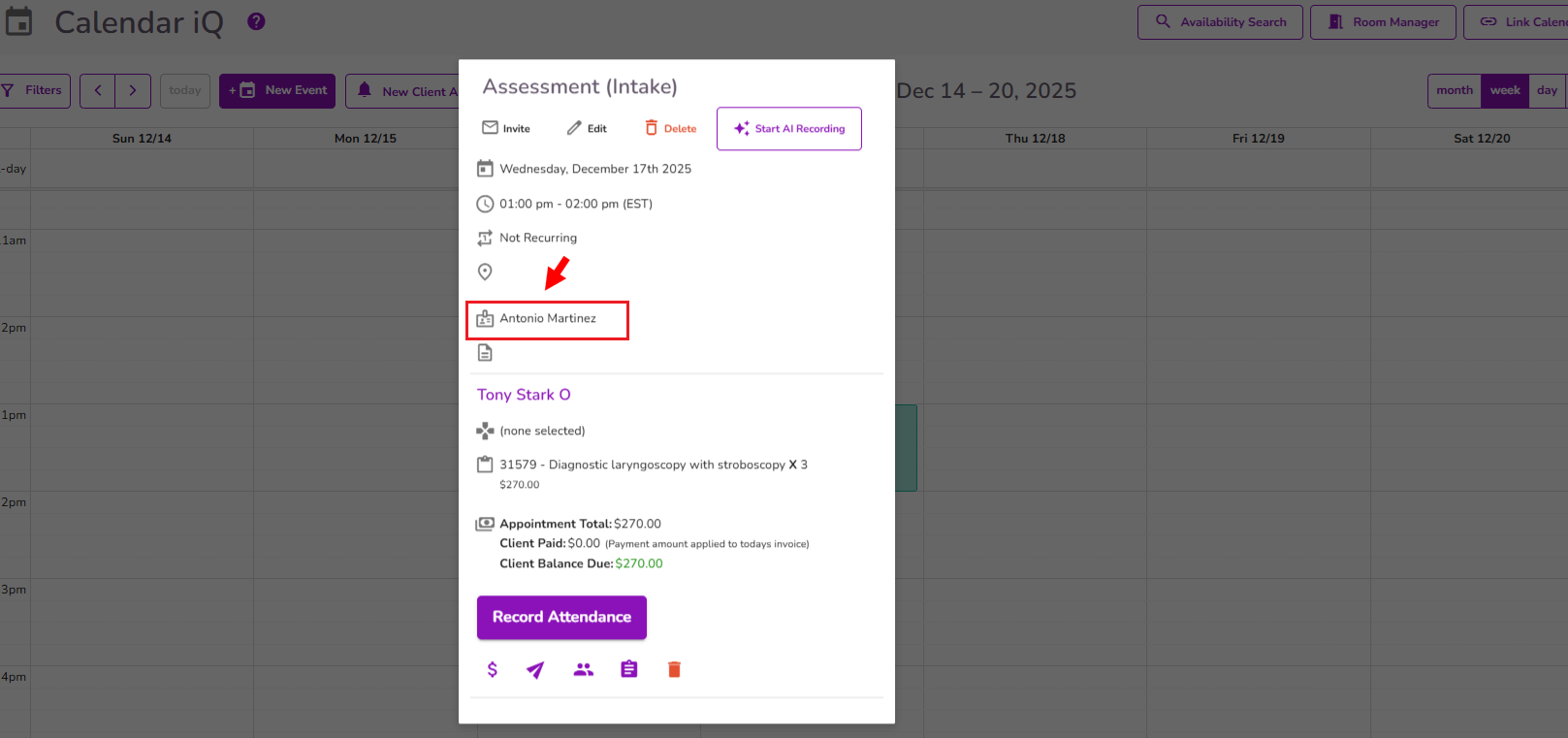
IMPORTANT: The logic for the rule to be applied on claims will depend on the Payer added to the client’s profile, and the first Provider listed on the event.
To delete a Payer Specific Rule, hover over it and click the Trashcan icon. Then, confirm by selecting Proceed.
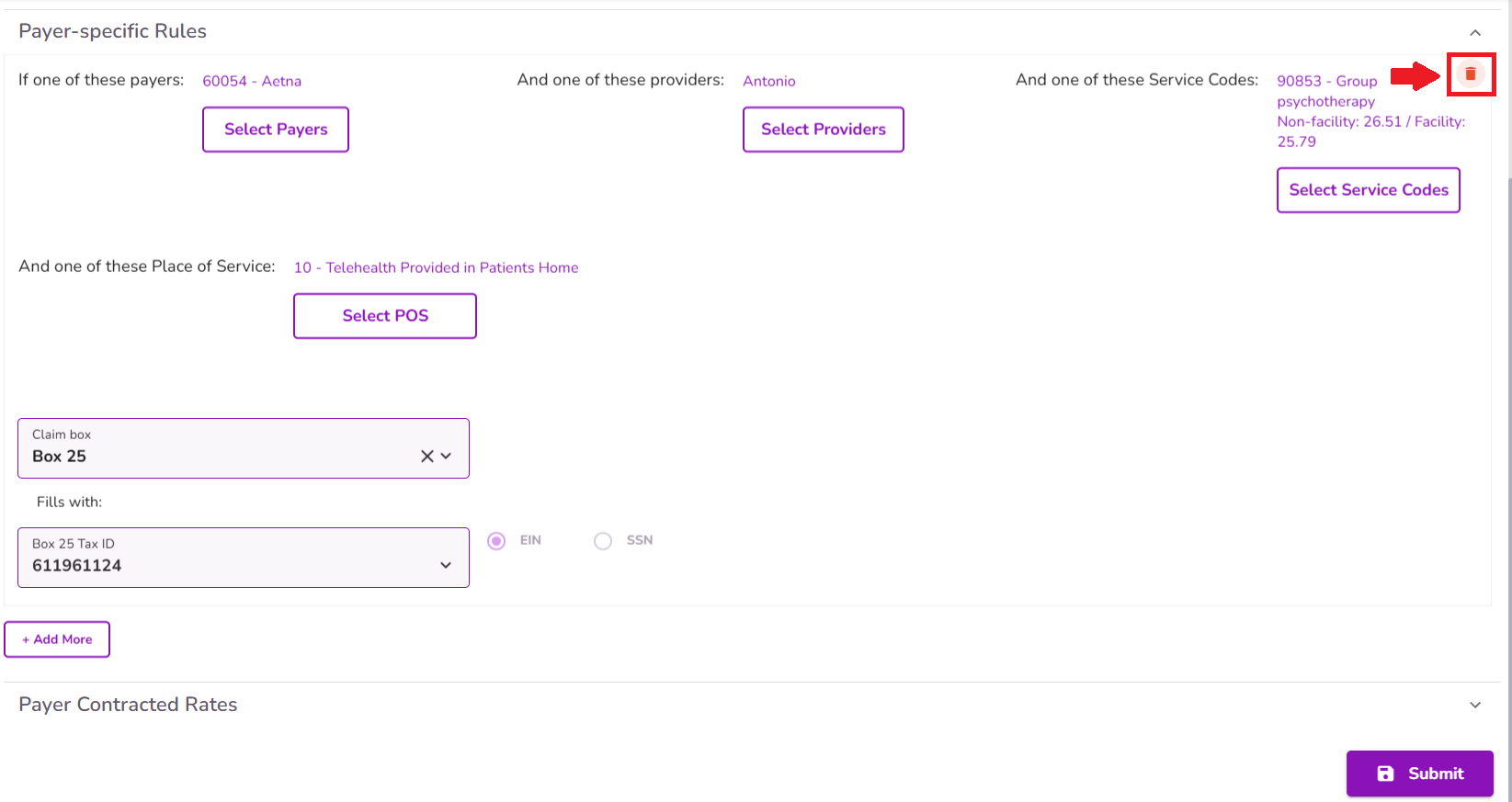
IMPORTANT: If claims are generated using a 'Payer Specific Rule' and the rule is later deleted, the information will be removed from any claims in Pending status.


