How to Send Forms in Bulk to a Client
The Forms Library option in the client’s profile allows providers to manage forms that have been completed or sent to the client portal. Providers can send forms individually or send multiple forms at the same time.
This guide explains how to send multiple forms to a client through the Forms Library.
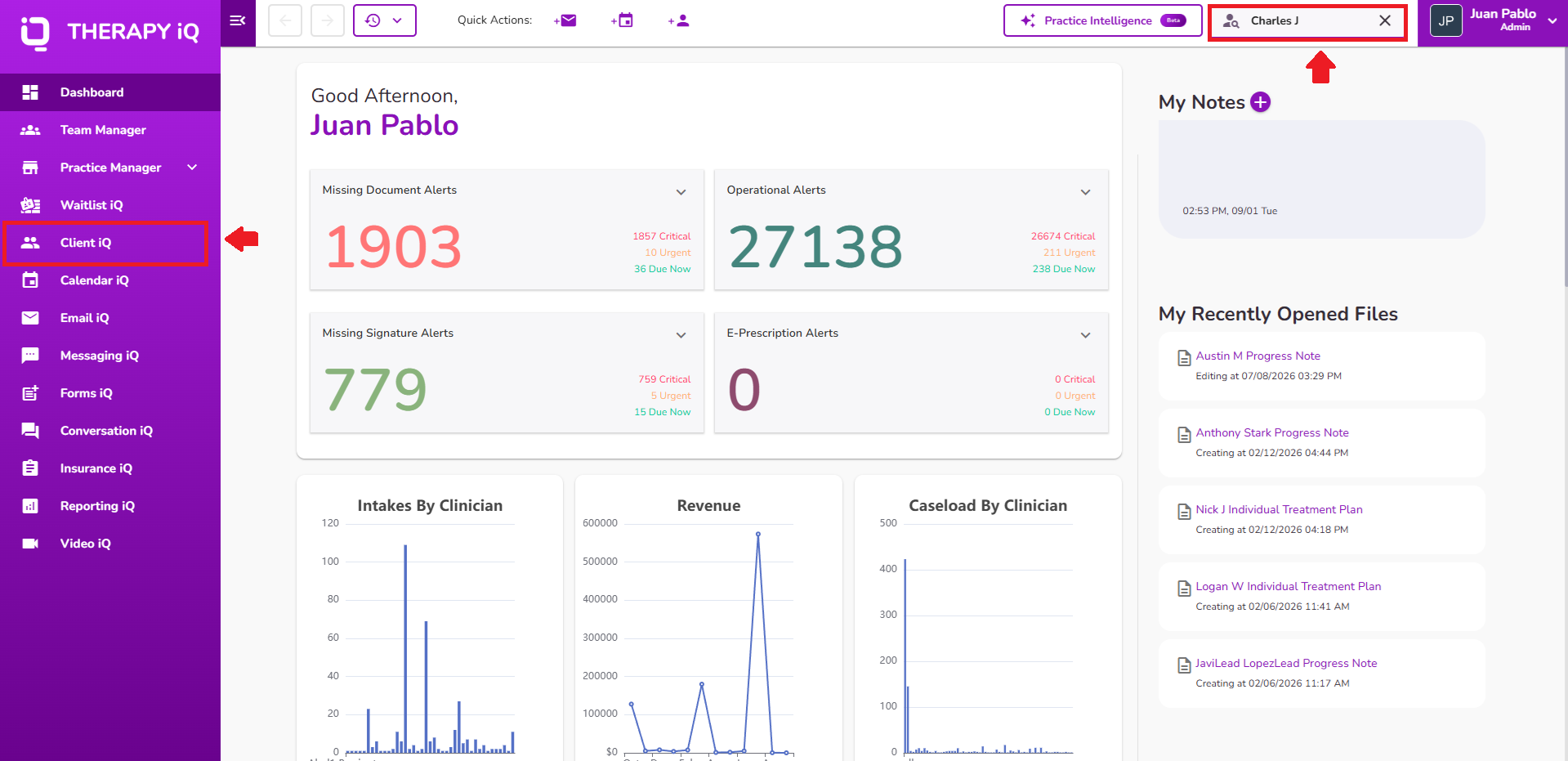
Open the client’s profile through Client IQ or search for the client using the search bar in the upper-right corner.
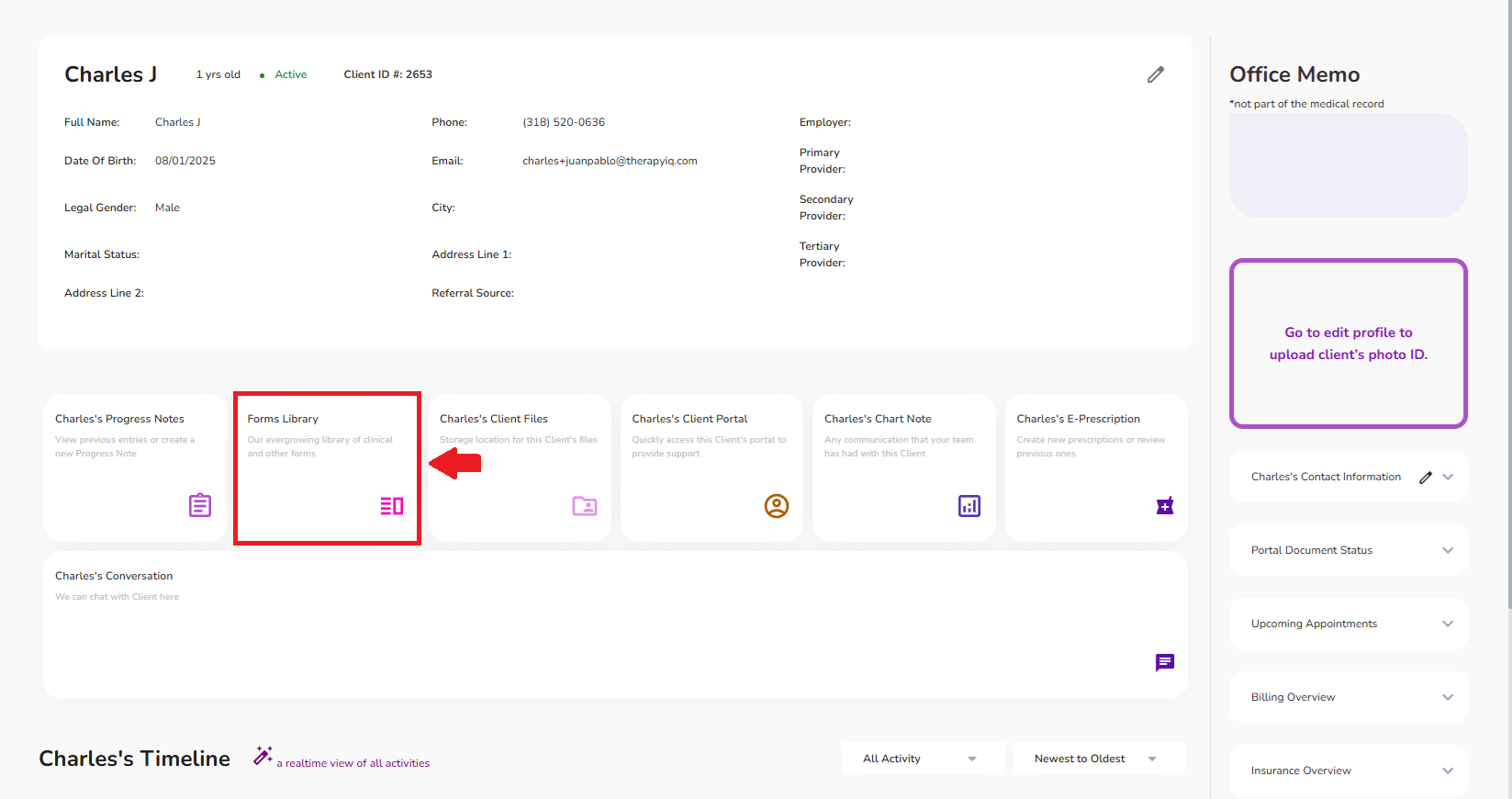
From the client’s profile, select Forms Library.
Forms are organized by type, including Clinical Forms, Custom Forms, and Screeners. You can select the appropriate section to locate the form and review any forms that have been completed or previously sent.
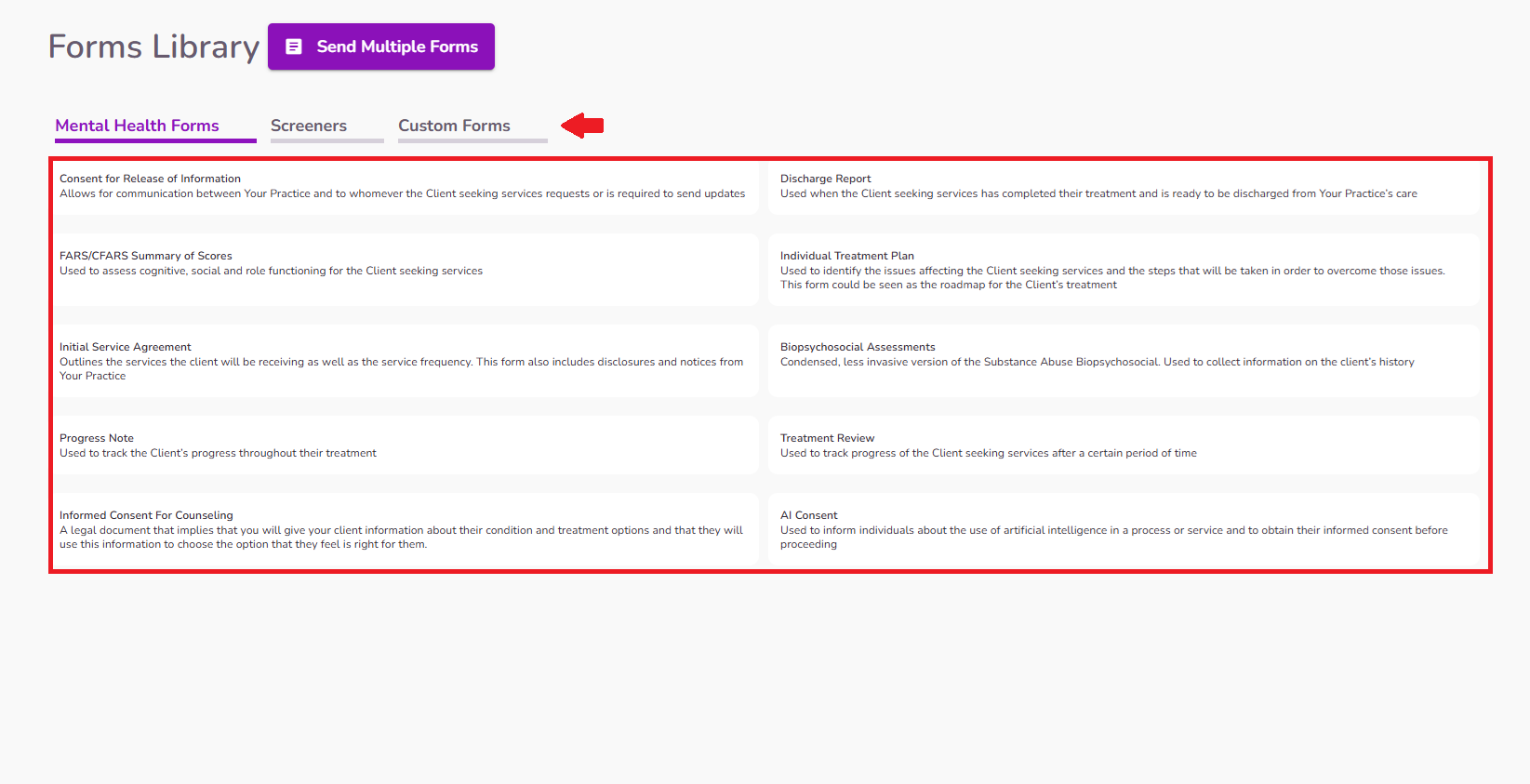
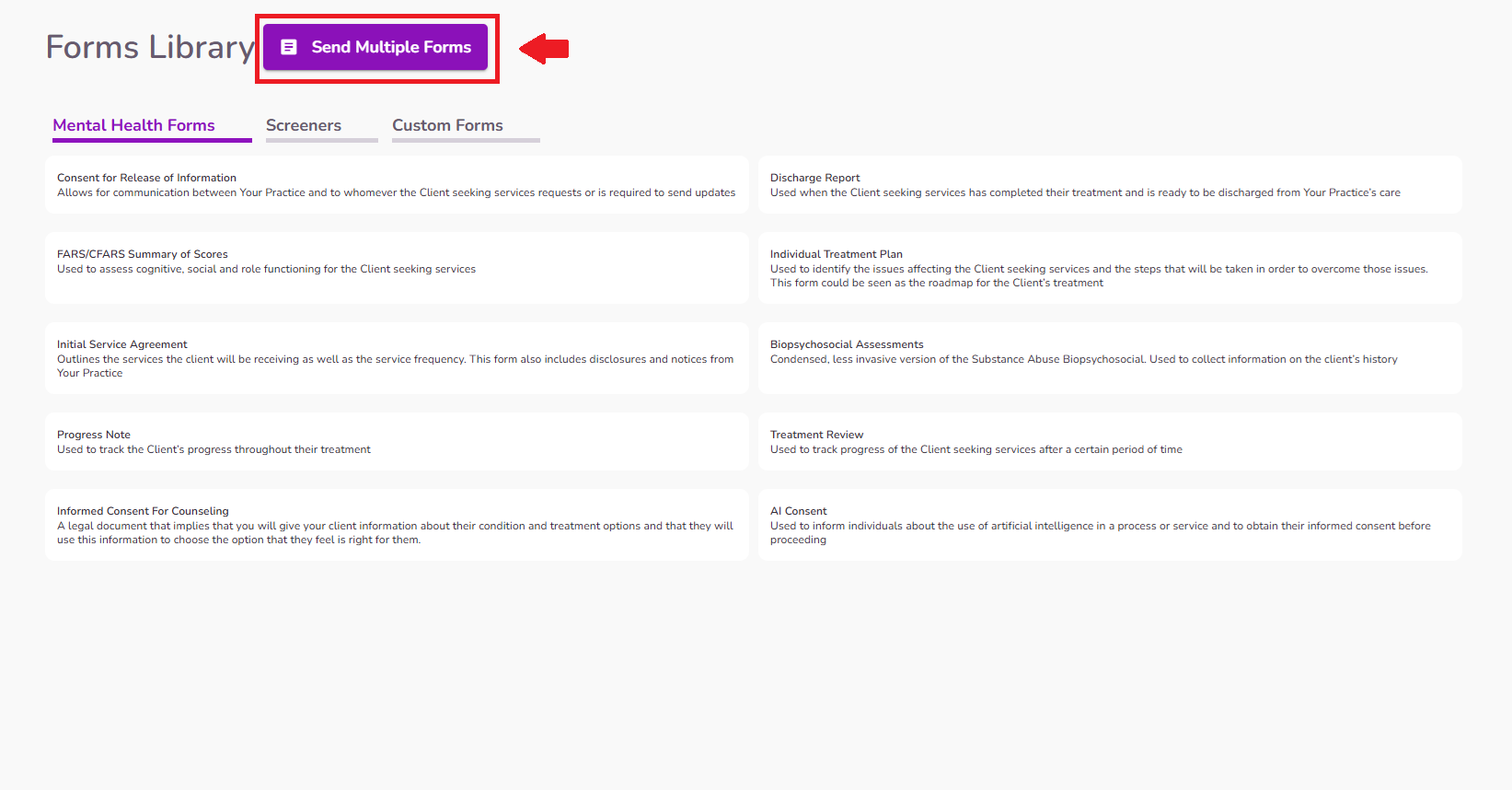
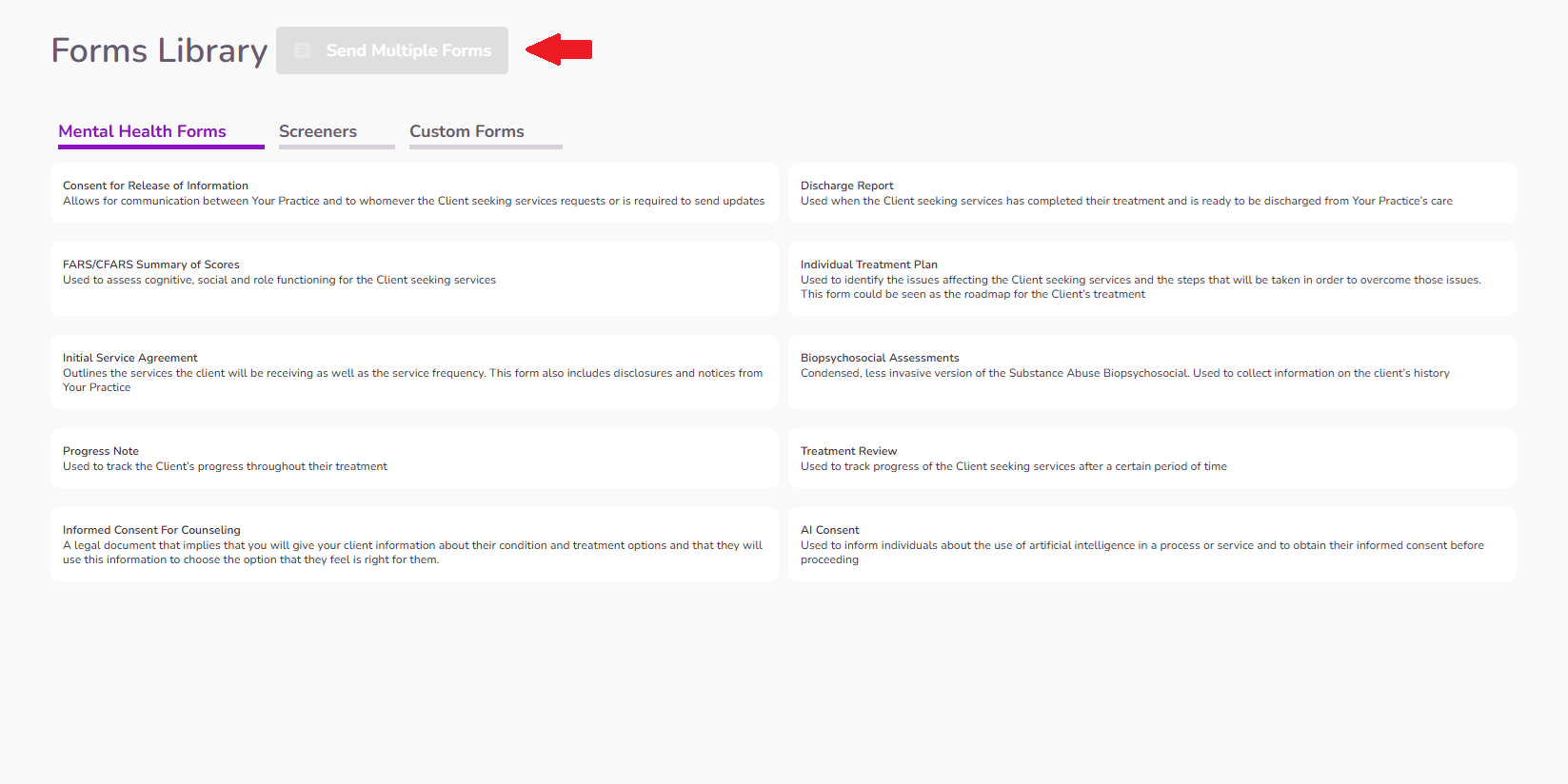
To send multiple forms at once, select Send Multiple Forms at the top of the Forms Library.
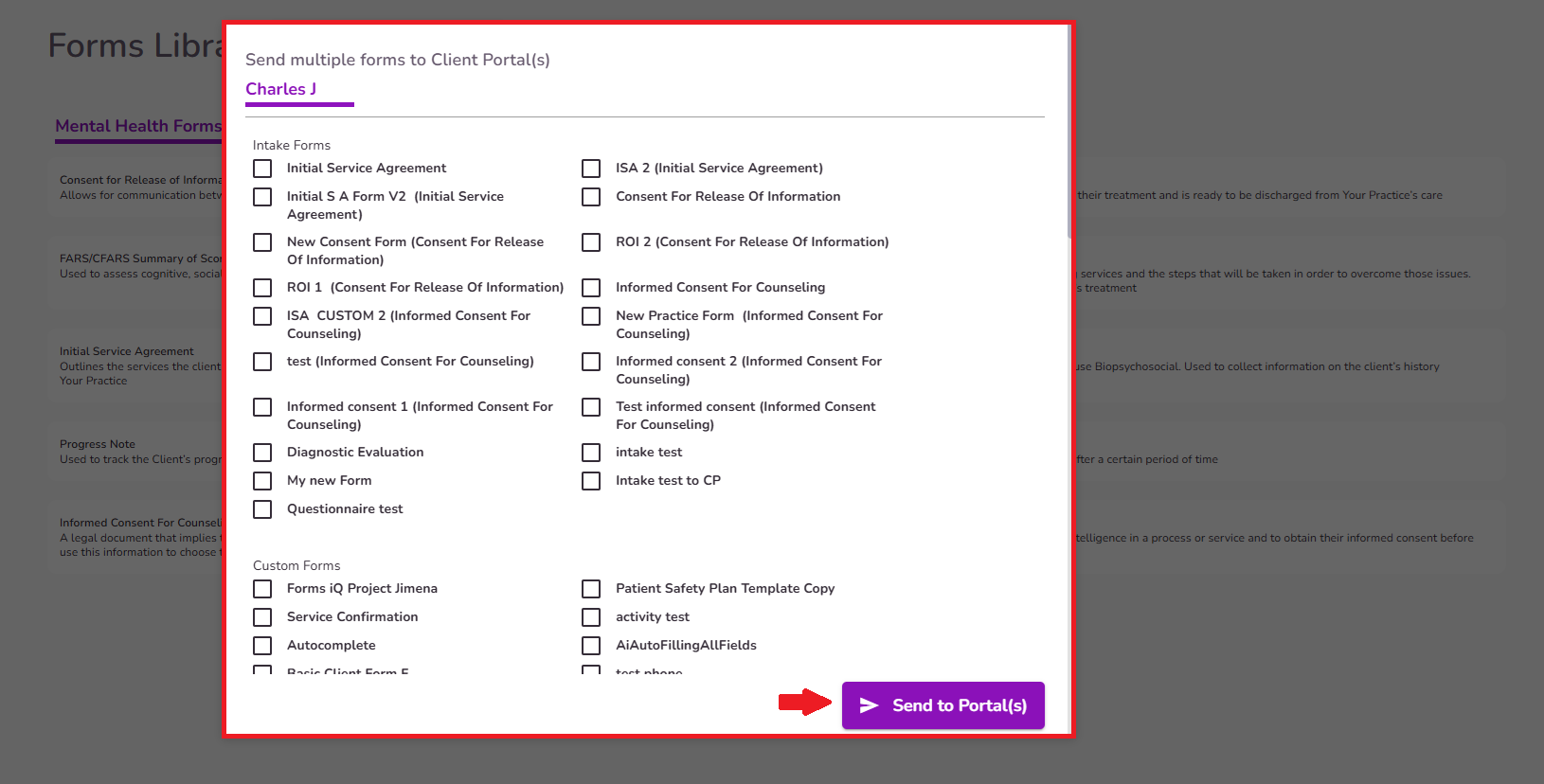
A pop-up window will display the forms available to send to the client portal. Select the forms you want to send and click Submit.
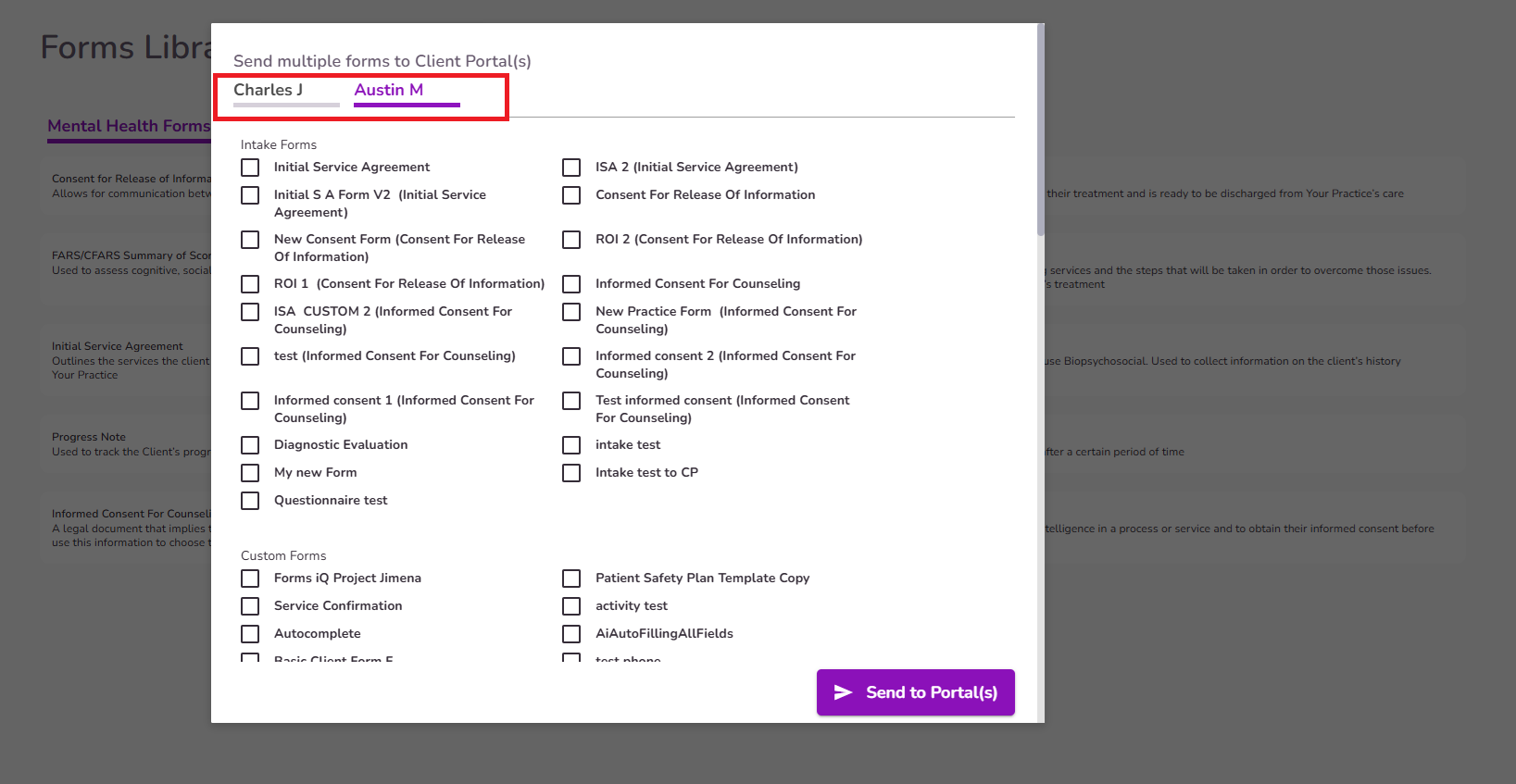
If the client has a relationship/contact added to their profile, you can also select which portal should receive the corresponding forms.
If forms were already sent through the Client Portal Invitation option, those forms will appear preselected in the bulk sharing window.
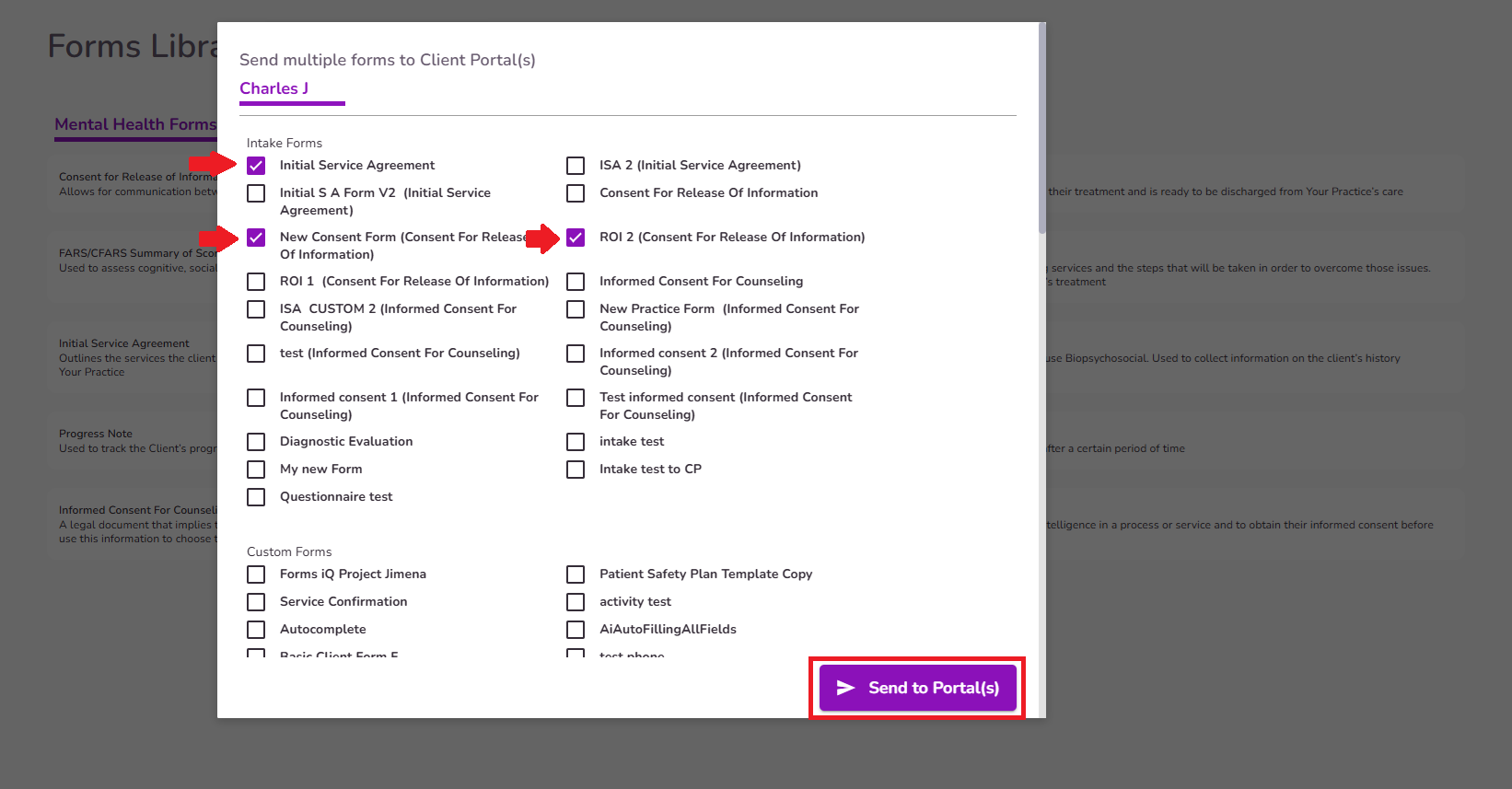
Keeping these preselected forms will not resend forms to the client. You can select additional forms to send, while the preselected forms will remain unchanged.
If you need to resend a form that was previously sent through the portal invitation, you must first retract it:
- Locate the form in the Forms Library.
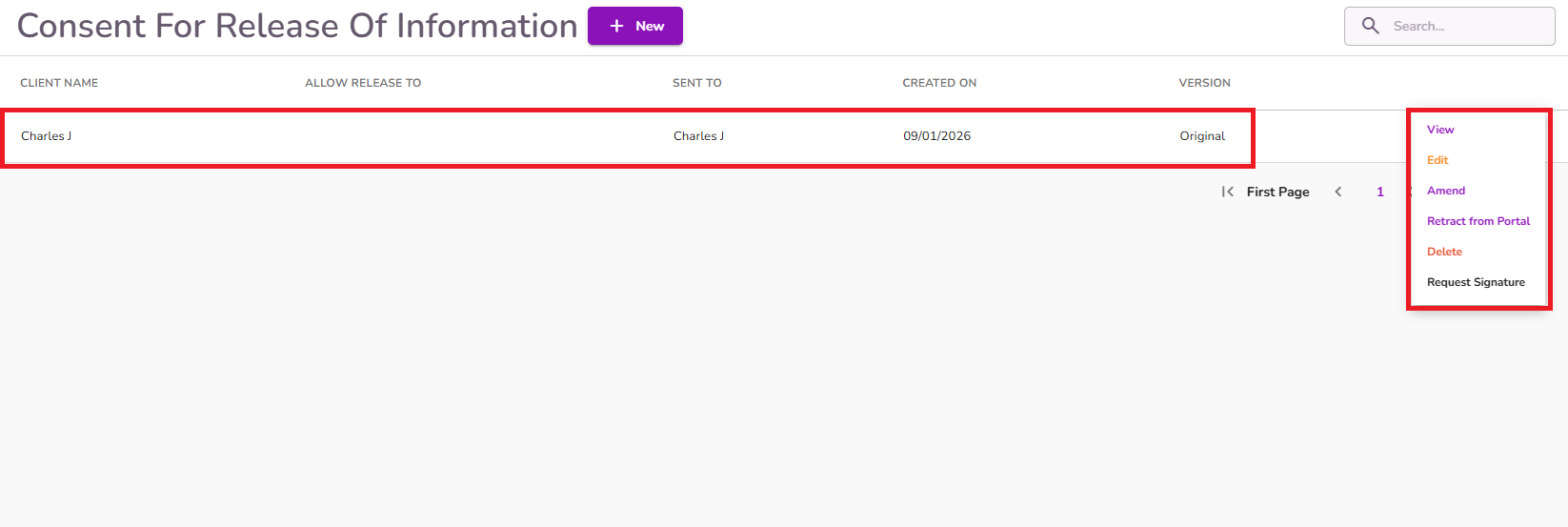
- Select the three-dot menu and choose Retract from Portal.
- Once the form has been retracted, it can be sent again using the Send Multiple Forms option.
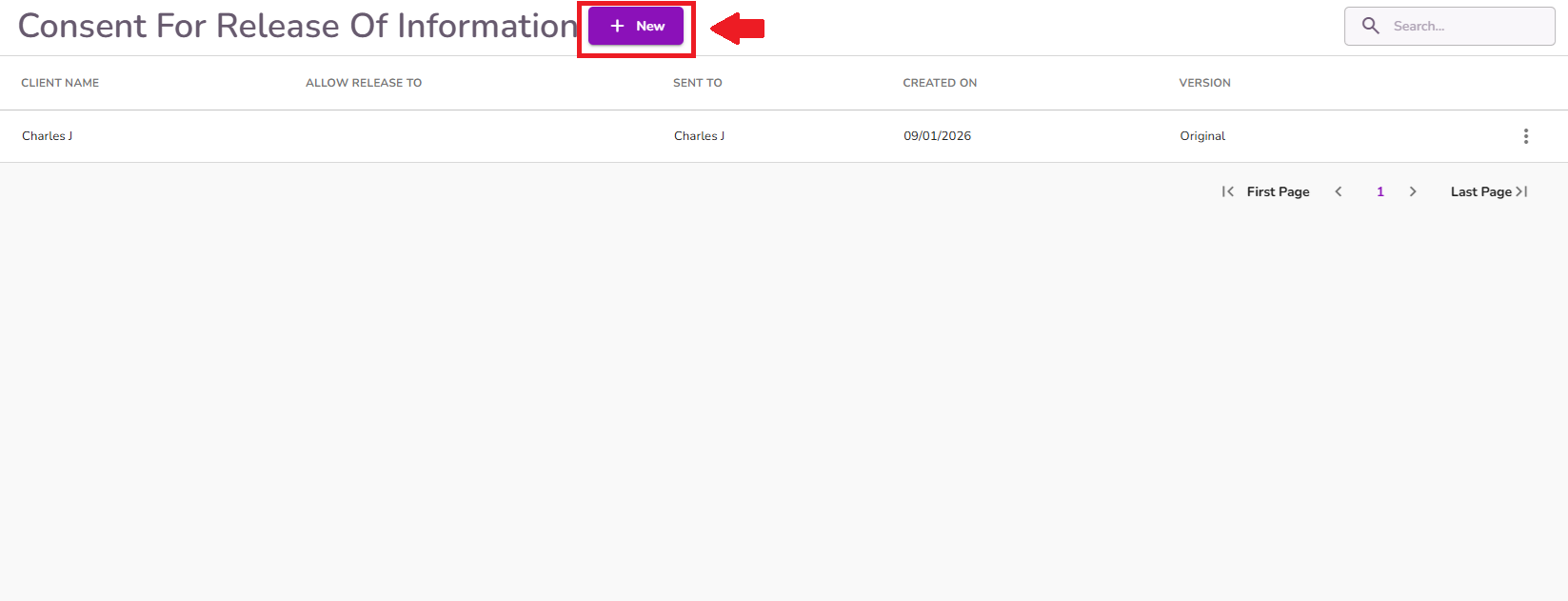
Alternatively, individual forms can be sent directly from the Forms Library using the + New option.
Note: The "Send Multiple Forms" option is only available for clients who have already been invited to the client portal.
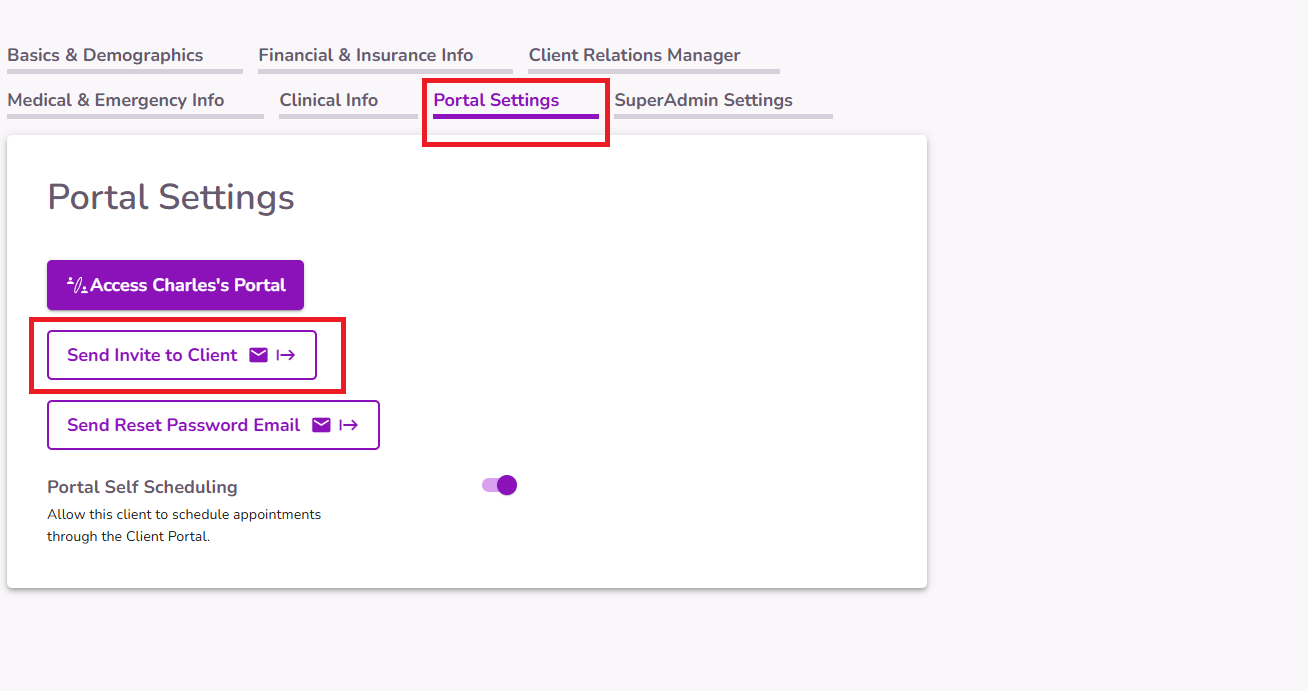
The portal invitation can be sent from Portal Settings within the client’s profile.