How To Download Client Files
Currently in TiQ, Client Files can only be downloaded individually, one by one. This guide will guide you through that process.
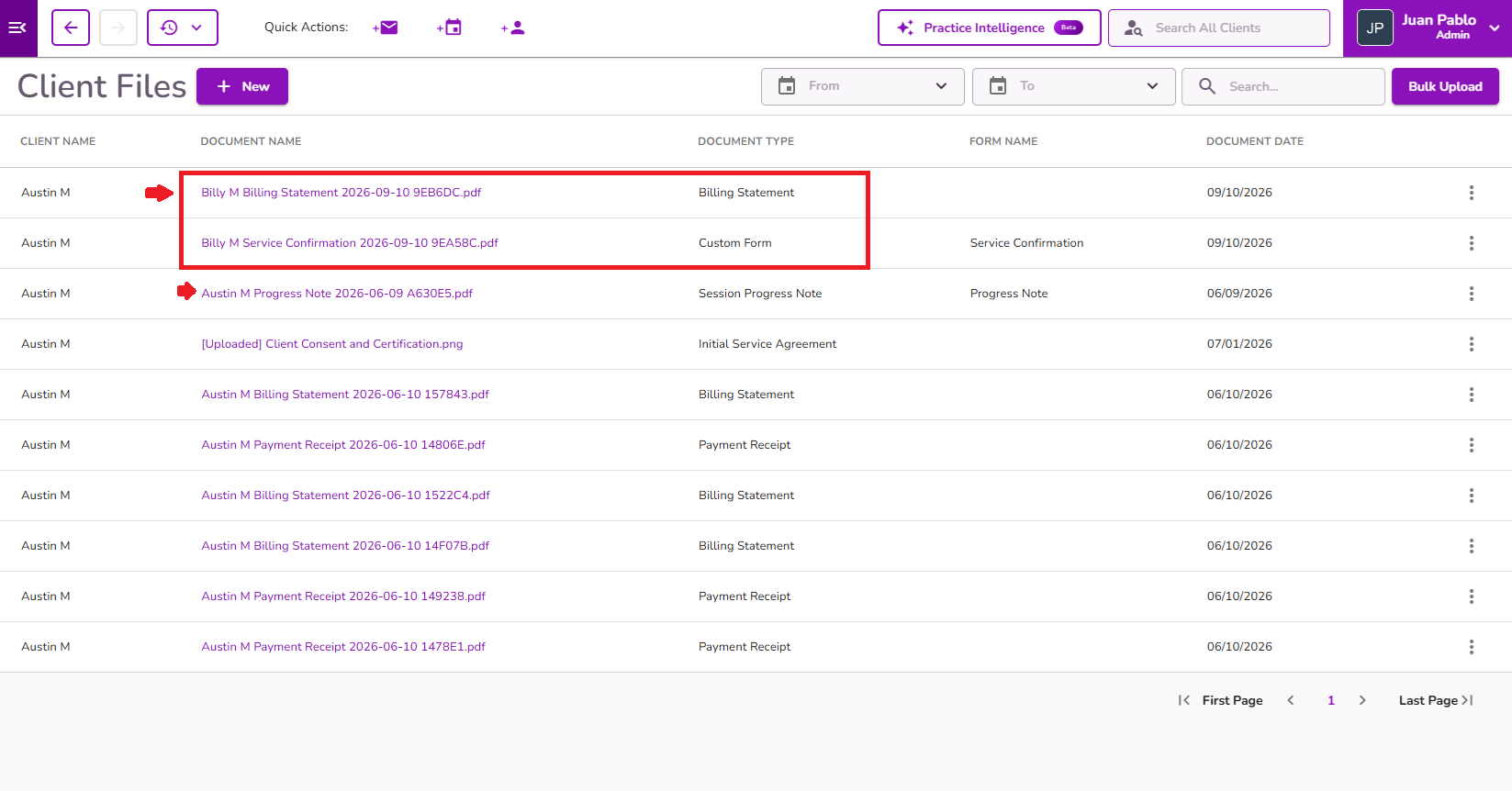
Navigate to the client’s profile and select Client Files

Search for the file using the Search box or by setting a date range using the From and To fields

Once you identify the file, click on the 3 dots on the right side.

Select Download, and the file will now be downloaded to your device.

Note: Non-billable form files will be saved using the client’s preferred name configured in their profile instead of their legal name. If no preferred name is configured, the client’s legal name will be displayed.
What if you need to download multiple files?
While TiQ doesn’t currently offer a bulk export or download feature, you can use an alternative method through Email iQ to make the process a bit easier. This feature allows you to attach and send multiple documents from a client’s file directly to your own email. Here’s how:
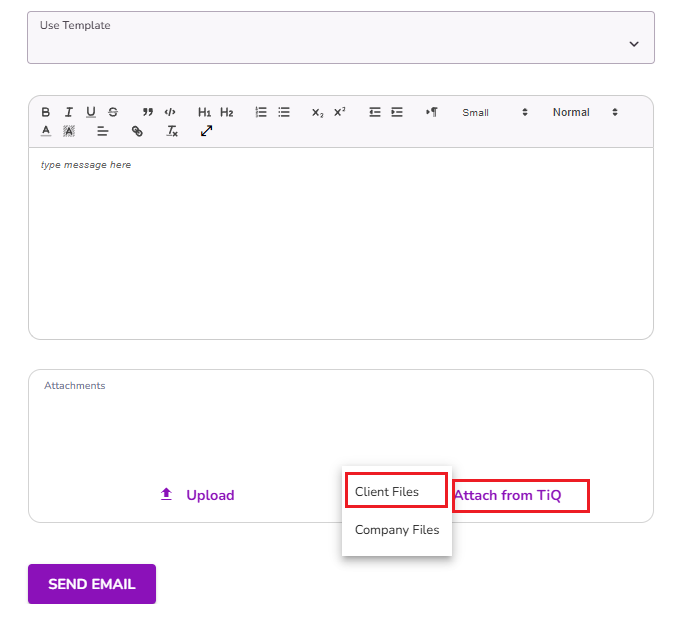
Create a new email in Email iQ and choose the “Attach from TiQ” option. Then, select “Client Files.”
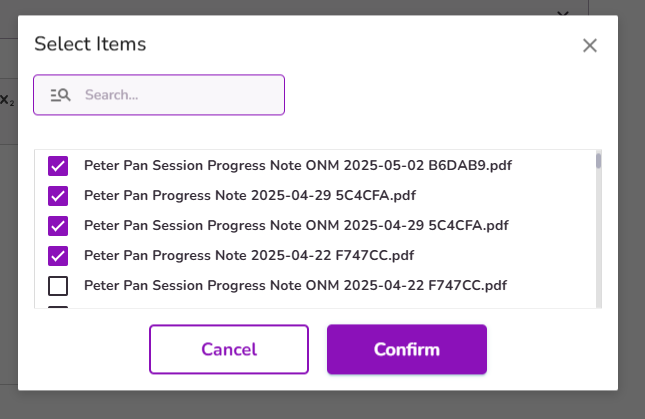
You’ll see a list of all available files for that client. Simply select the files you want, click “Confirm,” and they’ll be attached to your email. You can then send the email to yourself and easily download all the files at once from your inbox, or you can send them directly to your client so they can do the same on their end.
If you need a refresher on sending emails in TiQ, here’s a helpful guide: How To Send An Email In TiQ


