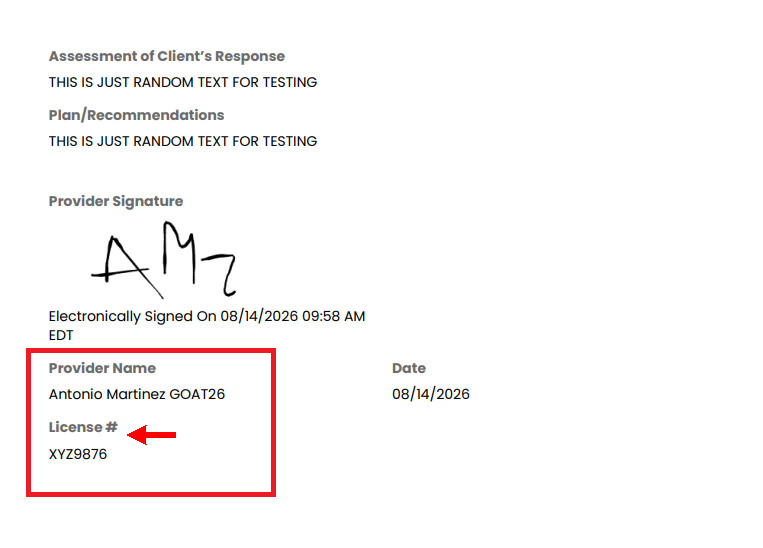
How To Add Multiple Licenses To Your TiQ Profile
In TiQ, you can add multiple licenses to your profile and have them automatically populated when signing documents such as Progress Notes, Treatment Plans, Treatment Reviews, and other billable forms.
This guide will walk you through the process.
Adding Licenses to Your Profile
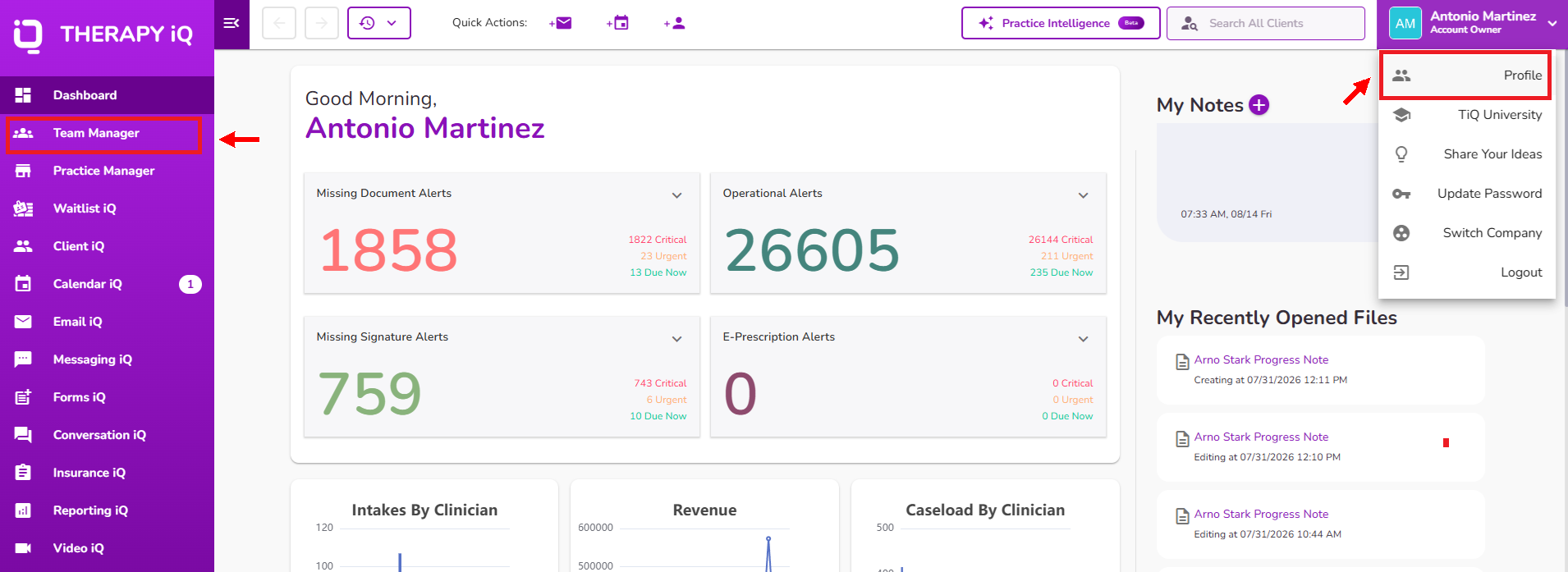
Navigate to your TiQ profile.
NOTE: Depending on your permissions, you can access your profile by selecting Profile from the dropdown menu in the upper-right corner or by navigating to Team Manager.
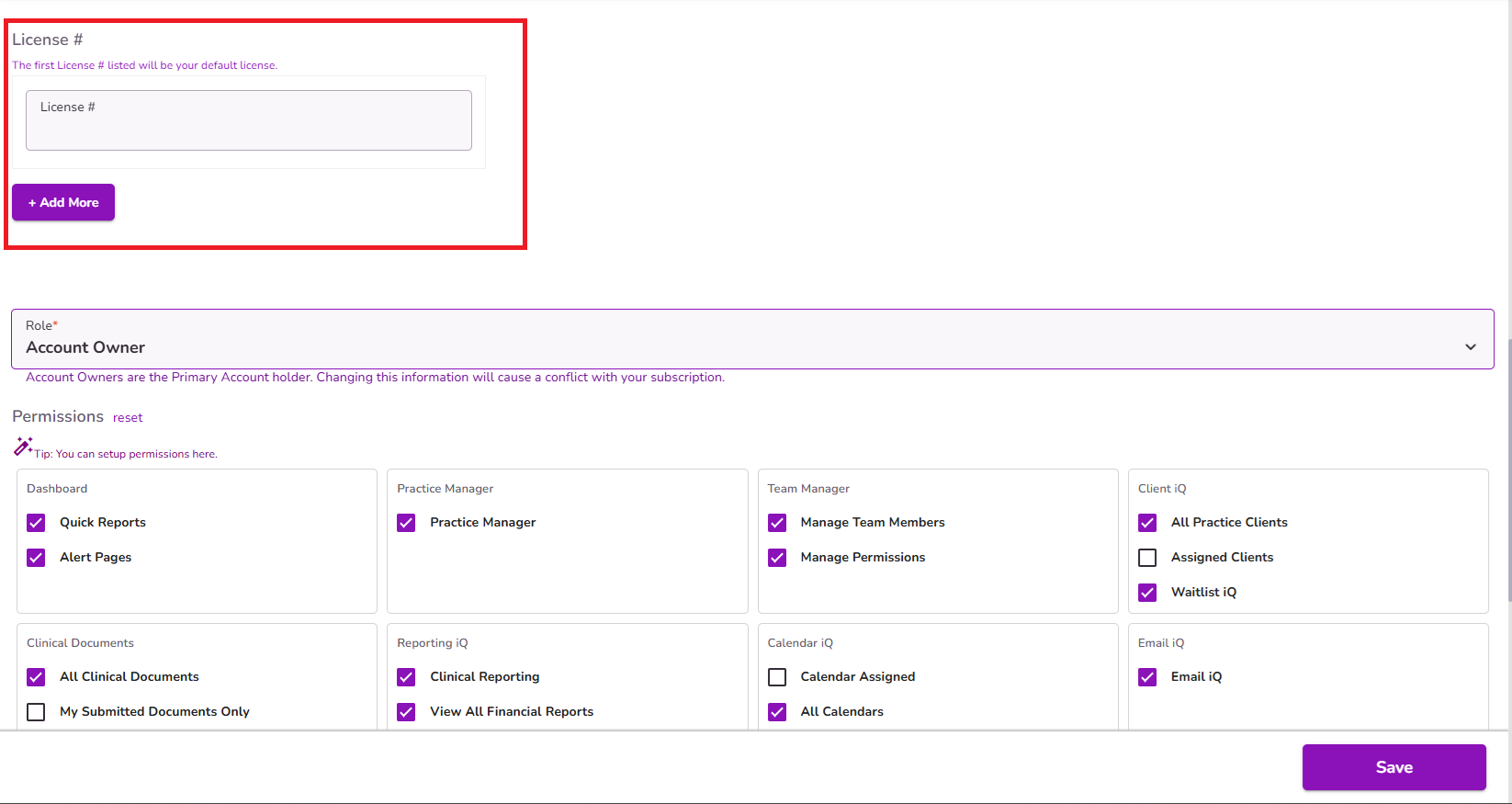
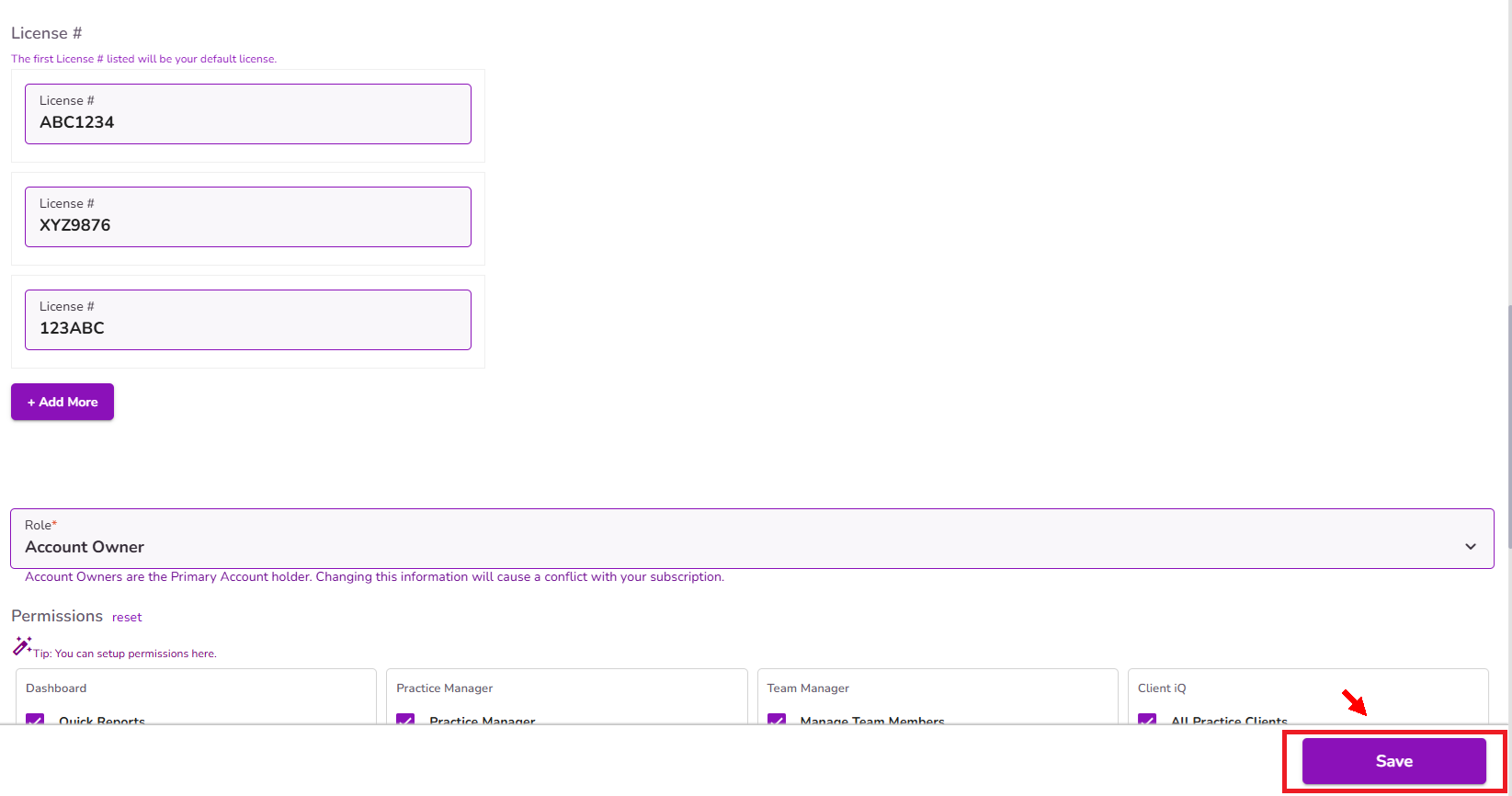
Scroll down to the License # section
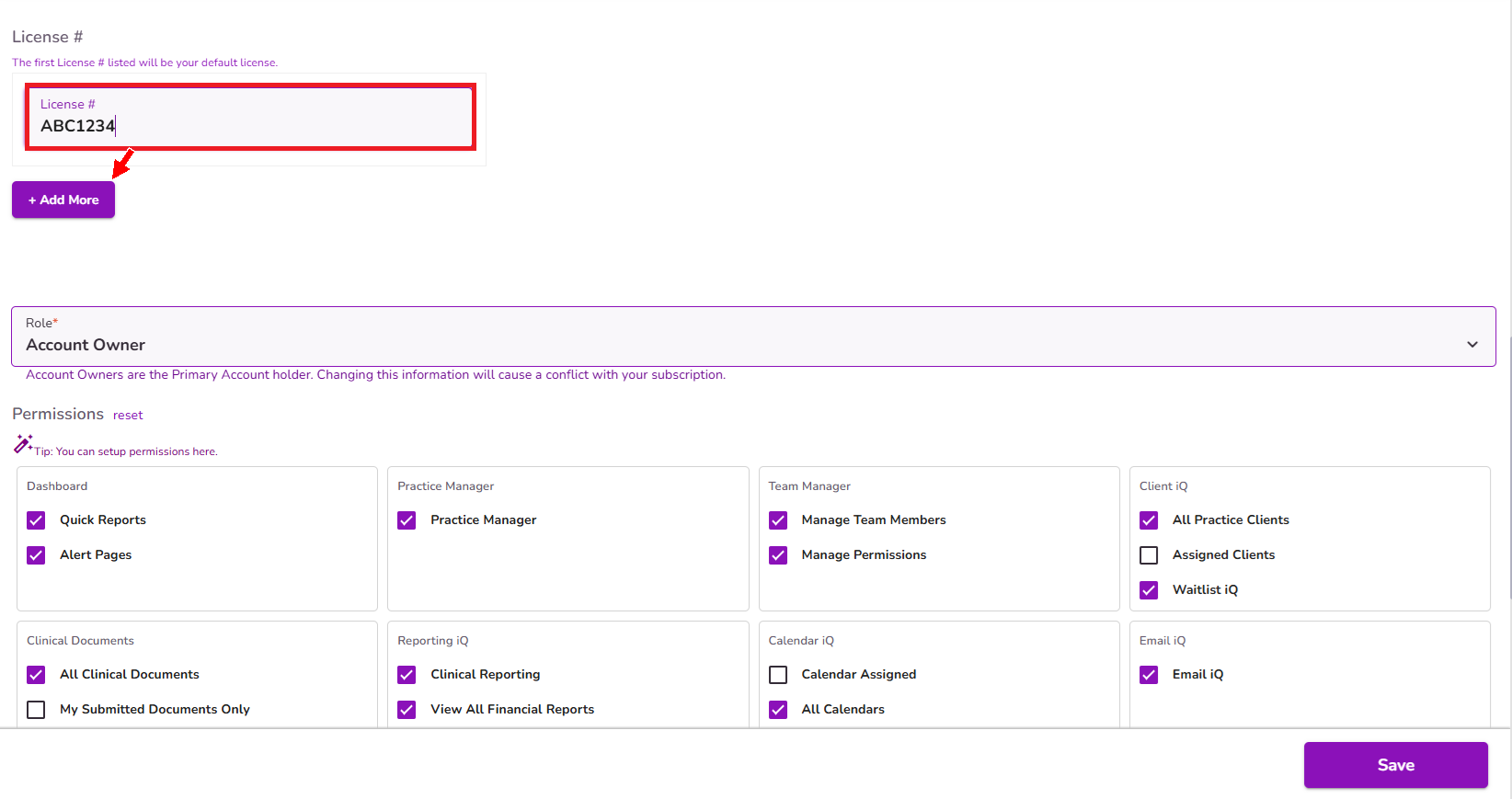
Enter your license number.
If you have multiple licenses, select + Add More to add additional license numbers.
Once you have added all your licenses, scroll to the bottom of the page and select Save.
How Licenses Are Displayed on Documents
When you sign one of the billable forms, such as:
- Progress Notes
- Biopsychosocial Assessments
- Treatment Plans
- Treatment Reviews
- Discharge Reports
TiQ will automatically populate your license number.
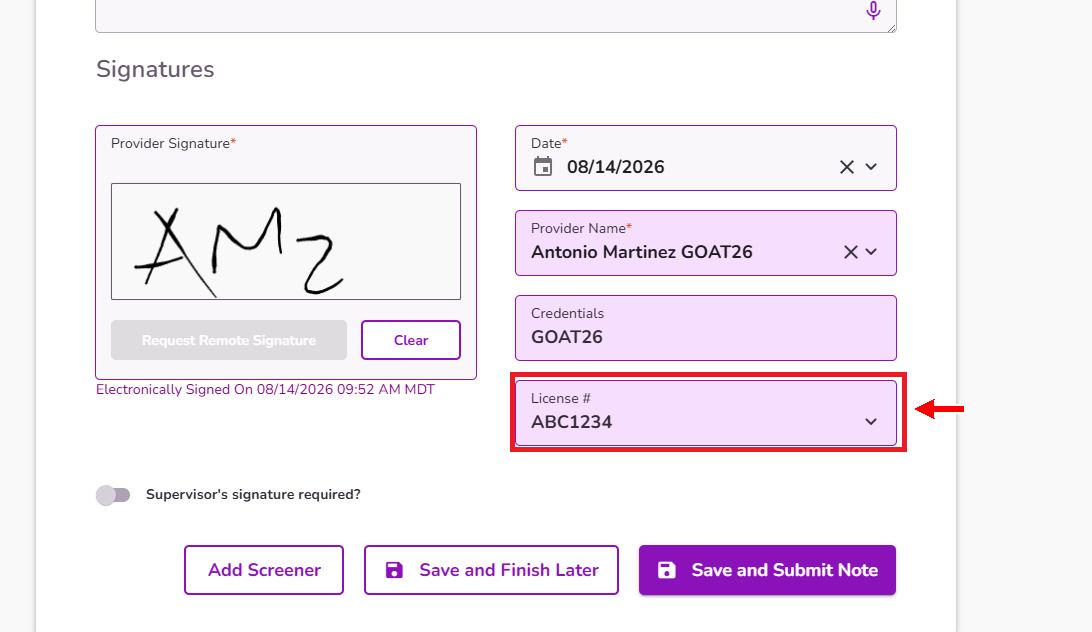
IMPORTANT: By default, TiQ will display the first license number added to your profile.
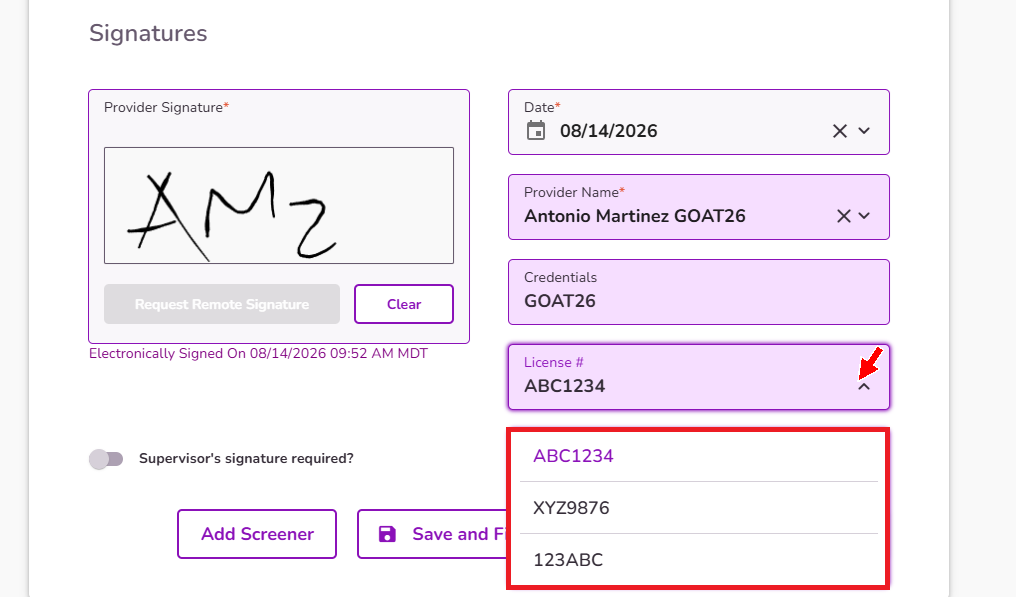
If you need to use a different license number on a document, you can select the appropriate license from the License # dropdown.
Make sure to save your changes.
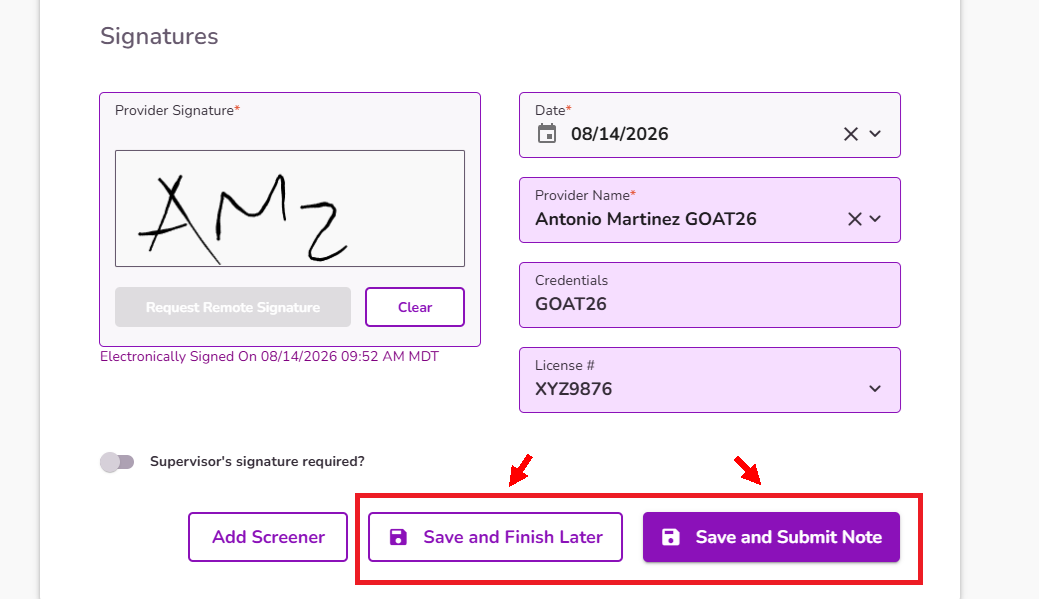
The selected License # will also appear on the PDF version of the document.