How to View Signature Timestamps on Billable Forms
When a Provider or Supervisor signs a billable form, TiQ now records exactly when the signature was applied and displays that timestamp on both the form and the generated PDF.
Where to find it
- Navigate to the Client Profile and open the Forms Library.
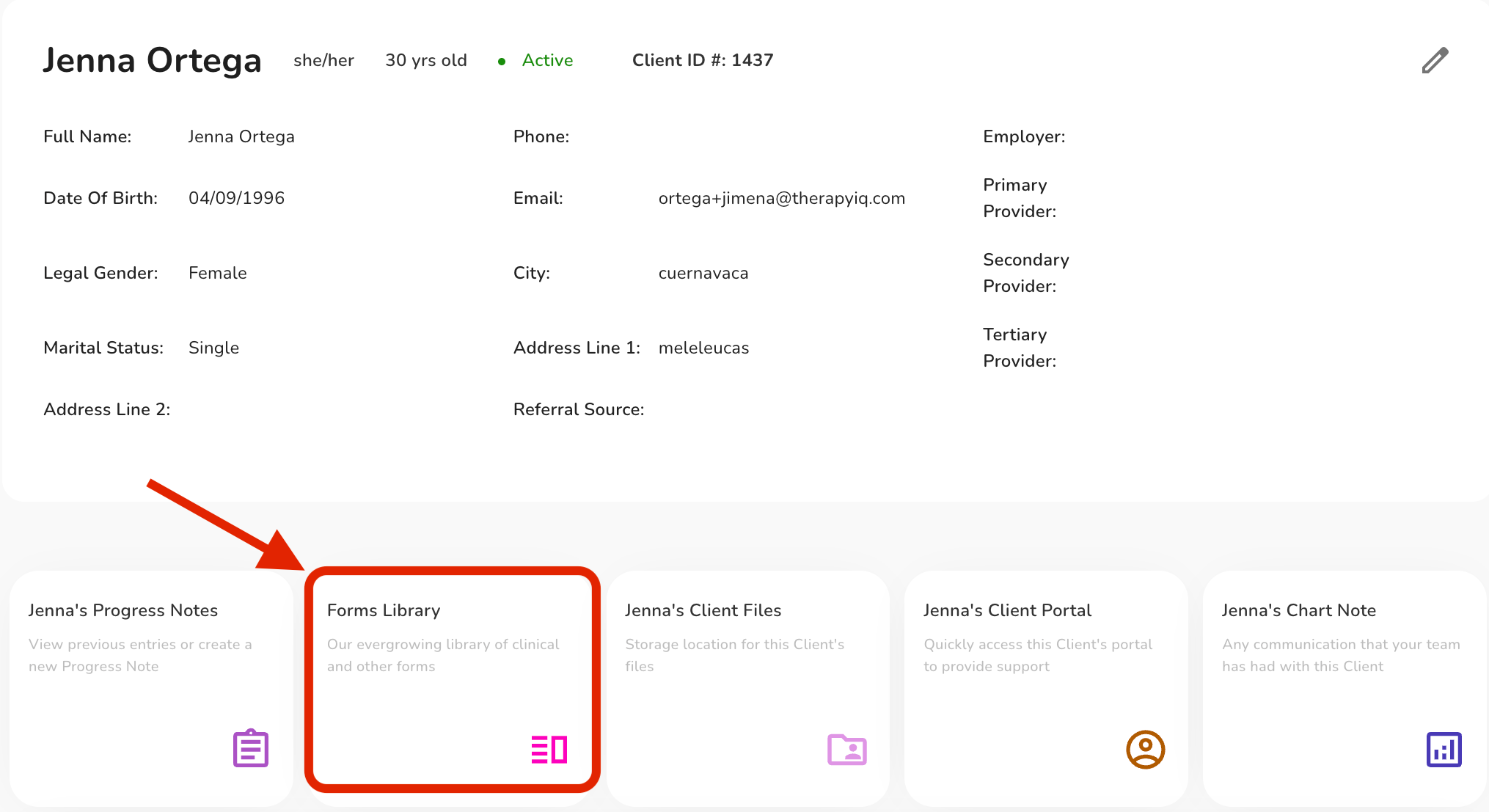
- Select and open the form you wish to complete or review (e.g., Progress Note, Individual Treatment Plan, or Biopsychosocial Assessment).
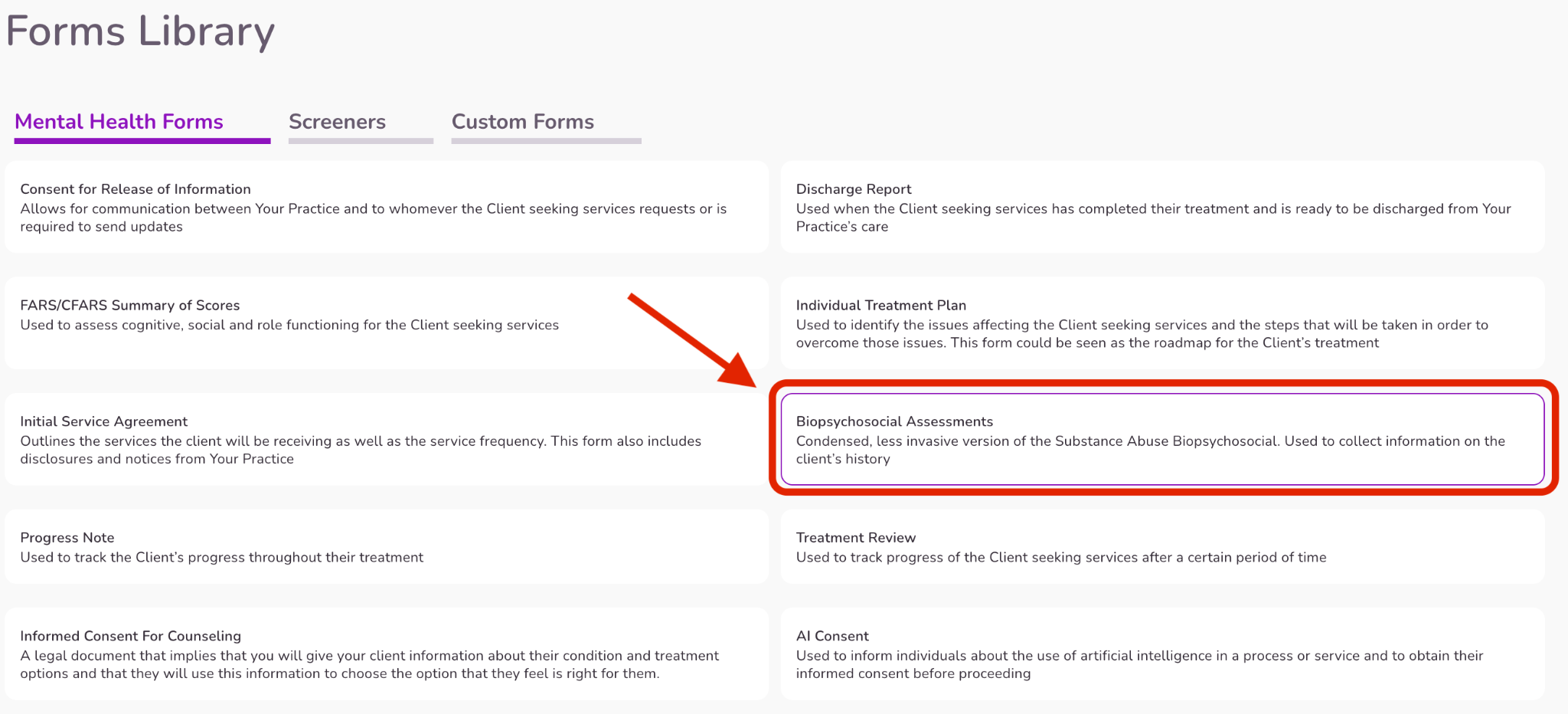
- Scroll to the signature sections at the bottom of the form.
- Sign in the Provider or Supervisor Signature fields as you normally would.
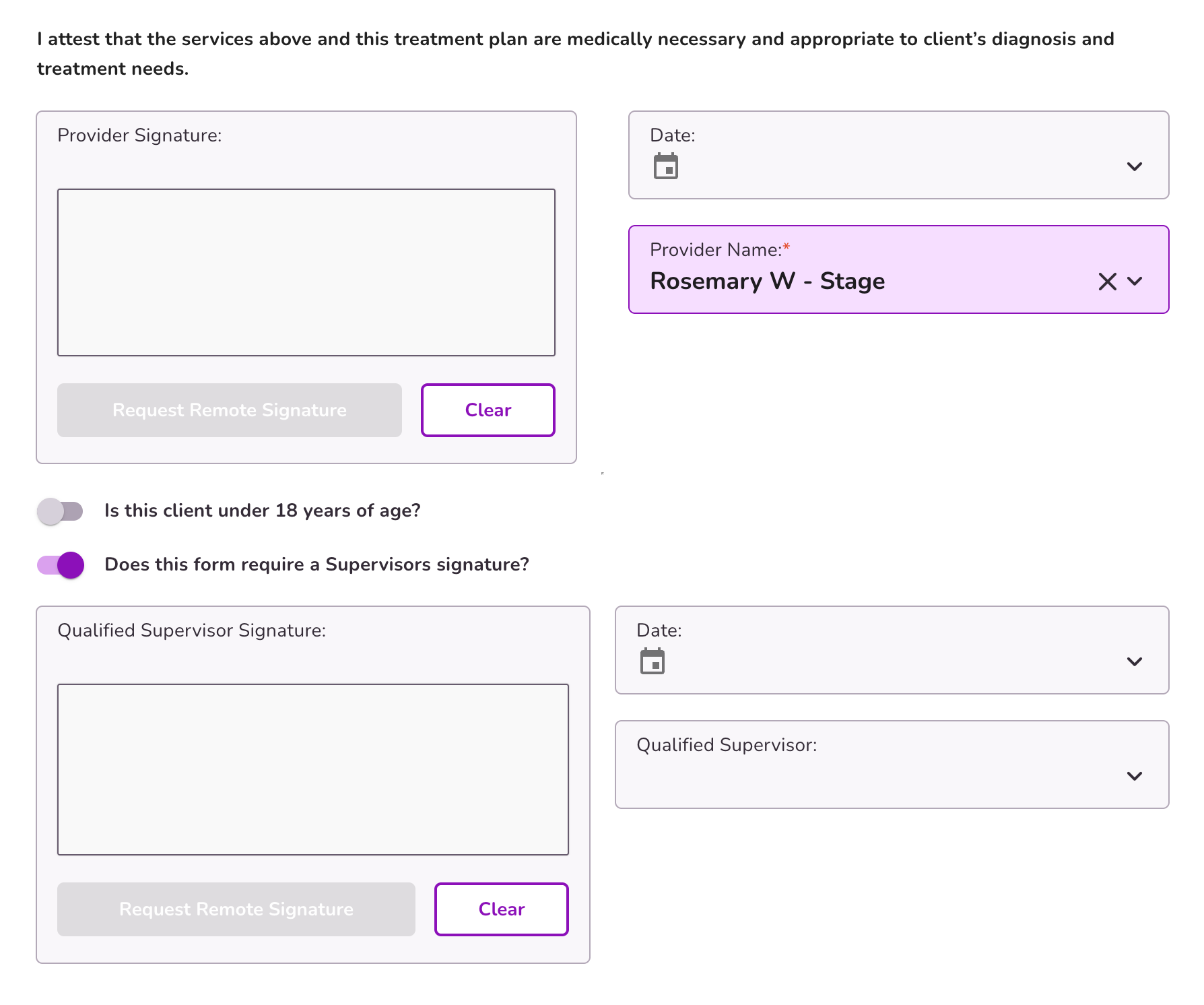
How Timestamps Display on Forms and PDFs
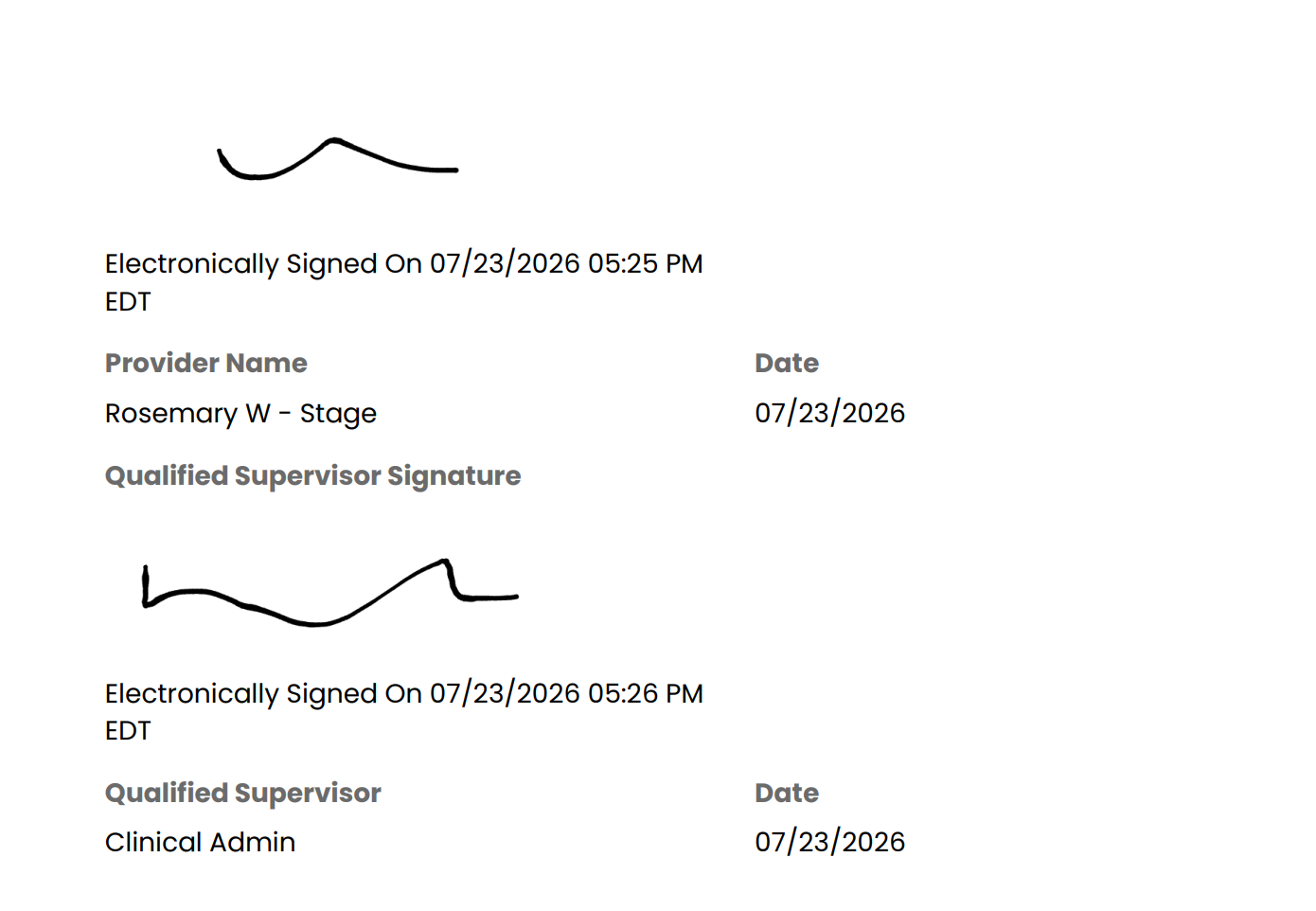
- As soon as a signature is applied, a timestamp will display immediately beneath the signature box: 'Electronically Signed On MM/DD/YYYY at 00:00 PM EST'
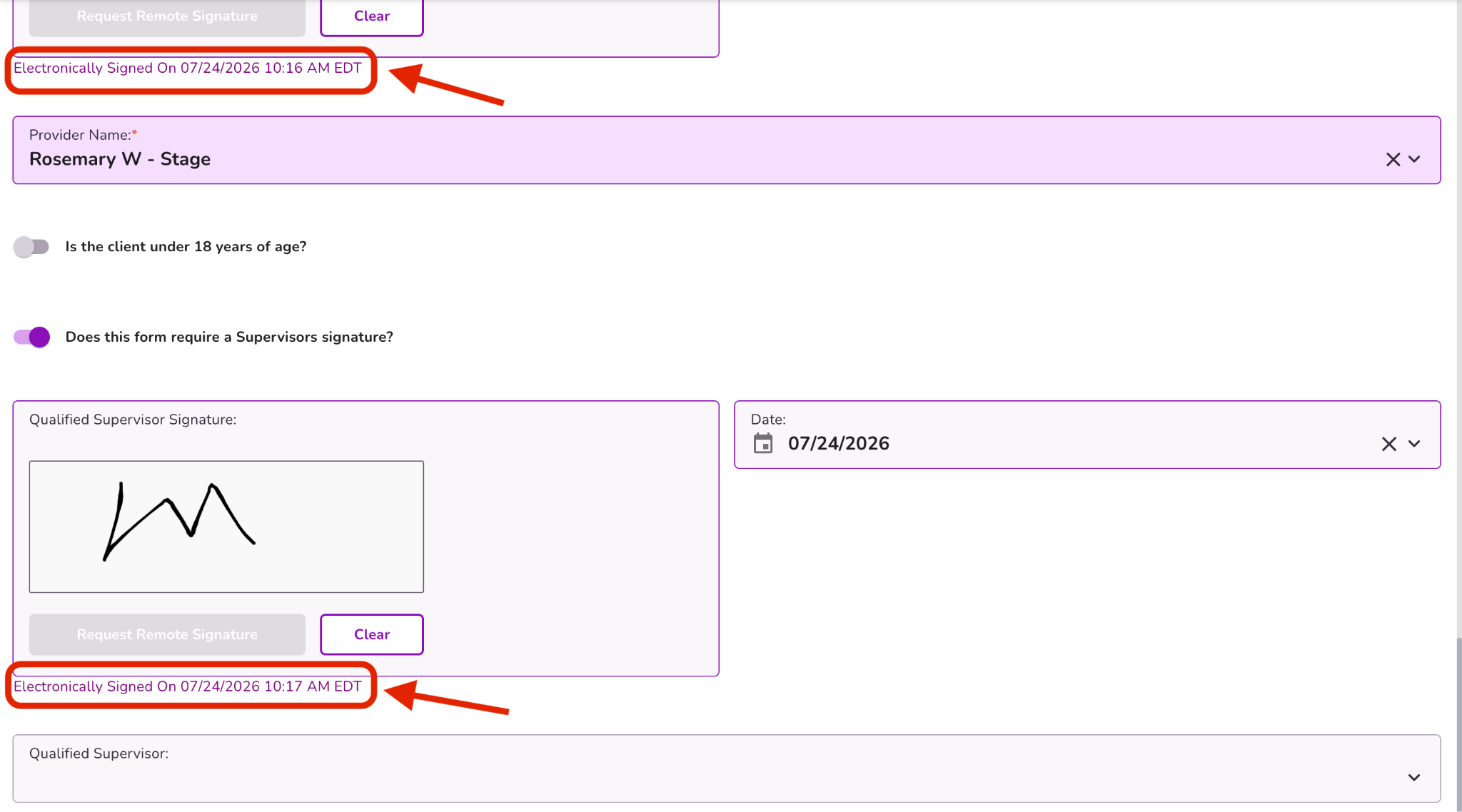
- Generated PDFs: When you view, download, or export the form as a PDF, the timestamp printed on the PDF will match the exact value displayed on the form.
Signature Modifications & Clearing
As soon as a signature is applied, an "Electronically Signed On MM/DD/YYYY at 00:00PM EST" label appears directly beneath that signature field.
- Applies to the Provider Signature field and the Supervisor Signature field.
- The label reflects the date and time the signature was most recently applied.
- The timestamp shown on the form will always match the timestamp printed on the generated PDF, so records stay consistent across both views.
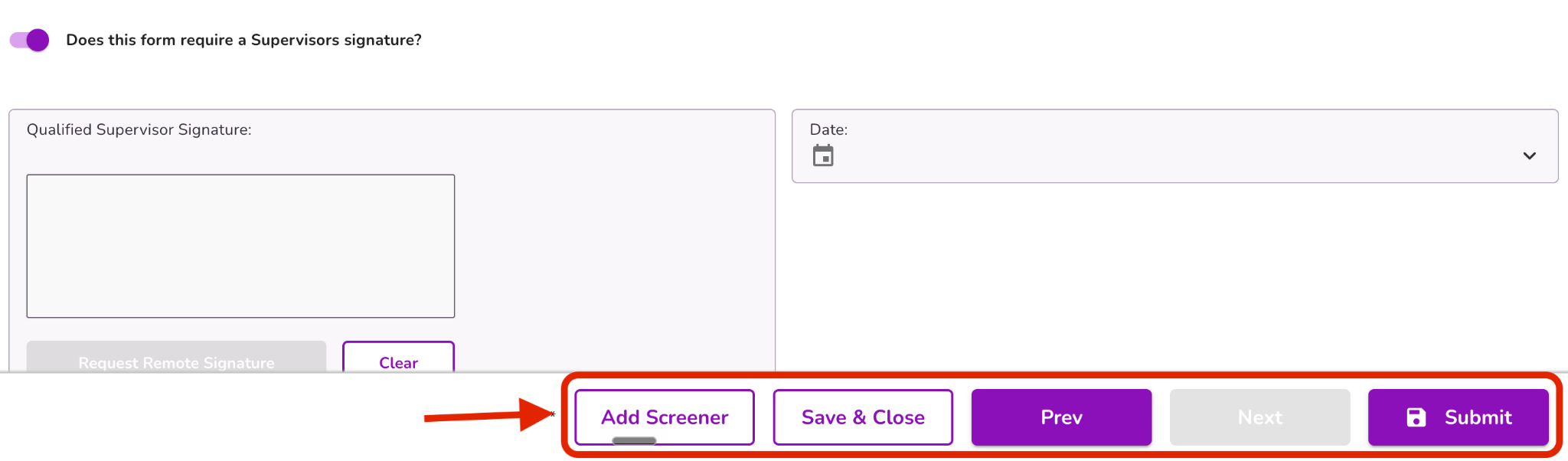
Once all required signatures and timestamps are in place, select Save & Close to save your progress, or Submit to finalize the form.
What Happens When Signatures Are Cleared and Reapplied
- Clearing a signature removes the signature, the associated date field, and the signature timestamp together.
- Re-signing the form generates a new timestamp reflecting the most recent signing time.
Time Zone Details
Important Note on Time Zones:
All signature timestamps are captured, stored, and displayed based on account time zone settings.


