How to Prompt Clients To Fill Insurance Information From The Portal
In TiQ, providers can prompt clients to enter their insurance information directly through the portal upon login and can also make this a required step to access the portal.
This guide will walk you through setting up this feature in your Practice and explain the available options:
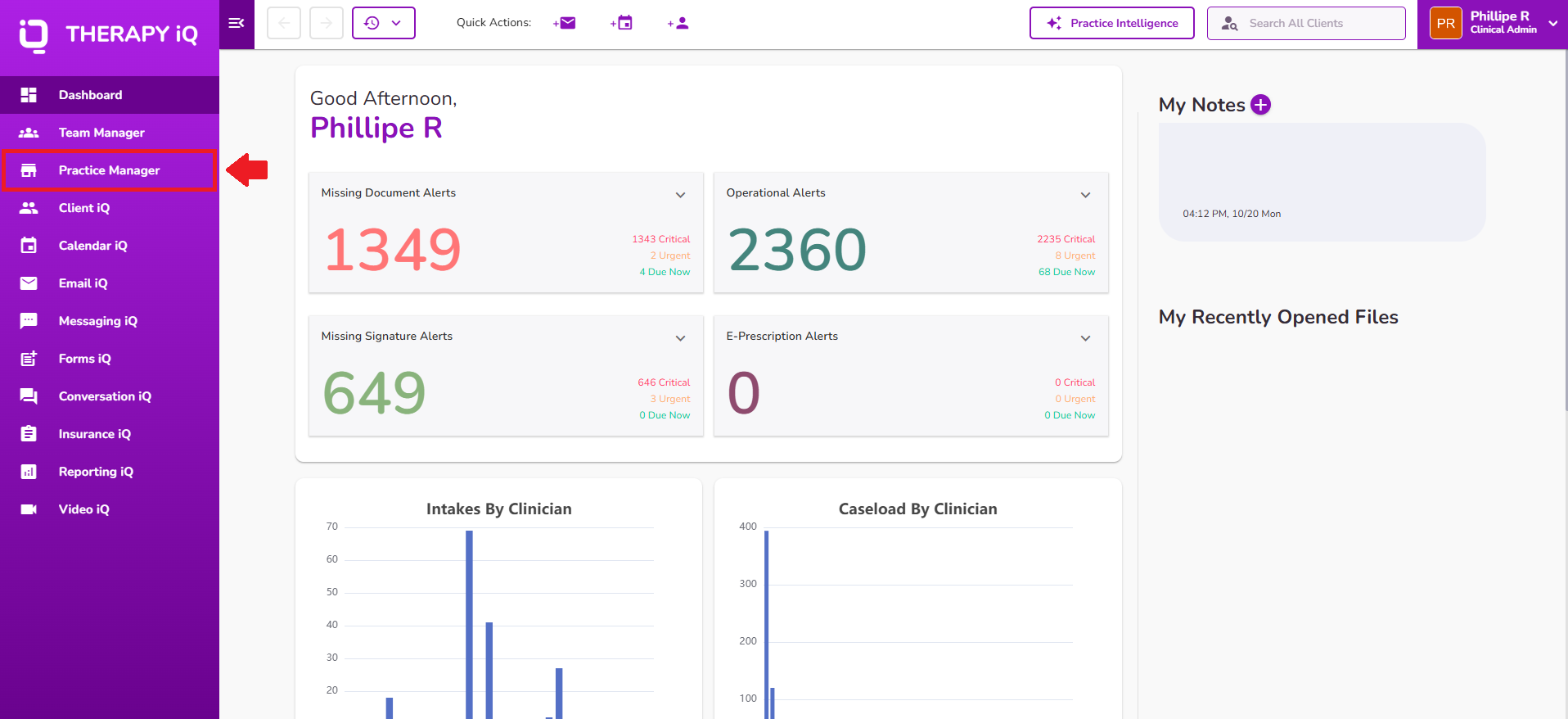
Select Practice Manager from the Navigation Bar.
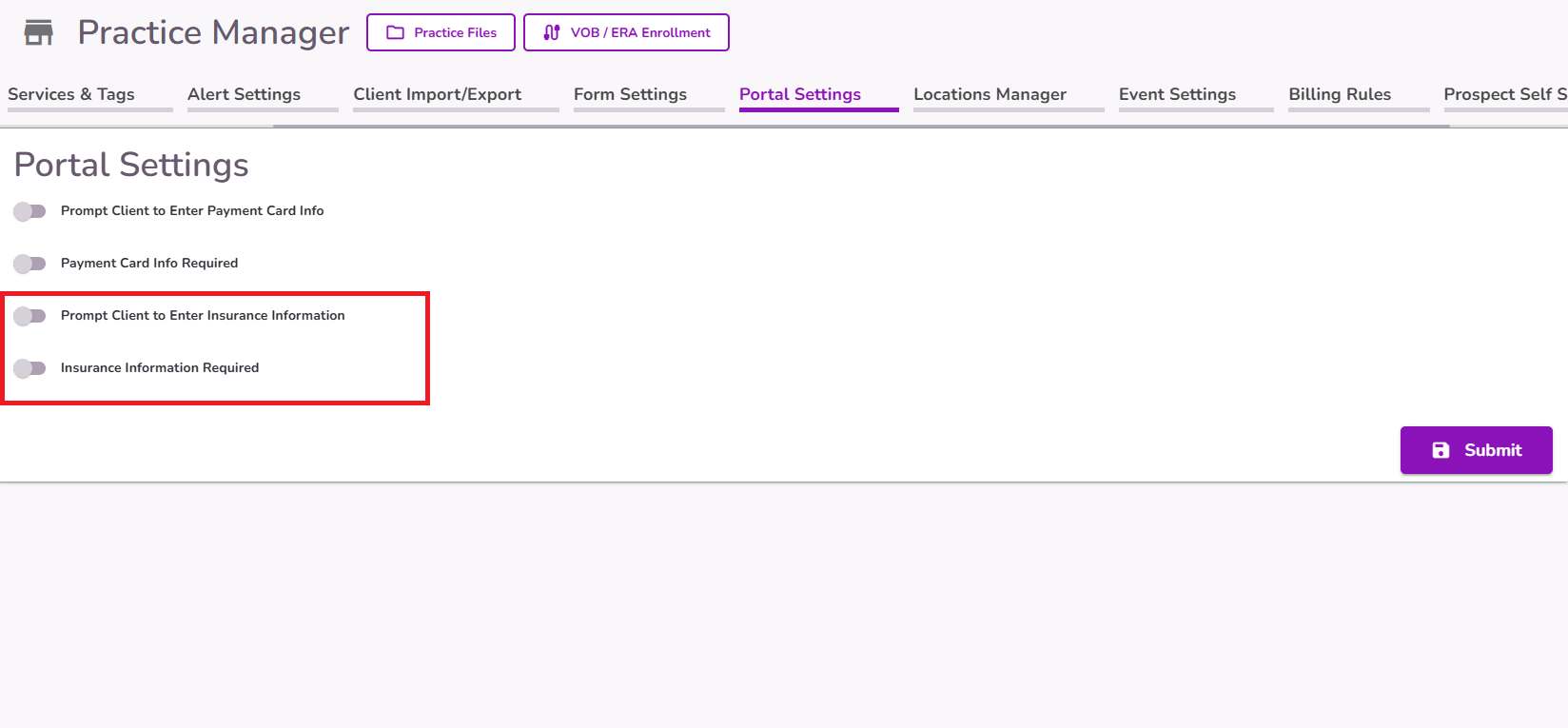
Navigate to the “Portal Settings” tab.
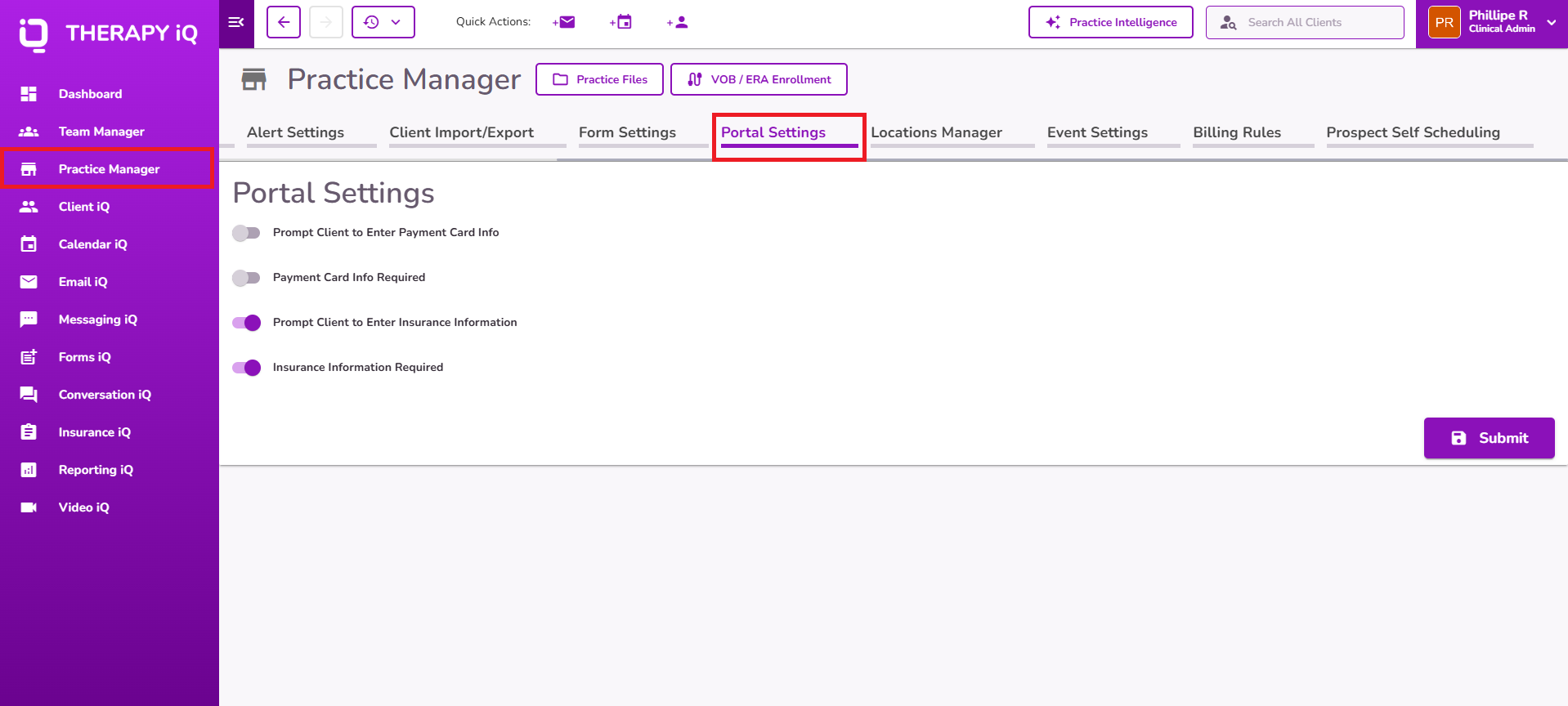
Here you will find different options to toggle based on your specific needs.
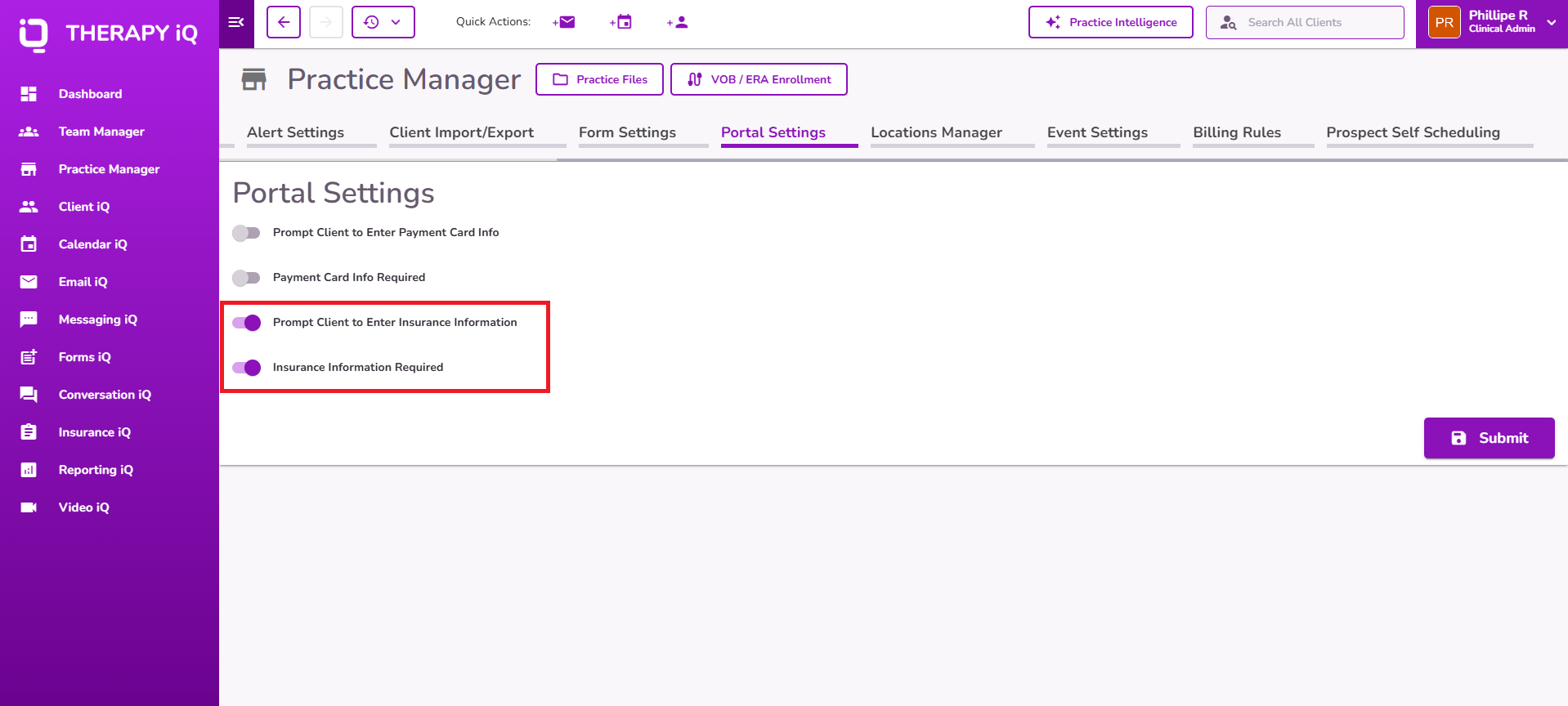
Prompt Client to Enter Insurance Information
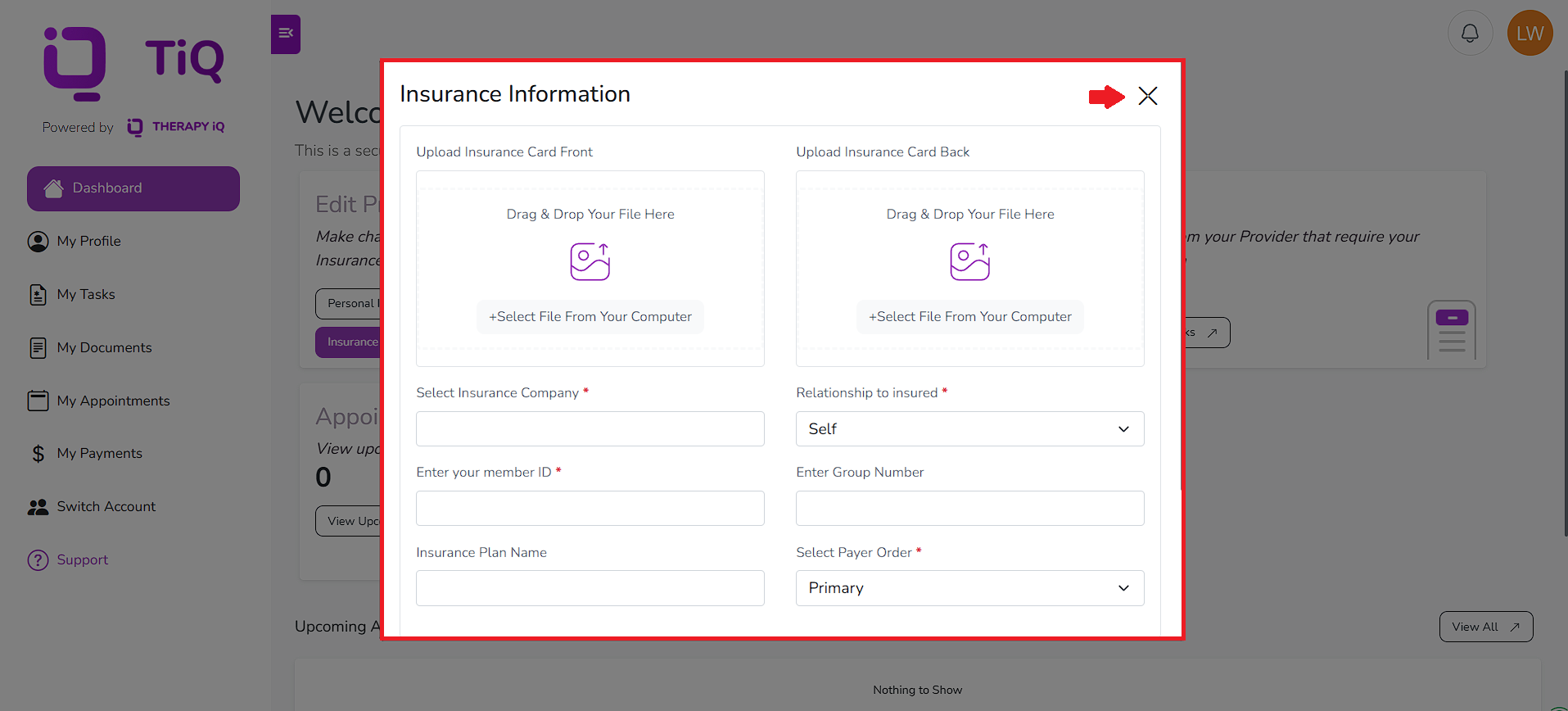
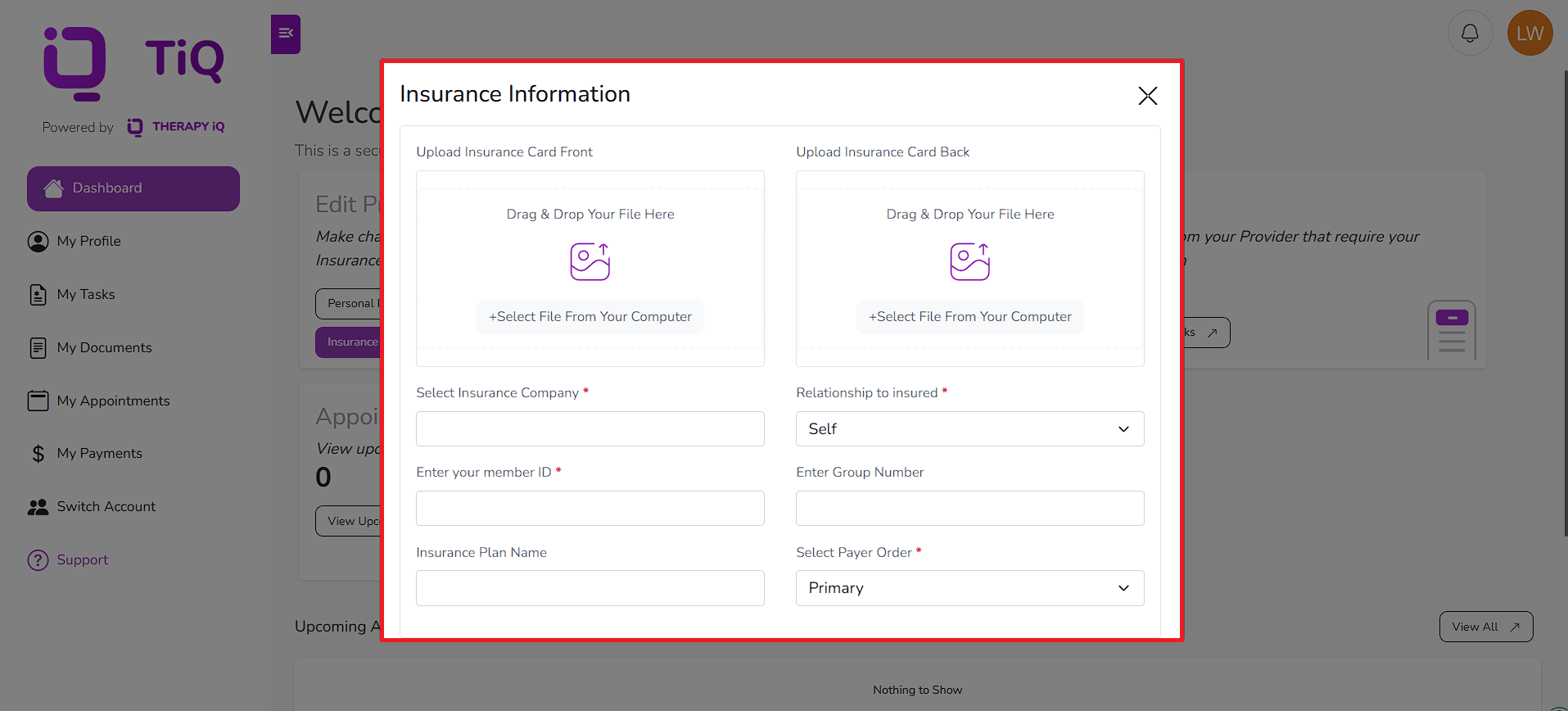
Enabling this toggle will generate an "Add insurance information" pop-up whenever a client logs into their portal, prompting them to enter their insurance informaiton.
Select Submit to save your changes.
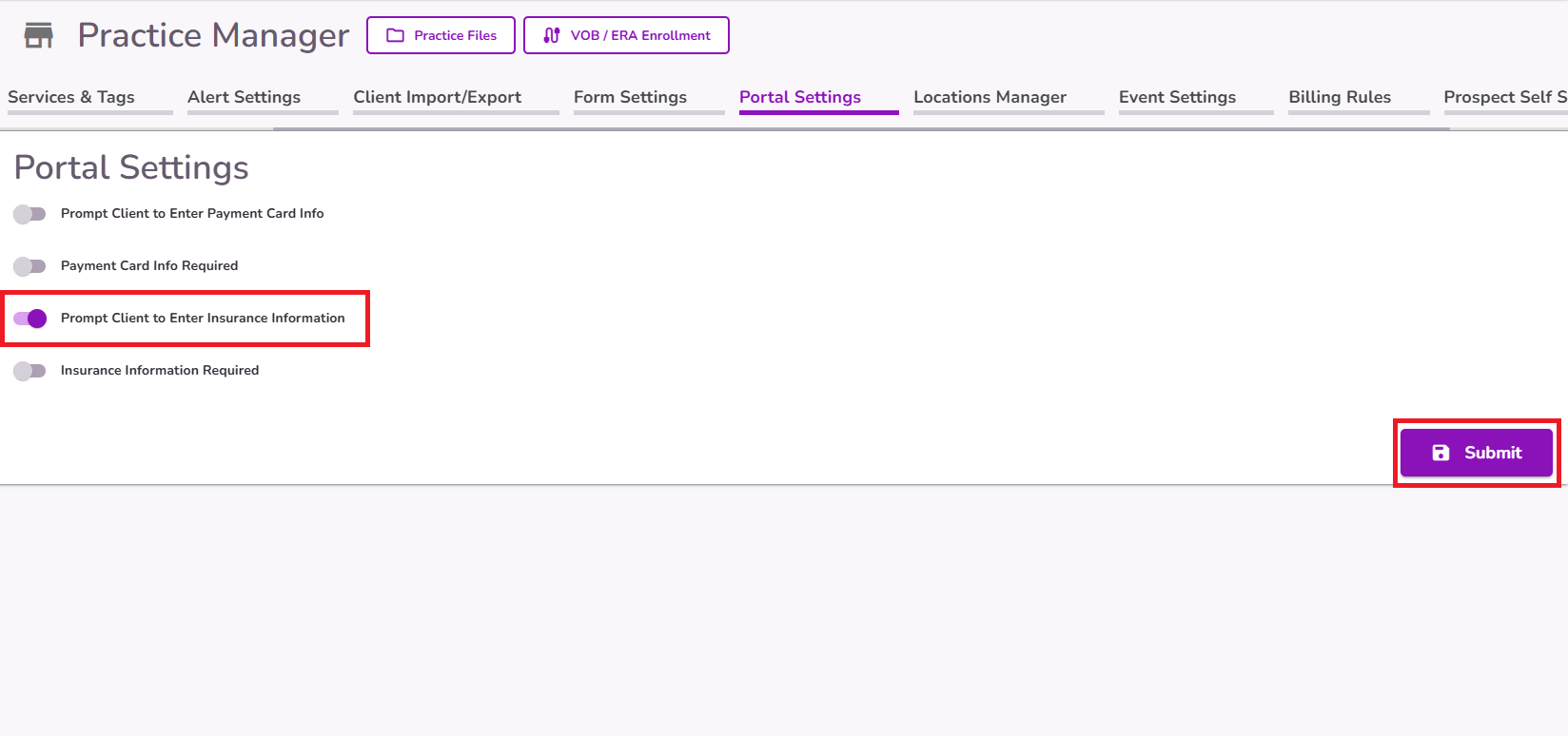
NOTE: This pop-up is optional, allowing clients to close it and continue accessing their portal as usual, with the option to add this information later.
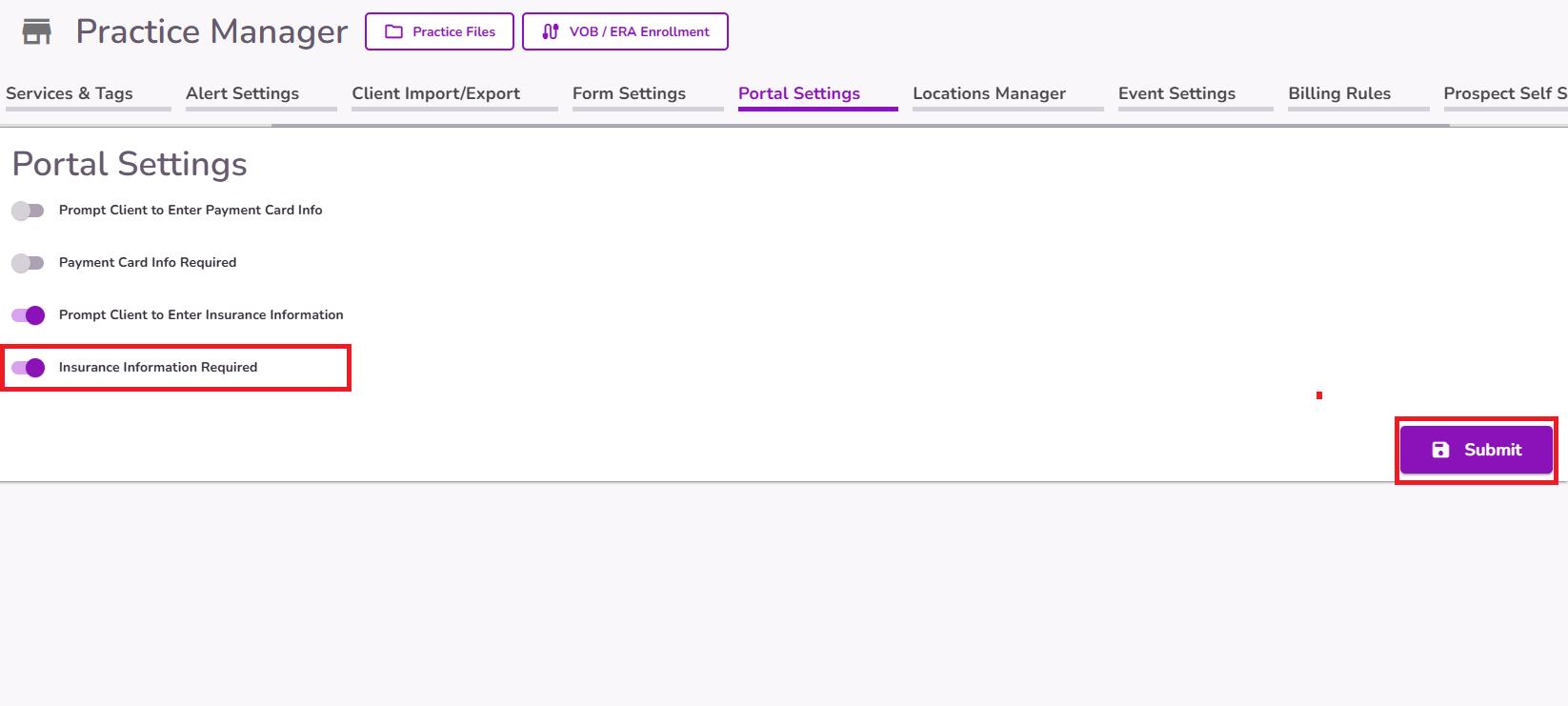
Insurance Information Required
Activating this toggle along with the Prompt Client to Enter Insurance Information makes the ‘Add Insurance Information’ pop-up mandatory. In this case, clients must enter their Insurance Information details to proceed further in the portal.
Select Submit to save your changes.
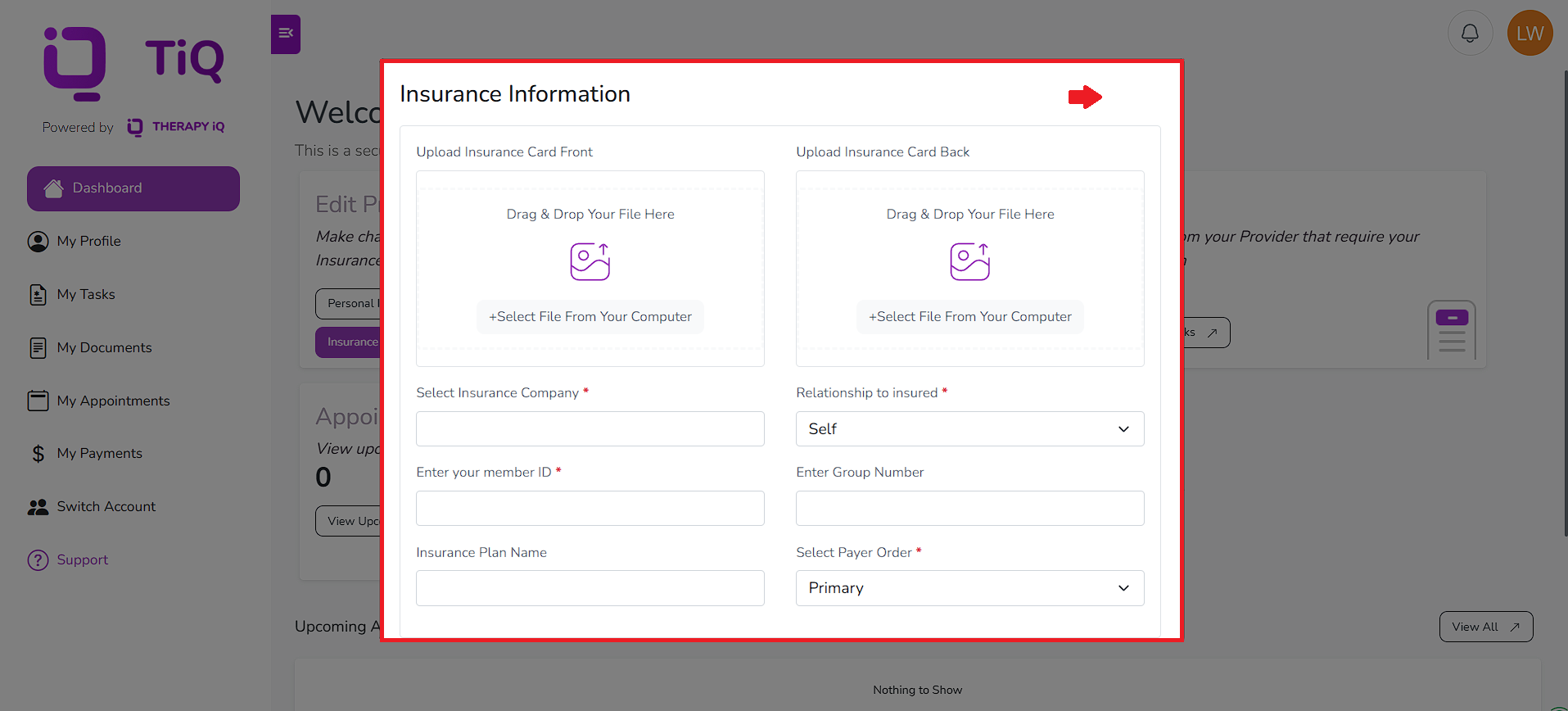
NOTE: This will be a required step for clients to proceed to their portal. They won’t be able to close the prompt, but they can choose to log out and complete the information later if needed.
Configuring the “Prompt Client to Enter Insurance Information” setting from the client’s profile:
When this toggle is enabled practice-wide from the Practice Manager, a “Prompt Client to Enter Insurance Info” toggle will become available within each client’s profile. This allows you to customize the setting at the client level.
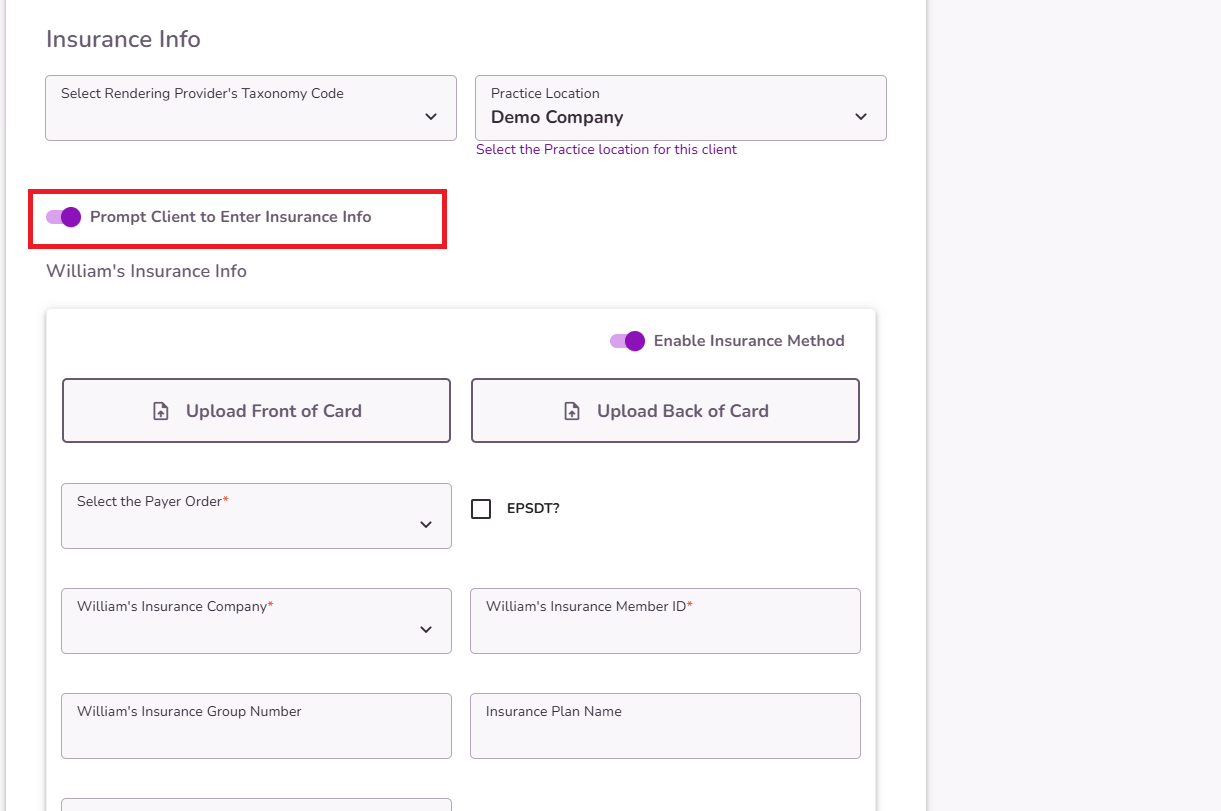
If the toggle is enabled in a client’s profile, they will be prompted to enter their insurance information. If it is disabled, the prompt will not appear, even if the setting is enabled practice-wide. This gives you flexibility to tailor the prompt based on each client’s specific process.
Disabling the "Prompt Client to Enter Insurance Information" Toggle
When this toggle is turned off, the pop-up is removed, and clients will no longer see it upon login.
NOTE: Having just the "Insurance Information Required" toggle active will not trigger the Add insurance pop up in the client’s portal.
Select Submit to save your changes.
Clients will be able to log in and access their portal as usual, with the ability to add their insurance information later.
IMPORTANT: When the client updates their insurance information from the portal, this creates a new record in the client's timeline.
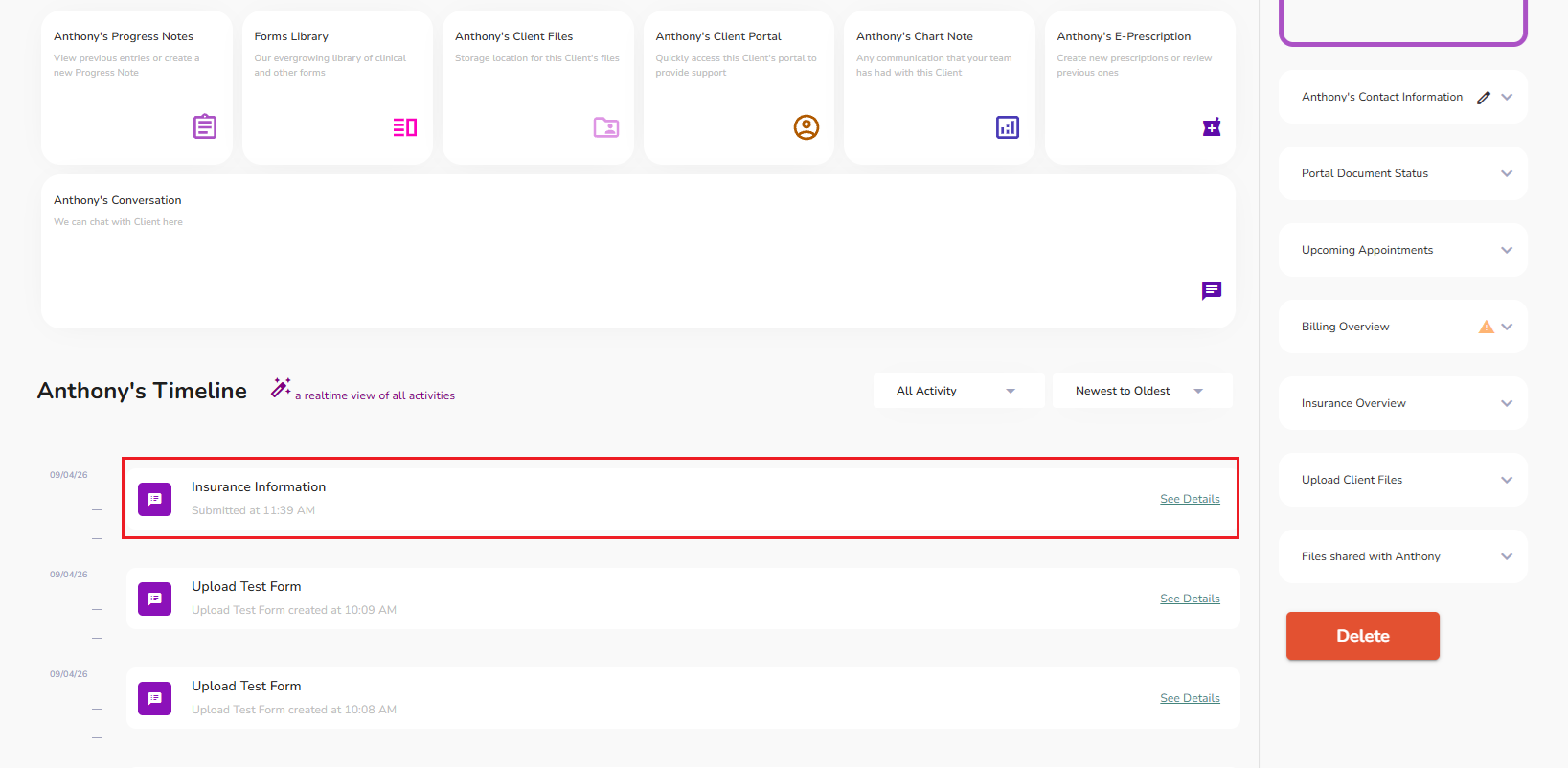
NOTE: While clients can add and update their insurance information through their portal, only a provider can delete this information from the provider's end.


